Admin
Charge Card Autopay
Autopay lets Topkey automatically repay your Charge Card balance on each statement due date, eliminating the need to manually initiate a payment every month. Once configured, autopay runs in the background so your account stays current without any action required from you.
What Is the Topkey Charge Card?
The Topkey Charge Card is a Visa credit card issued through Unit.co that operates on a monthly billing cycle. Charges accumulate throughout the month and a statement is generated when the billing period closes. The full balance is due at the end of each statement period — autopay ensures that payment is made on time without manual intervention.
Getting to Autopay Settings
You can reach the autopay configuration screen two ways:
- Navigate to Charge Card in the left sidebar, then select the Autopay tab.
- Go to Settings → Charge Card → Autopay.
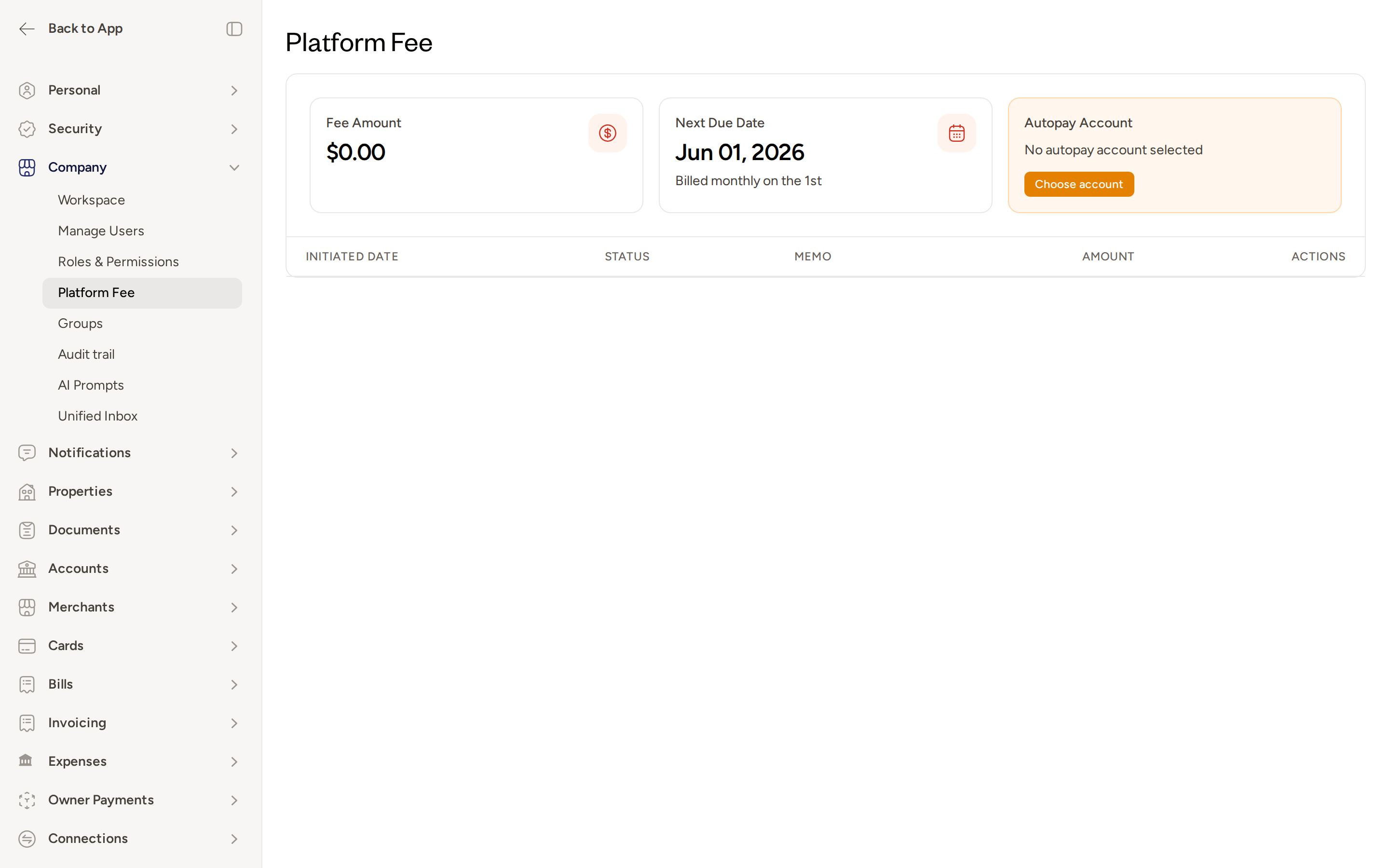
Autopay Payment Options
When configuring autopay, choose the payment amount that best fits your cash flow:
- Full balance — pays the entire statement balance automatically on the due date. This is the recommended option because it avoids interest charges and keeps your books clean with no revolving balance to track.
- Minimum payment — pays only the minimum required amount. Use this option if you want to preserve cash in the short term while still avoiding late fees.
- Custom amount — pays a fixed dollar amount each month regardless of the statement balance. Choose this if you prefer predictable, scheduled payments.
All autopay payments are drawn from your connected Topkey Deposit Account — the same account that receives funds and pays other bills in Topkey.
Selecting a Billing Cycle
In addition to choosing a payment amount, you must select a billing cycle that determines when autopay payments are triggered each month. Available billing cycle options are set at the account level. Choose the cycle that aligns with your statement close date and cash flow timing.
Autopay triggers on the statement due date, not the statement close date. The close date is when your statement is generated; the due date is when payment is collected.
Enabling Autopay
Follow these steps to set up autopay for your Charge Card:
- Navigate to Charge Card in the left sidebar or go to Settings → Charge Card → Autopay.
- In the Autopay Account panel, select Choose account to pick your Topkey Deposit Account as the payment source.
- Select your preferred payment amount option: Full balance, Minimum payment, or Custom amount.
- Select your preferred billing cycle.
- Review your selections and confirm the terms.
- Select Save to activate autopay.
Autopay takes effect starting with your next statement. Statements already past their due date are not affected retroactively.
Use Full balance autopay to keep your accounting clean. No revolving balance means no interest to track in your books each month.
Understanding Your Statement Cycle
- Statements close on the same calendar day each month.
- Autopay is triggered on the statement due date, not the close date.
- You can view past statements and download a PDF copy of any individual statement from the Payments history page within the Charge Card section.
Making Manual Payments
Even with autopay enabled, you can make a manual early payment at any time from the Charge Card page. A manual payment reduces the outstanding balance, so when autopay runs on the due date it will only collect whatever amount remains — or nothing at all if you've already paid in full.
To view all pending and completed repayments — both manual and automatic — go to Charge Card → Payments. This page shows a full history with the initiated date, status, memo, and amount for every repayment.
If Autopay Fails
If an autopay attempt fails due to insufficient funds in your Deposit Account, Topkey will notify the account admin by email. To resolve a failed autopay:
- Ensure your Topkey Deposit Account has sufficient funds to cover the balance owed.
- Go to Charge Card → Payments and initiate a manual payment before the grace period expires to avoid late fees.
If autopay fails and you do not manually pay before the grace period ends, late fees may apply to your account. Check the Payments page promptly after receiving a failure notification.
Disabling Autopay
To turn off autopay, return to Settings → Charge Card → Autopay and remove the linked autopay account. Once removed, no automatic payments will be initiated for future statements. You will be responsible for manually initiating repayments each month.
Frequently Asked Questions
Can I change my autopay amount or billing cycle after I've already set it up? Yes. Return to Settings → Charge Card → Autopay, update your payment option or billing cycle selection, and save your changes. The updated settings take effect starting with the next statement cycle.
Will a manual payment cancel my autopay for that month? No. Autopay will still run on the due date, but it will only collect the remaining balance after your manual payment is applied. If your manual payment covers the full balance, autopay will collect nothing.
Where can I find a copy of a past statement? Go to Charge Card → Payments and locate the statement period you need. Select the download option to save a PDF copy of that statement to your device.
Questions about autopay or your Charge Card? Contact Support.