Inventory
Warehouse Locations
Warehouse locations represent the physical places where you store bulk inventory — such as a supply warehouse or a storage unit — before items are picked up and delivered to properties. Topkey tracks stock quantities separately for each location, giving you a clear picture of what's on hand and where.
The Locations Overview
The Locations page displays all of your active warehouses and storage units as cards, arranged under the Warehouses & Storage section. The total number of warehouses is shown just below the page heading.
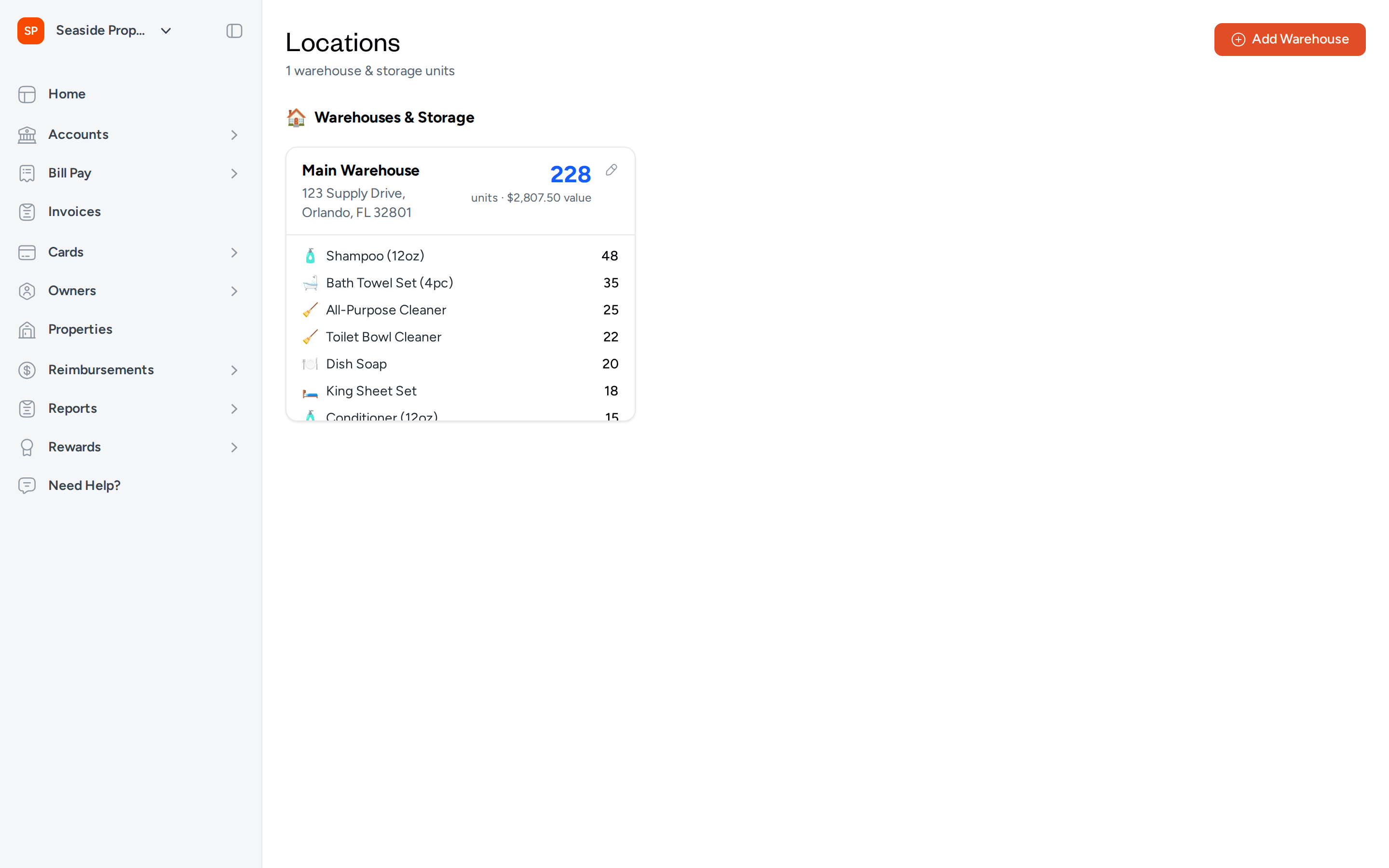
Each location card shows:
- Location name and address
- Total units in stock (displayed prominently in blue)
- Total inventory value of all items at that location
- A list of all stocked items with their individual quantities, sorted from highest to lowest
The inventory value displayed on each card reflects the unit cost of each item multiplied by its quantity at that location. If an item does not have a unit cost set, it is excluded from the value calculation.
Adding a New Location
Use Add Warehouse to create a new warehouse or storage location.
- Select Add Warehouse in the top-right corner of the Locations page.
- An inline form appears at the top of the page.
- Enter a Location Name — for example, "North Storage Unit". This field is required.
- Optionally, enter a street Address for the location.
- Select Add Location to save.
The new location card appears immediately on the page once saved.
Use a descriptive name that clearly identifies the physical site, especially if you manage inventory across multiple locations.
Editing a Location
You can update the name or address of any existing location at any time.
- Find the location card you want to update.
- Select the edit icon (pencil) in the top-right corner of the card.
- A side panel opens with the Warehouse Name and Address fields.
- Make your changes and select Save Changes.
- Select Cancel to close without saving.
How Locations Relate to Stock Levels
Each catalog item has a separate stock quantity for every location. For example, if you stock Shampoo (12oz) at two warehouses, Topkey tracks the quantity at each warehouse independently. This means:
- Receiving inventory into one location only increases stock at that location.
- Checking out inventory from a location only reduces stock at that location.
- The total units shown on a location card reflect the combined quantity of all items stored there.
You can view per-location quantities for any item on the Stock Levels page.
How Locations Are Used in Receivings and Checkouts
Whenever you record incoming or outgoing inventory, you select the relevant location:
- Receivings — When logging a new shipment or supply order, you choose which location the stock is going into. The quantity is added to that location's stock levels.
- Checkouts — When field staff pick up supplies for a property, you specify which location the items are coming from. The quantity is deducted from that location's stock levels.
If you do not have any locations set up, you will not be able to complete a receiving or checkout. Add at least one warehouse before recording inventory transactions.
Frequently Asked Questions
Can I have inventory items stored at more than one location at the same time? Yes. Each item can have stock at multiple locations simultaneously. Topkey tracks the quantity at each location separately, so your totals always reflect exactly where items are physically stored.
What happens to the stock data if I edit a location's name or address? Editing a location's name or address does not affect any stock levels or historical transactions. All existing inventory quantities and records remain associated with that location.
Can I delete a warehouse location I no longer use? The Locations page only displays active locations. If you need to remove a location, Contact Support for assistance.