Bill Pay
Vendor Portal
The Vendor Portal gives your vendors a dedicated self-service interface to submit invoices, view bill statuses, and update their payment information — without requiring you to act as the go-between. Once a vendor accepts their invitation, they can log into Topkey and interact directly with their own billing data in your account.
Inviting a Vendor to the Portal
Before a vendor can access the portal, they need a contact record on their vendor profile that includes an email address. You then send an invitation from that contact record.
Step 1: Add a Contact to the Vendor
- Navigate to Bill Pay → Vendors and open the vendor's profile.
- Select the Contacts tab.
- Click Add Contact and enter the contact's first name, last name, and email address.
- Click Save to create the contact.
A vendor contact must have a valid email address before you can send a portal invitation. Phone number is optional.
Step 2: Send the Invitation
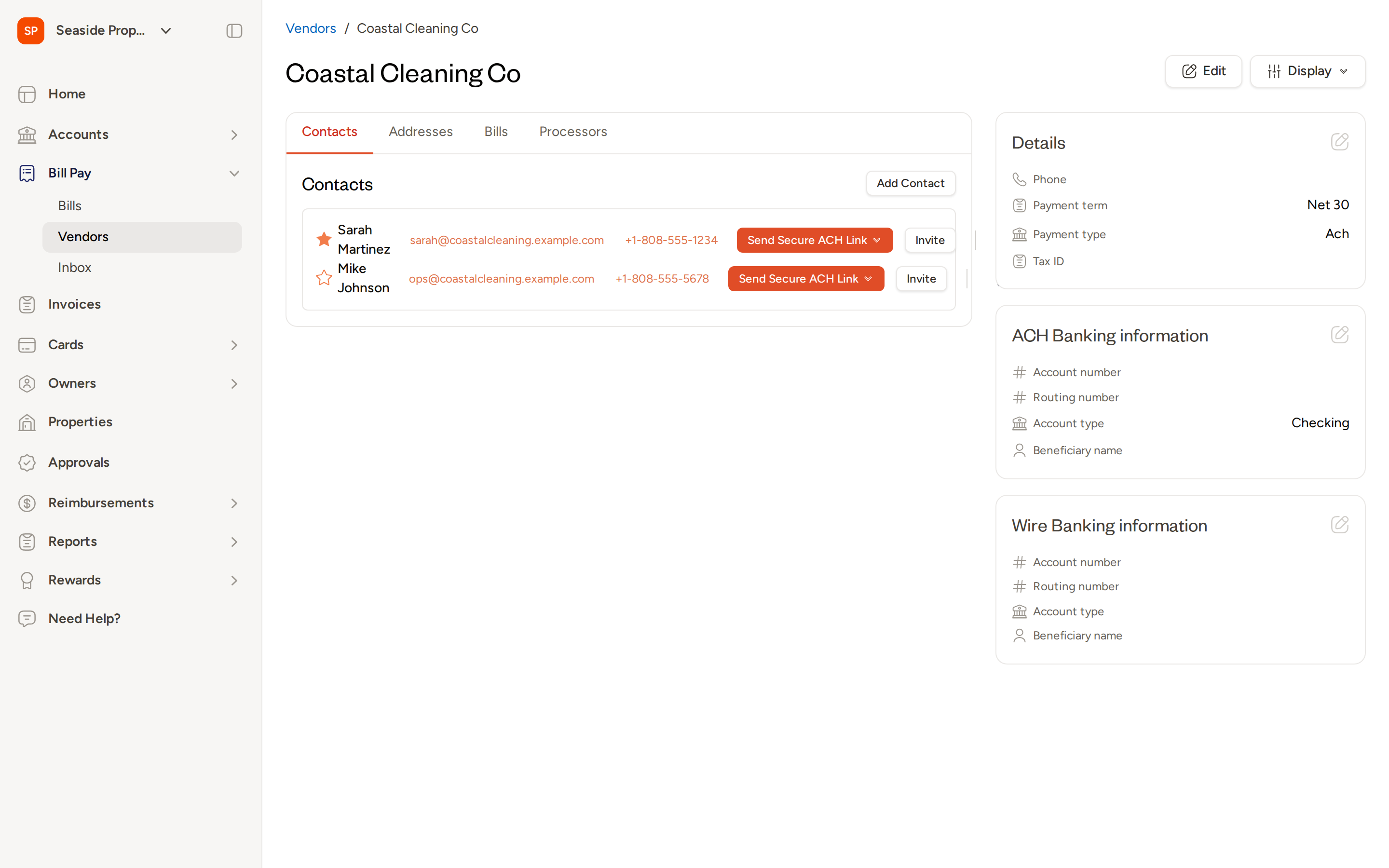
Once the contact has been saved, an Invite button appears next to their name in the Contacts tab.
- Locate the contact you want to invite in the vendor's Contacts tab.
- Click Invite next to their name.
- Topkey sends an invitation email to the contact's address.
The vendor receives an email prompting them to create a Topkey account. Once they complete signup, their account is linked to your organization and they can access the portal.
The Invite button only appears for contacts who have not yet accepted a portal invitation. If the button is absent, that contact already has portal access.
What Vendors Can Do in the Portal
Once a vendor has accepted their invitation and logged in, they have access to a focused view of their own billing activity within your account. Vendors cannot see any other vendors, properties, or financial data outside their own records.
Vendors can:
- View their bills — See all bills associated with their vendor profile, including current status (draft, pending approval, paid, etc.)
- Track payment history — Review past payments and see when funds were issued
- Upload invoices — Submit invoice files directly through the portal; each upload creates a new bill in your Draft tab for your team to review
- Update ACH banking information — Enter or update their bank account details for ACH payments
Invoices uploaded by a vendor through the portal appear in your Bill Pay → Bills list under the Draft tab. Your team reviews and approves them before any payment is made.
Managing Vendor Access
Viewing Vendor Portal Users
You can see which vendor contacts have active portal access from your account settings.
- Navigate to Settings → Members (or your account's user management area).
- Look for users with a vendor role associated with your account.
Revoking Access
If you need to remove a vendor's portal access:
- Open the vendor's profile under Bill Pay → Vendors.
- Go to the Contacts tab and locate the contact whose access you want to remove.
- Use the Edit option on the contact, or navigate to the user's account record in Settings to remove them as a member.
If a contact has been converted to a portal user, you must remove them as a member from your account settings before you can delete their contact record. Topkey will redirect you to the member settings page if you attempt to delete the contact directly.
Security Considerations
The Vendor Portal is designed so that vendors only ever see their own data. Key security behaviors include:
- Isolated data access — Each vendor user sees only the bills and payment history associated with their own vendor profile. No cross-vendor data is accessible.
- Secure ACH links — When you or a vendor updates ACH banking information via a secure link, that link uses a unique token that expires after use, preventing unauthorized access.
- Activity logging — Vendor actions in the portal — including invoice uploads and contact updates — are recorded in the activity trail, giving you a full audit record.
You can also send a vendor a Send Secure ACH Link directly from the Contacts tab (via email or SMS) to request that they submit their banking details securely, without needing to grant full portal access.
Frequently Asked Questions
Can a vendor see bills from other property managers who also use Topkey? No. Vendor portal access is scoped entirely to your account. A vendor linked to your organization can only see bills and payment data associated with your account, even if they have portal access with another Topkey customer.
What happens after a vendor uploads an invoice through the portal? The uploaded invoice is processed and a new bill is created in your Draft tab in Bill Pay. Your team must review, edit if needed, and submit the bill before it moves through your approval workflow. No payment is initiated automatically.
Can I invite multiple contacts from the same vendor to the portal? Yes. Each contact on a vendor's profile can be invited independently, and each will have their own Topkey login. All invited contacts from the same vendor will see the same bill and payment history for that vendor.
For additional help, Contact Support.