Admin
Notification Settings & Reminders
Topkey gives account admins two tools to keep your team informed and on track: Notification Routes, which control who receives alerts for specific events, and Reminders, which automatically follow up with cardholders when transactions remain incomplete. Both are found under Settings → Notifications in the sidebar.
Notification Routes
Notification routes map specific events — such as a card being created or a payment being sent — to the people who should be alerted when that event occurs. Navigate to Settings → Notifications → Routing to manage your routes.
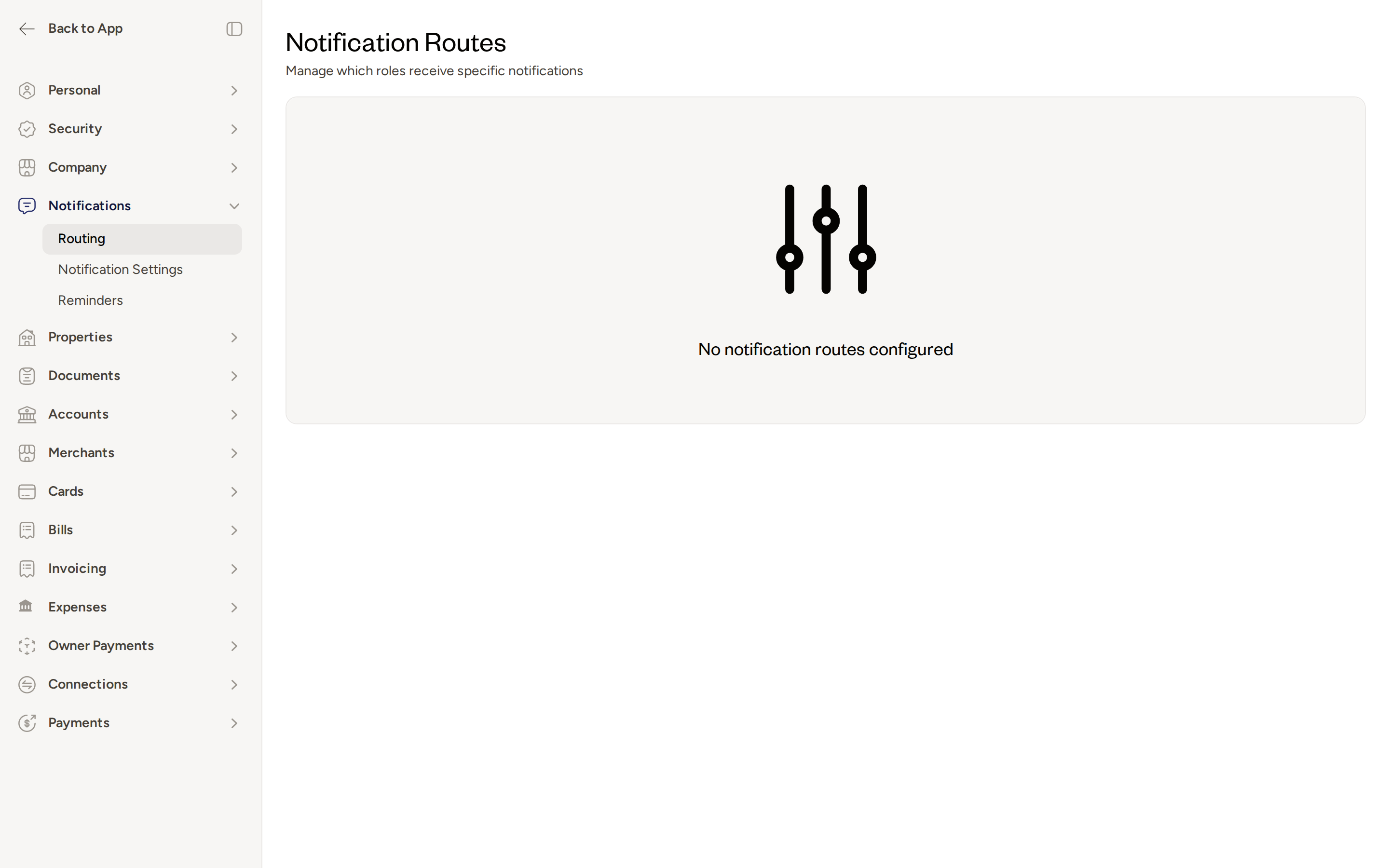
What notification routes cover
Each route connects one event type to one or more delivery targets. The events that can be routed include:
- Cards: Physical card created, virtual card created
- Payments: ACH payment sent, ACH payment received, ACH payment failure, card payment initiated, card payment confirmed, payment failed
- Invoices: Invoice payment received, invoice payment failed
- Bill Pay: Vendor ACH info completed
- Accounts: Credit threshold alert
- Check Deposits: Deposit failed
- Owner Statements: Statement submitted for review
- Owners: Owner ACH info completed
- Transfers: Transfer failure
Delivery channels
Each route can deliver notifications through one or more of the following channels:
- In-app — a notification appears inside Topkey
- Email — an email is sent to the target recipient(s)
- Slack — a message is posted to a configured Slack channel (available if your account has Slack connected)
Who receives notifications
Each route is targeted at one or more recipients. Targets can be:
- All admins on the account
- All cardholders
- Specific named users
Enabling and disabling routes
Each notification route has an enable/disable toggle. Disabling a route silences it without removing it — useful when you want to temporarily pause a notification without losing its configuration.
Editing an existing route
To change the delivery channel or recipients for a route:
- Go to Settings → Notifications → Routing.
- Locate the route you want to update and click Edit.
- Update the delivery channel(s) and/or target recipients as needed.
- Click Save to apply your changes.
Notification routes are pre-configured by Topkey for your account. You can enable or disable any route and edit its targets and delivery channels, but you cannot add new routes or remove existing ones.
Reminders
Reminders automatically send follow-up messages to cardholders and account managers when transactions remain incomplete after a set period. Navigate to Settings → Notifications → Reminders to configure them.
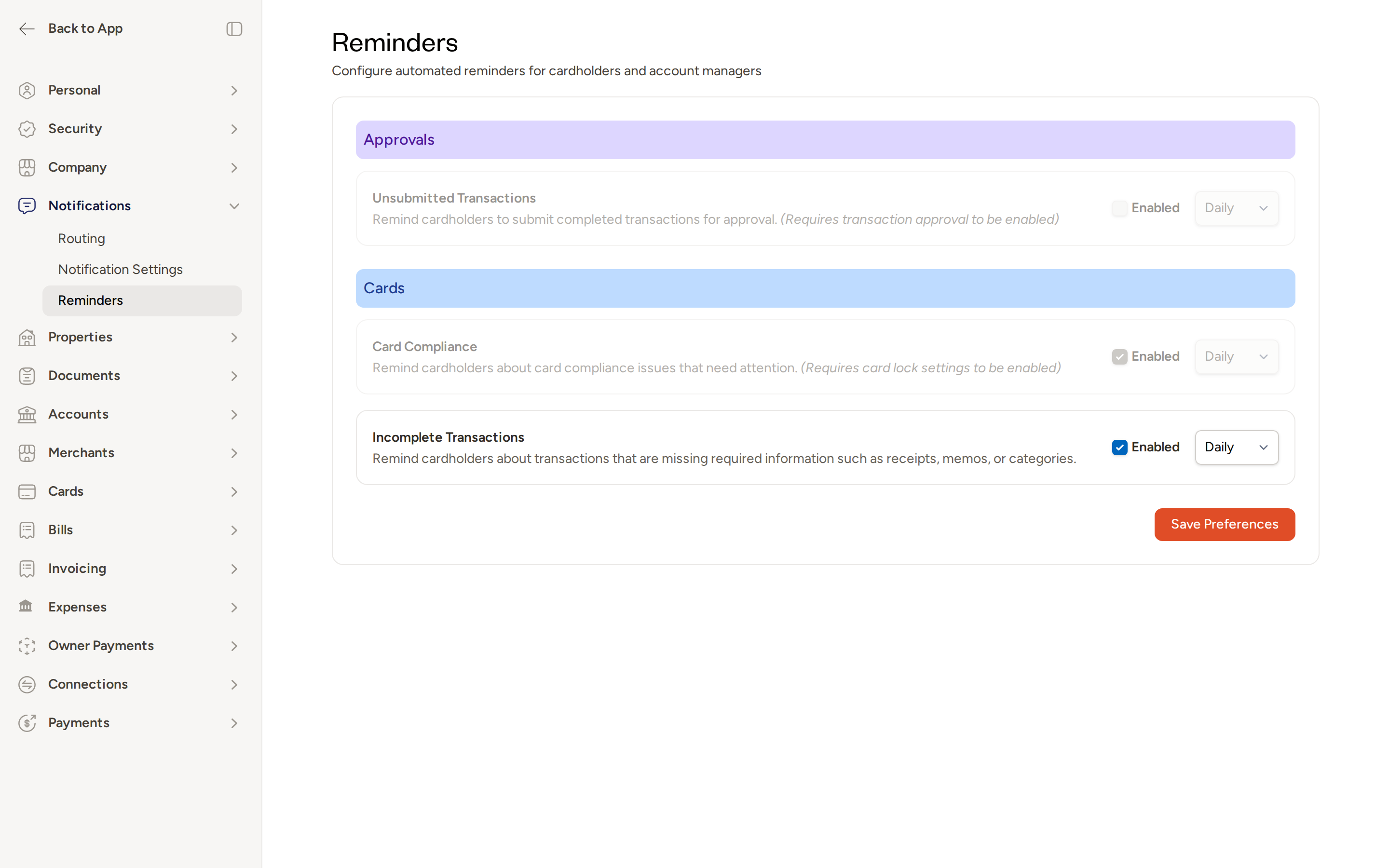
Reminders are grouped into two categories:
- Approvals — reminders related to the transaction submission workflow
- Cards — reminders related to card transaction compliance
Reminder types
Incomplete Transactions
Reminds cardholders about transactions that are missing required information such as a receipt, memo, category, or property. This is a soft nudge that prompts cardholders to complete their transactions before enforcement actions — such as a card lock — become necessary.
Card Compliance
Warns cardholders that their card may be locked if they do not complete outstanding transactions by the applicable deadline. This reminder requires card lock settings to be enabled on your account.
Unsubmitted Transactions
Reminds cardholders about transactions that have been fully filled out but have not yet been formally submitted for approval. This reminder is only available when transaction approval is enabled on your account.
Configuring reminders
Each reminder type has the following settings:
- Enabled toggle — turn the reminder on or off
- Frequency — set how often the reminder sends (Daily or Weekly)
To update reminder settings:
- Go to Settings → Notifications → Reminders.
- For each reminder type, check or uncheck the Enabled toggle as needed.
- Use the frequency selector next to each reminder to choose Daily or Weekly.
- Click Save Preferences to apply your changes.
Enable Card Compliance reminders at least one day before your card-lock threshold is reached so cardholders have enough time to act before their card is locked.
Use Incomplete Transactions reminders as a proactive nudge before card-lock enforcement kicks in. This gives cardholders an opportunity to resolve issues without interruption to their spending.
The Unsubmitted Transactions reminder is automatically enabled or disabled in sync with your account's transaction approval setting. If transaction approval is turned off, this reminder will be unavailable.
The Card Compliance reminder requires card lock settings to be enabled. If card lock is not configured for your account, this reminder will be unavailable. Contact Support if you need help enabling card lock settings.
Frequently Asked Questions
Can I create a new notification route for an event that isn't already listed? No. Notification routes are pre-configured by Topkey and cover the supported event types for your account. You can edit the targets and delivery channels of any existing route, and enable or disable routes as needed, but you cannot add new routes. If you believe an important event type is missing, contact Support.
What happens if I disable a reminder — will cardholders still be notified another way? Disabling a reminder stops the automated follow-up message for that reminder type. Cardholders will not receive those periodic nudges until the reminder is re-enabled. Other notification channels, such as in-app alerts or email notifications triggered by specific events, are managed separately under Settings → Notifications → Routing and are not affected by reminder settings.
Why is the Card Compliance reminder grayed out and unavailable? The Card Compliance reminder requires card lock settings to be active on your account. If the reminder appears unavailable, card lock has not been configured. Contact Support to enable card lock settings for your account.