Work Orders
Creating and syncing work orders
The Work Orders page is where you create, manage, and sync work orders across your entire portfolio. The primary value of work orders in Topkey is the ability to create them directly in Topkey and push them to your PMS in bulk — eliminating the need to enter the same information twice. Work orders can also arrive in Topkey automatically from connected integrations like Breezeway or your PMS.
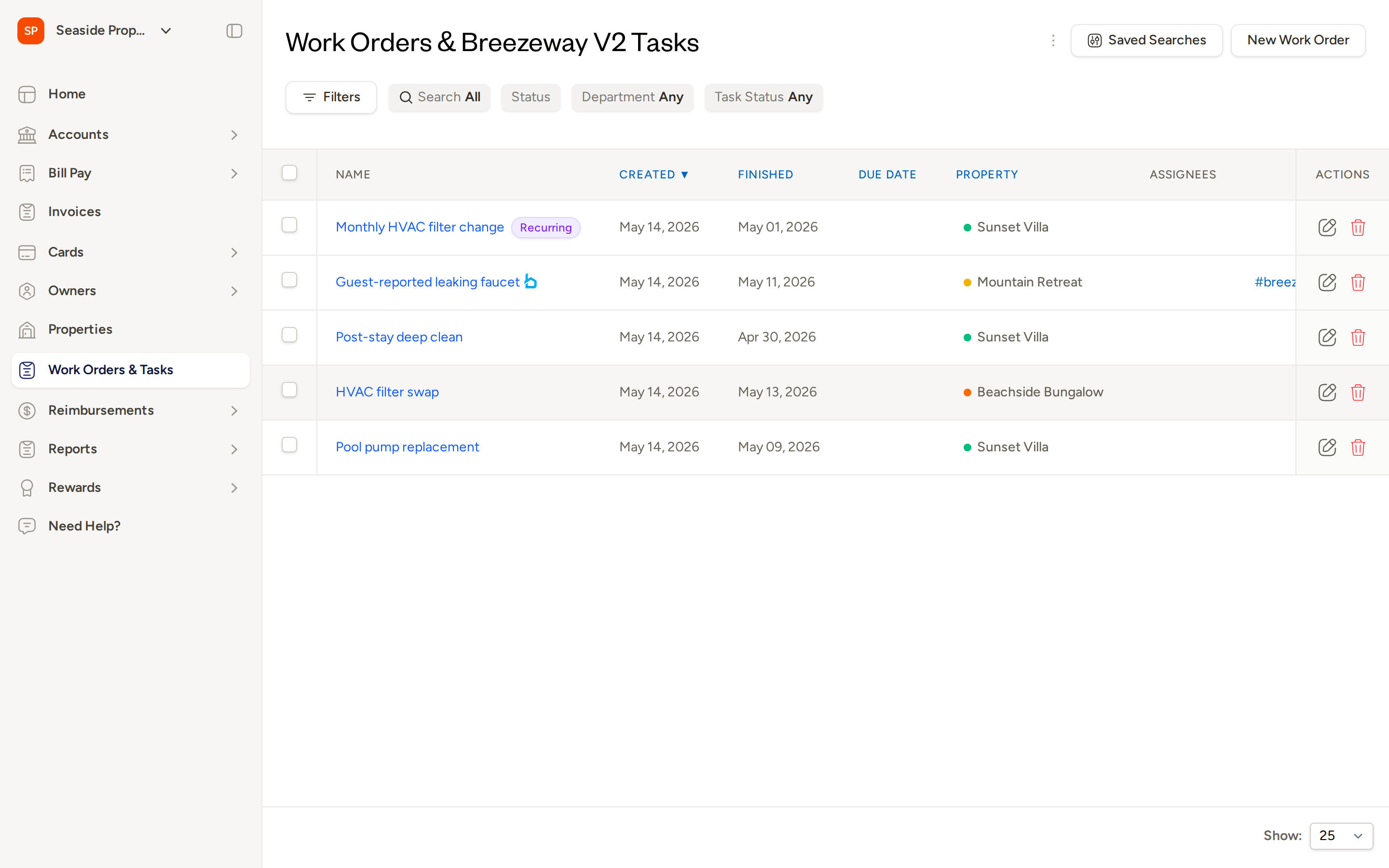
The Work Orders page
The Work Orders page shows one row per work order across every source — work orders you created manually in Topkey, work orders imported from your PMS, and tasks pulled in from Breezeway. Each row displays the work order name, created date, finished date, due date, property, and assignees.
Filtering and searching
Use the filter bar at the top of the page to narrow the list by:
- Status — filter by the current state of the work order (Draft, Saved, etc.)
- Department and Task Status — scope to specific departments or task states from your integrations
- Assignees — show only work orders assigned to specific team members
- Tags — filter by any tags applied to work orders
- Property Groups or Property Task Groups — narrow the list to properties belonging to a specific group
Use the Search bar to search by work order name, description, property name, vendor name, or external ID.
Saving filter configurations
If you frequently apply the same combination of filters, click Saved Searches (top right) to save the current filter configuration and reuse it later without re-entering your criteria each time.
Sending work orders to your PMS
Pushing work orders from Topkey to your PMS is the most efficient way to keep your systems in sync. Instead of entering work order details separately in each system, you create or collect them in Topkey and push them all at once.
Only work orders in Saved status that have not yet been synced to the PMS are eligible for the Send to PMS action.
Step 1: Select the work orders to sync
On the Work Orders page, check the box next to each work order you want to send to your PMS. You can select multiple work orders at once.
Use the filter bar to narrow the list to unsynchronized saved work orders so you can quickly identify everything that needs to be pushed.
Step 2: Open the bulk sync screen
With your work orders selected, click the Send to PMS bulk action. This opens the bulk sync screen.
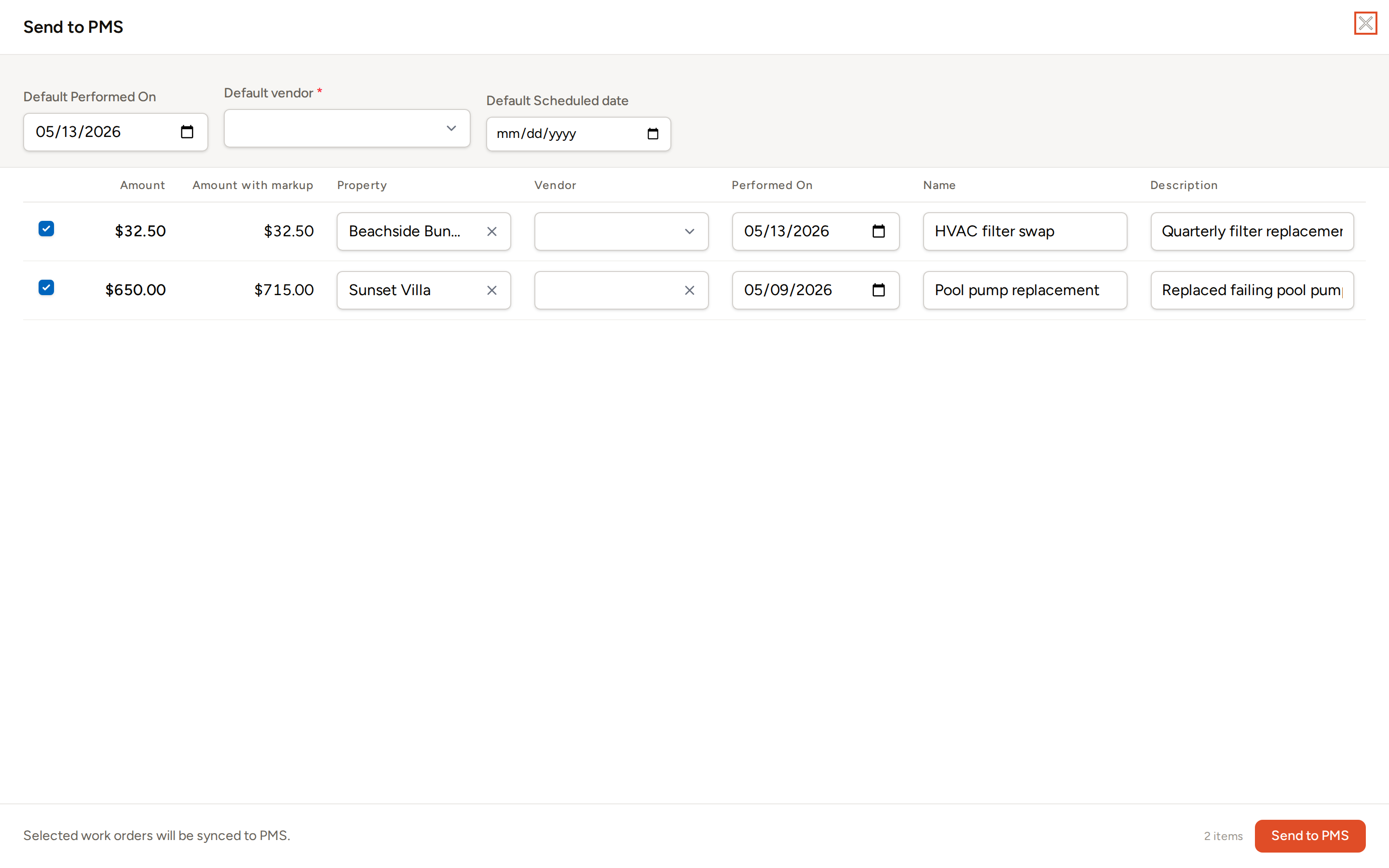
Step 3: Review and confirm
The bulk sync screen displays each selected work order as a row with editable fields — including Property, Vendor, Performed On, Name, and Description — so you can make any final adjustments before sending.
At the top of the screen, you can set defaults that apply across all rows:
- Default Performed On — sets the performed-on date for any row that doesn't already have one
- Default vendor — applies a vendor to rows where no vendor is selected
- Default Scheduled date — sets a scheduled date across all rows
Any validation issues (such as a missing required field) are surfaced inline on the affected row so you can correct them before submitting.
For PMS integrations that require a vendor, the vendor must exist in both Topkey's vendor list and your connected PMS. A vendor present in only one system cannot be used for posting.
Step 4: Send to PMS
Click Send to PMS to submit. Topkey posts each eligible work order to your PMS and records the date and time the sync was completed. Work orders that already have a sync timestamp are skipped automatically, so re-submitting the same selection will not create duplicates in your PMS.
If your account has both task-based work orders (from Breezeway) and standard work orders in the same batch, Topkey will notify you if the export modes differ and will prompt you to sync them separately.
Creating a work order manually in Topkey
You can create a one-off work order directly in Topkey without waiting for it to arrive from an integration.
- On the Work Orders page, click New Work Order (top right).
- The new work order form opens.
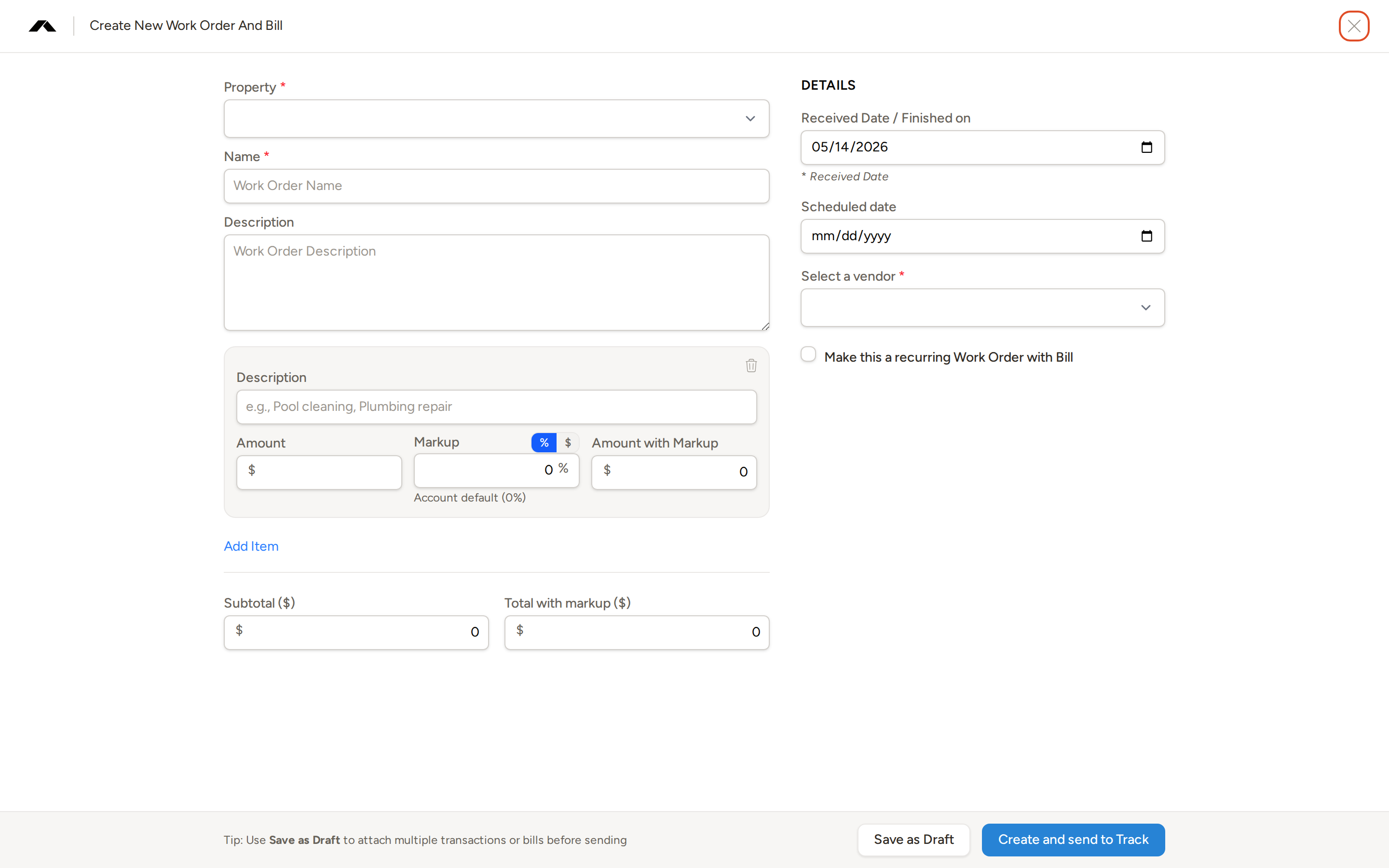
Fill in the required fields:
- Property — type to search for a property and select it from the list
- Name — a descriptive name for the work order
- Description — optional additional context
- Received Date / Finished on — the date the work was received or completed
- Scheduled date — when the work is scheduled (optional)
- Select a vendor — the vendor performing the work
Add one or more line items using Add Item. Each line item includes a Description, Amount, and optional Markup percentage. The Amount with Markup is calculated automatically.
For work orders connected to Streamline, or when the work order already includes a labor-type item, each line item also shows a type selector: Part/Cost or Labor. Cost lines capture a description and a flat amount. Labor lines capture an hourly rate, labor time in hours, and labor time in minutes instead of a flat amount.
Check Make this a recurring Work Order with Bill if this work order should repeat on a schedule.
Click Save as Draft to save without sending, or click the send button (labeled with your connected PMS name, e.g., Create in Track) to save and immediately push to your PMS.
Use Save as Draft if you want to attach multiple transactions or bills to the work order before sending it to your PMS.
How work orders arrive in Topkey automatically
In addition to work orders you create manually, Topkey can receive work orders from two other sources automatically.
From Breezeway
If your account is connected to Breezeway, Topkey pulls new tasks from Breezeway on a regular schedule and creates a corresponding work order for each task. These work orders appear in the Work Orders page alongside any work orders you created manually, so you can review and push them to your PMS in a single bulk action.
From your PMS
If your PMS (such as Track or Streamline) is configured to sync work orders, Topkey's scheduled sync job imports work orders from the PMS and creates matching records in Topkey. These imported work orders are linked back to their source record in the PMS and appear in your Work Orders list automatically.
Importing work orders from your PMS is a complementary capability. The recommended workflow is to create work orders in Topkey and push them to your PMS — not the other way around.
Work order statuses
Each work order moves through a defined set of statuses:
| Status | What it means |
|---|---|
| Draft | The work order has been created but not yet finalized. |
| Saved | The work order is finalized and ready to be sent to the PMS. |
| Processing | The work order is currently being sent to the PMS. |
| Error | The sync attempt failed. Review the work order for details. |
| Bill Created | A bill has been created from this work order. |
| Paid | The associated bill has been paid. |
| Closed | The work order is complete and closed. |
Only work orders in Saved status that have not yet been synced are eligible for Send to PMS.
Additional actions on the Work Orders page
Bulk vendor assignment
Select multiple work orders and use the Assign Vendor bulk action to assign a vendor to all of them at once — useful when a batch of imported work orders arrives without a vendor assigned.
Export to CSV
To export the current list of work orders to a spreadsheet, open the actions menu (the ⋯ icon near the top right of the page) and select Export CSV. The export includes all work orders matching your current filters.
Bulk delete
Select one or more work orders and use the Delete bulk action to remove them. Deleted work orders can be restored if needed.
Recurring work order rules
To view, manage, or restore recurring work order rules, open the actions menu and navigate to the Recurring Rules page. From there you can review all active recurring schedules and delete or restore individual rules.
Frequently asked questions
Will sending the same work orders to my PMS twice create duplicates?
No. Once a work order has been successfully synced to your PMS, Topkey records the sync timestamp and skips that work order on any subsequent sync attempts. Re-submitting a batch that includes already-synced work orders is safe.
Why is a work order not appearing in the Send to PMS selection?
Only work orders in Saved status that have not yet been synced are eligible for Send to PMS. Work orders in Draft, Processing, Error, Bill Created, Paid, or Closed status will not be included. Check the work order's current status and, if needed, move it to Saved before retrying.
Can I send work orders from Breezeway to my PMS through Topkey?
Yes. Work orders that arrive from Breezeway appear in your Work Orders list and can be selected and pushed to your PMS using the same Send to PMS bulk action as manually created work orders. If your account has a different export mode configured for Breezeway tasks, Topkey will notify you during the bulk sync review step.
Questions? Contact Support