Integrations
PMS Integration
Connecting your Property Management System (PMS) to Topkey eliminates manual data entry by automatically importing your properties, owners, and reservation data. Once connected, Topkey uses your live booking data to generate owner charges, calculate payout amounts, and produce accurate owner statements.
Why Connect Your PMS?
Your PMS is the source of truth for your business. When it's connected to Topkey:
- Properties and owners sync automatically — no manual setup required
- Confirmed reservations flow into Topkey and drive owner statement calculations
- Payout amounts and statement periods are based on actual booking data, not estimates
Connect your PMS before configuring owner statements. Statement generation requires reservation data from your PMS.
Supported Platforms
Topkey integrates with the following PMS and property data platforms:
- Guesty
- Hostaway
- Streamline
- Track
- OwnerRez
- Hospitable
- Hostfully
- LMPM
- Escapia
- Rentvine
- VRM
- Feather
- Airbnb (as a property data source)
- SuiteOp (work order import via webhooks)
The connection process varies by platform. Follow the platform-specific instructions below.
Setting Up Your Integration
Guesty
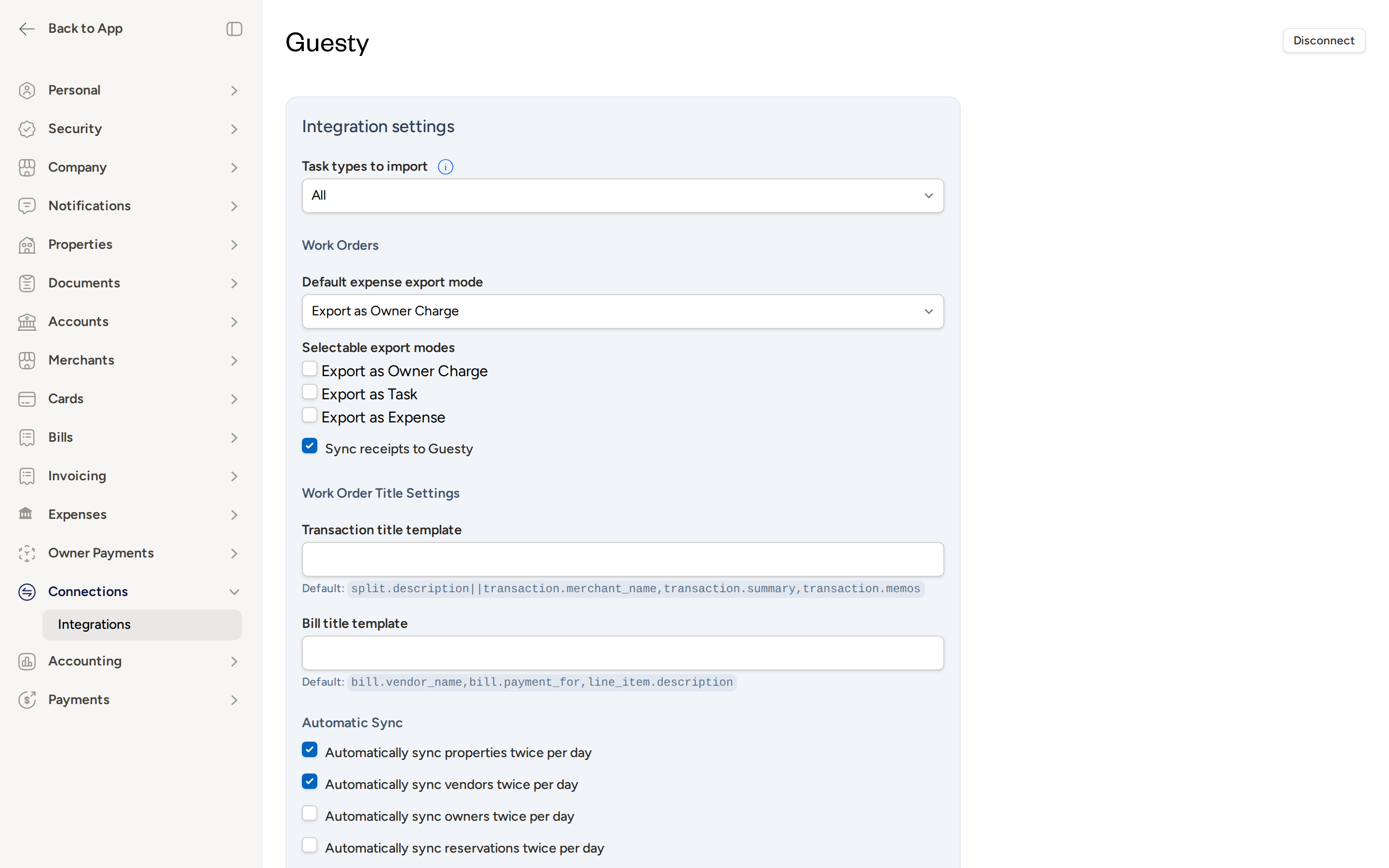
- In Topkey, navigate to Integrations → Guesty.
- In Guesty, go to Settings → API Keys and copy your API token.
- Paste the token into the Integration Token field in Topkey.
- Click Connect. Topkey verifies the token and pulls your property list.
Once connected, your Guesty properties appear in your Topkey property list and owners are linked automatically.
Hostaway
- In Topkey, navigate to Integrations → Hostaway.
- Locate your Account ID and API key in your Hostaway account settings.
- Enter your Account ID and API Key in Topkey.
- Click Connect. Topkey syncs your property list and reservations.
Streamline
- Log in to your Streamline account.
- In the search bar, type Self Service Onboarding.
- Search for Topkey, then click Get Tokens.
- Navigate to https://app.topkey.io/integrations/streamline/integration_connections/new.
- Enter the Token Key and Token Secret from Streamline, then click Save.
Track
- Log in to Track, copy the URL from your browser, and share it with Topkey support at Contact Support so the team can configure your instance.
- In Track, click the gear icon in the top right-hand corner of the main dashboard to open your Configuration Page.
- Go to the Company Set up tab, then open the API Keys menu.
- Click +Server Key in the top right-hand corner, then click Generate Key.
- A new screen displays your API Server Key and API Server Secret — save both immediately and name them Topkey.
- Navigate to https://app.topkey.io/integrations/track/integration_connections/new and enter your API Server Key and API Server Secret.
Copy your Track API Server Key and Secret immediately after generating them — they may not be displayed again.
OwnerRez
- In Topkey, navigate to Integrations → OwnerRez.
- In OwnerRez, go to Settings → API Keys and generate a new API key for Topkey.
- Copy the API key and paste it into Topkey.
- Click Connect. Topkey syncs your OwnerRez properties, owners, and reservations.
Hospitable
- In Topkey, navigate to Integrations → Hospitable.
- Click Connect. You will be redirected to Hospitable to authorize the connection.
- Complete the authorization flow in Hospitable, then return to Topkey.
The Hospitable connection uses OAuth. You'll leave Topkey briefly to approve the connection in Hospitable before being returned automatically.
Hostfully
- In Topkey, navigate to Integrations → Hostfully.
- Click Connect. You will be redirected to Hostfully to authorize the connection.
- Complete the authorization flow in Hostfully, then return to Topkey.
Airbnb
- In Topkey, navigate to Integrations → Airbnb.
- Click Connect. You will be redirected to Airbnb to authorize access.
- Complete the authorization flow in Airbnb, then return to Topkey.
Airbnb connects as a property data source. Make sure you are logged in to the correct Airbnb account before starting the authorization flow — Airbnb may automatically log you into a previously used account.
LMPM
- In Topkey, navigate to Integrations → LMPM.
- Enter your API Key and Company Code.
- Click Connect.
Escapia
- In Topkey, navigate to Integrations → Escapia.
- Enter your PMC ID.
- Click Connect.
Rentvine
- In Topkey, navigate to Integrations → Rentvine.
- Enter your Account Code, API Key, and API Secret.
- Click Connect.
VRM
- In Topkey, navigate to Integrations → VRM.
- Enter your API Key and Client Code.
- Click Connect.
Feather
- In Topkey, navigate to Integrations → Feather.
- Enter your API Key.
- Click Connect.
SuiteOp
SuiteOp connects via webhooks and does not require manual credential setup.
- In Topkey, navigate to Integrations → SuiteOp.
- Follow the on-screen instructions to complete the webhook connection.
Once connected, work orders from SuiteOp are automatically imported into Topkey.
After Connecting
Regardless of which platform you connect, complete these steps after the initial connection is established:
Review Your Property List
Topkey imports all properties from your PMS. Open your property list and confirm that names and ownership assignments look correct. If a property shows the wrong owner, correct it in your PMS and re-sync.
Confirm Owner Matching
If owners are defined in your PMS, Topkey links them to Topkey owner records automatically. Verify these matches before generating your first owner statements.
Check Reservation Data
Topkey pulls confirmed reservations and uses them to calculate owner charges, payout amounts, and statement periods. Review your reservations to confirm the import completed successfully.
Ongoing Sync
Once your integration is active, Topkey keeps your data up to date automatically:
- Scheduled syncs run every few hours and pull in new reservations and property changes
- New properties added in your PMS are imported automatically on the next sync
- Manual sync: To trigger an immediate sync, open the integration's settings page and click Sync Properties or Import Reservations — these action buttons are available on each integration's settings page
Use the manual sync buttons whenever you've made significant changes in your PMS and need them reflected in Topkey right away.
Disconnecting an Integration
You can disconnect any integration at any time:
- Navigate to Integrations and open the integration you want to disconnect.
- On the integration's settings page, click Disconnect.
Disconnecting stops future syncs but does not delete data that has already been imported into Topkey.
Frequently Asked Questions
What happens if a property shows the wrong owner after syncing? Correct the owner assignment in your PMS, then return to Topkey and trigger a manual sync using the Sync Properties button on the integration's settings page. The updated ownership will be reflected after the sync completes.
Do I need to connect my PMS before setting up owner statements? Yes. Owner statements are generated from reservation data, so your PMS must be connected and synced before statement generation will work correctly.
Can I connect more than one PMS at the same time? This depends on your account configuration. Contact Contact Support if you manage properties across multiple platforms and need help setting up multiple integrations.