Transactions
Adding a Receipt
Attaching a receipt to a card transaction satisfies the Receipt required submission rule, allowing the transaction to be marked as submitted and approved. Topkey gives you two ways to do this: the Receipts Inbox, which works well for email-based receipts like Amazon orders, hotel folios, and ride-share confirmations, and the Webform, a mobile-friendly page cardholders can use on the go right after a purchase.
The Receipts Inbox
The Receipts Inbox is a holding area for receipts that have arrived in Topkey but haven't yet been matched to a transaction. Navigate to Cards → Receipts Inbox to open it.
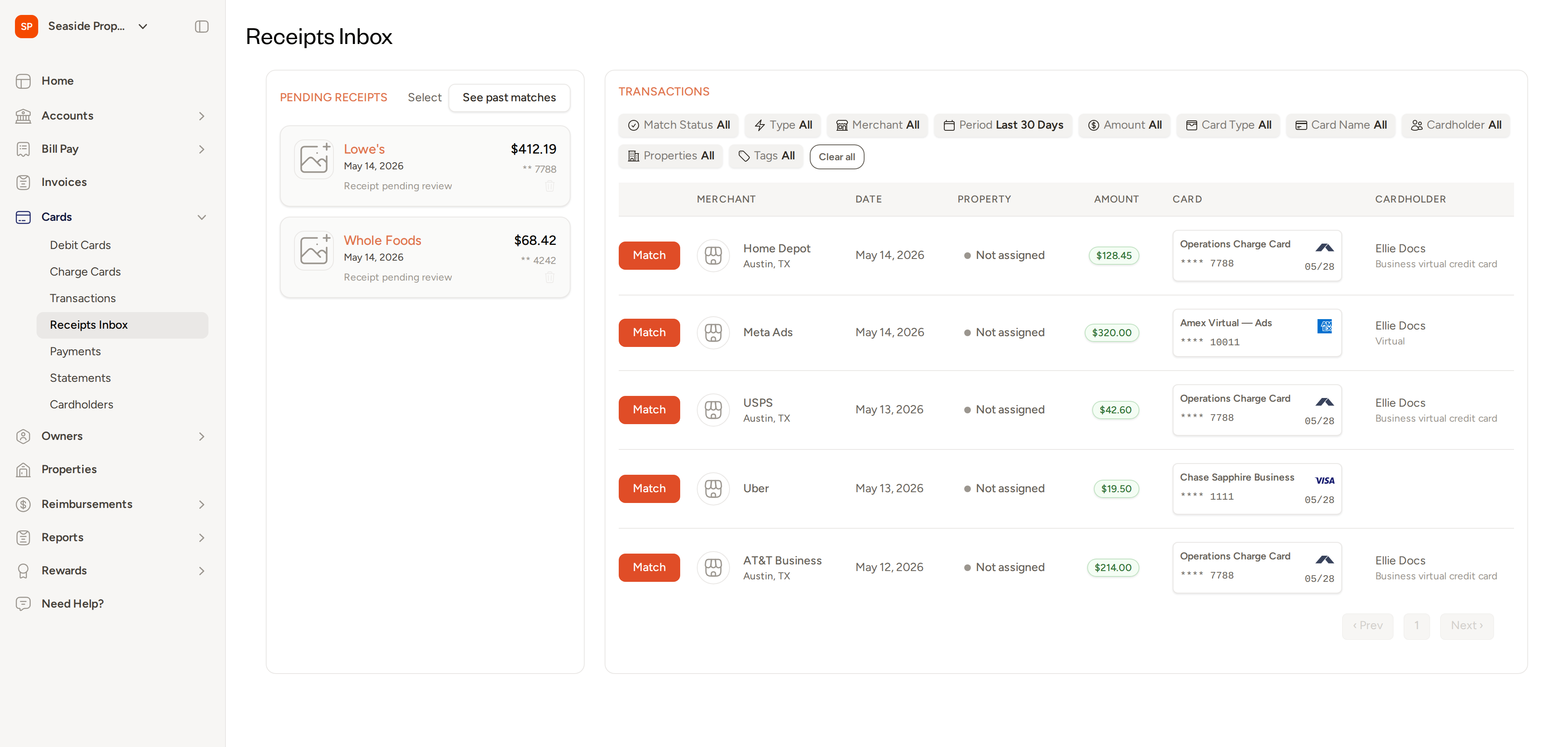
How receipts arrive in the Inbox
Receipts land in the Inbox when you forward a receipt email to your account's dedicated receipts address. Every Topkey account has a unique address in the format receipts+[accountId]@topkey.co. Forward any email receipt — a supplier confirmation, a hotel folio, a ride-share summary — to that address, and Topkey will extract the receipt file and place it in your Inbox automatically.
Your account's dedicated receipts address is available in your account settings. You can set up a forwarding rule in your email client so that receipts are forwarded automatically without any manual action.
How Topkey matches receipts to transactions
Once a receipt is in the Inbox, Topkey compares the amount, card number, and date against your pending transactions. When there is a clear match, Topkey links the receipt to the transaction automatically — no action required on your part.
When a match cannot be determined automatically, the receipt stays in the Inbox as Receipt pending review until someone matches it manually.
Matching a receipt manually
If a receipt is waiting in the Inbox unmatched, you can attach it to the correct transaction yourself:
- Open Cards → Receipts Inbox.
- In the Pending Receipts panel on the left, locate the receipt you want to match.
- In the transactions list on the right, find the correct transaction and select Match.
Topkey will link the receipt to that transaction immediately.
Resolving ambiguous receipts
Occasionally, a receipt could plausibly belong to more than one transaction — for example, two purchases of the same amount at the same merchant on the same day. In that case, Topkey flags the receipt as ambiguous and opens a disambiguation panel showing you each candidate transaction side by side. Review the options and select the correct transaction to complete the match.
Unmatching a receipt
If a receipt was matched to the wrong transaction, you can undo the match:
- Open Cards → Receipts Inbox.
- Locate the matched receipt.
- Select Unmatch.
The receipt returns to Pending status in the Inbox, and the transaction is returned to an unmatched state so you can attach the correct receipt.
Handling duplicate receipts
Topkey detects when an incoming receipt appears to be a duplicate of one already in the Inbox and flags it accordingly. If a receipt was flagged as a duplicate in error, you can restore it:
- Locate the receipt marked as a duplicate.
- Select Mark as not a duplicate.
The receipt is returned to Pending status and is available for matching.
Viewing past matches
To see a history of all receipts that have previously been matched to transactions, select See past matches at the top of the Receipts Inbox.
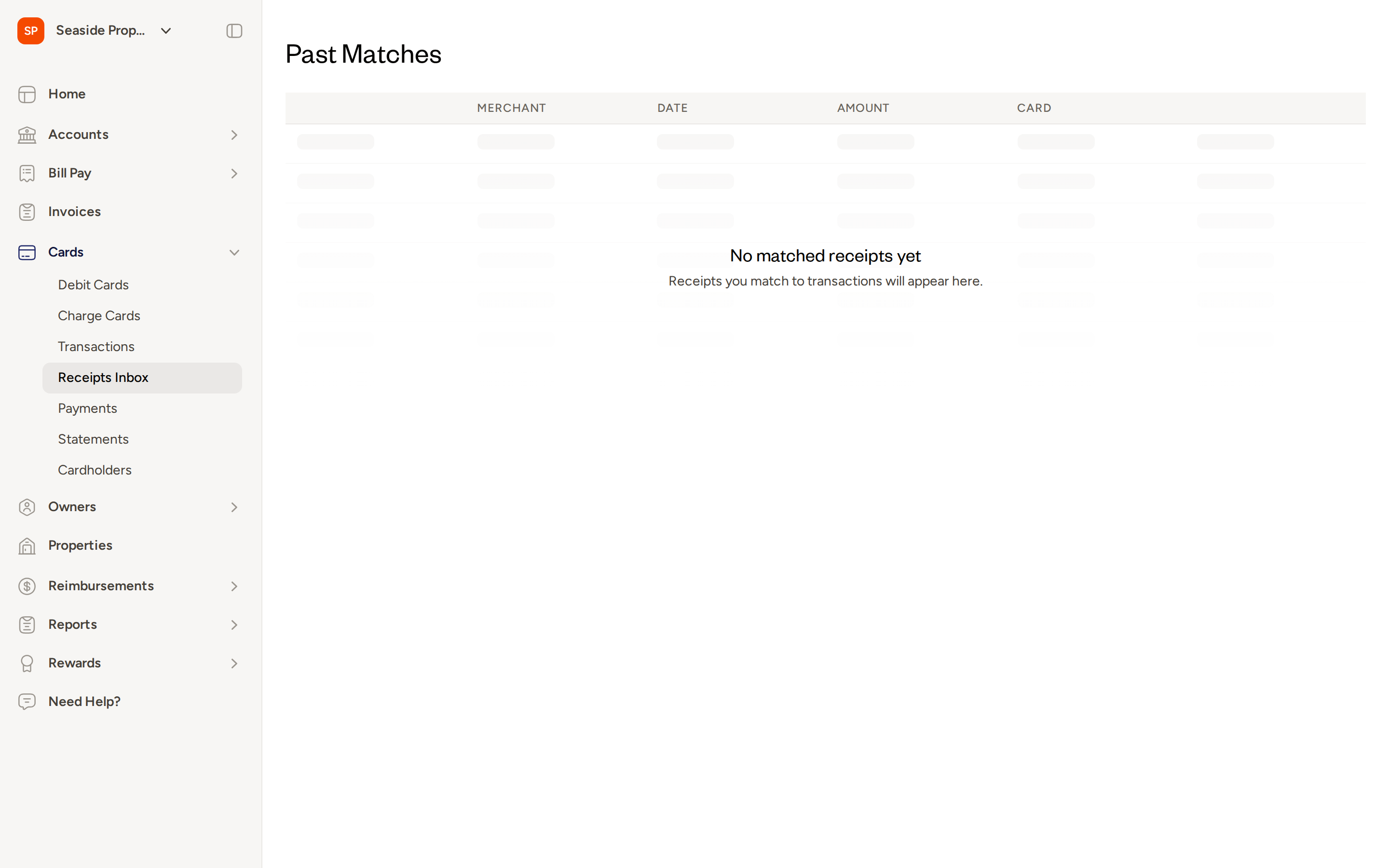
The Past Matches page shows each matched receipt with its merchant, date, amount, and card details.
The Receipts Inbox is most useful when your team already receives receipts by email — suppliers, online retailers, hotels, and ride-share services. Forwarding those emails means receipts collect and match in the background with minimal manual effort.
The Webform
The Webform is a lightweight, mobile-friendly page that lets a cardholder submit receipt and transaction details from their phone — no Topkey login required.
Shortly after a card purchase is authorized, the cardholder receives an SMS with a link directly to that transaction's Webform page. Tapping the link takes them straight to their transaction without needing to sign in to Topkey.
The cardholder transaction list
When a cardholder follows a Webform link, they land on a list of their recent transactions that still need attention. Transactions are organized into two views at the bottom of the screen: Needs Info (transactions with missing receipts, memos, categories, or property assignments) and Completed.
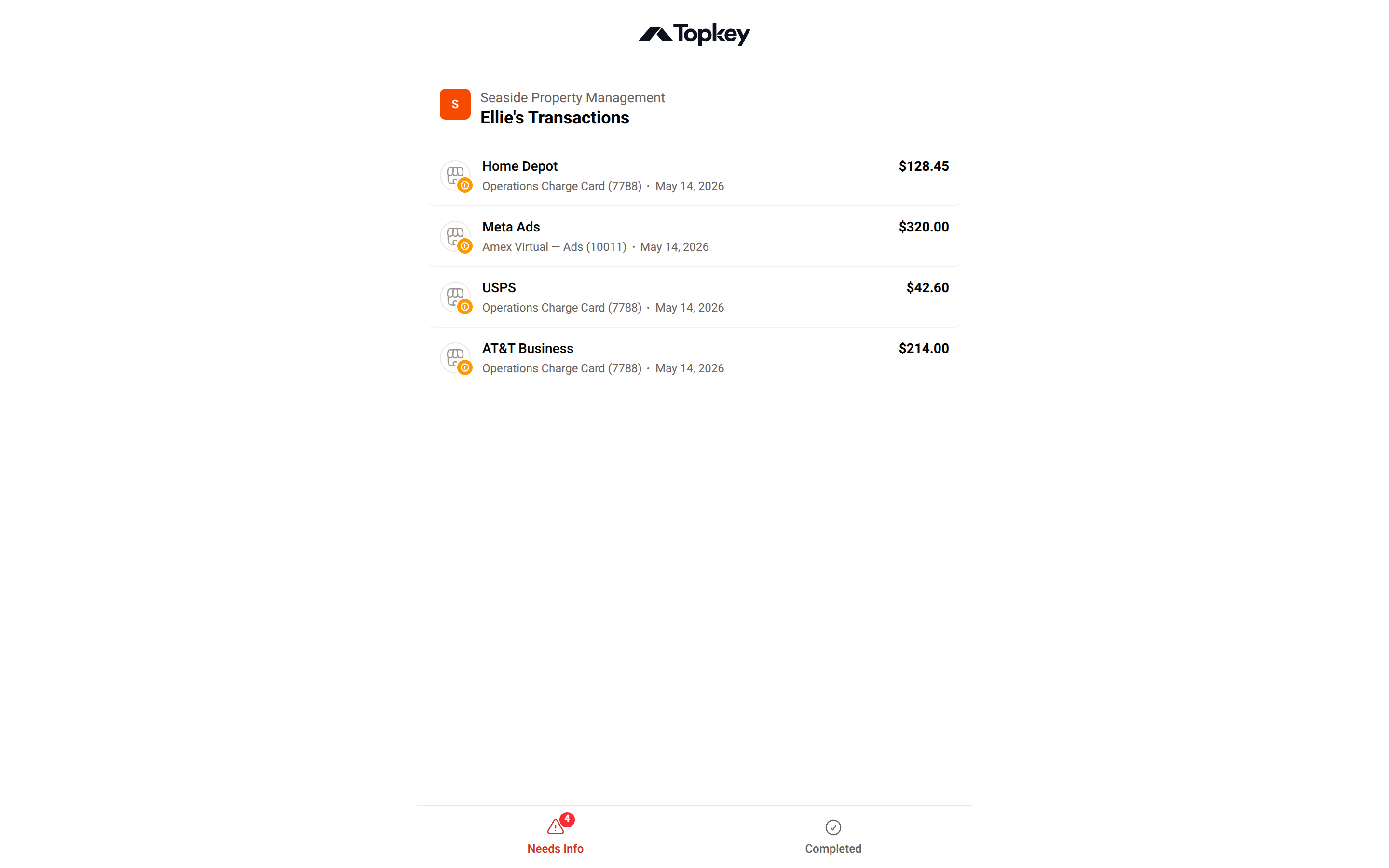
Each transaction in the list shows the merchant name, card, and date. The cardholder can tap any transaction to open its detail page.
Submitting a receipt from the Webform
From the single-transaction detail page, the cardholder can upload a receipt, add a memo, assign a property and category, and submit — all from their phone.
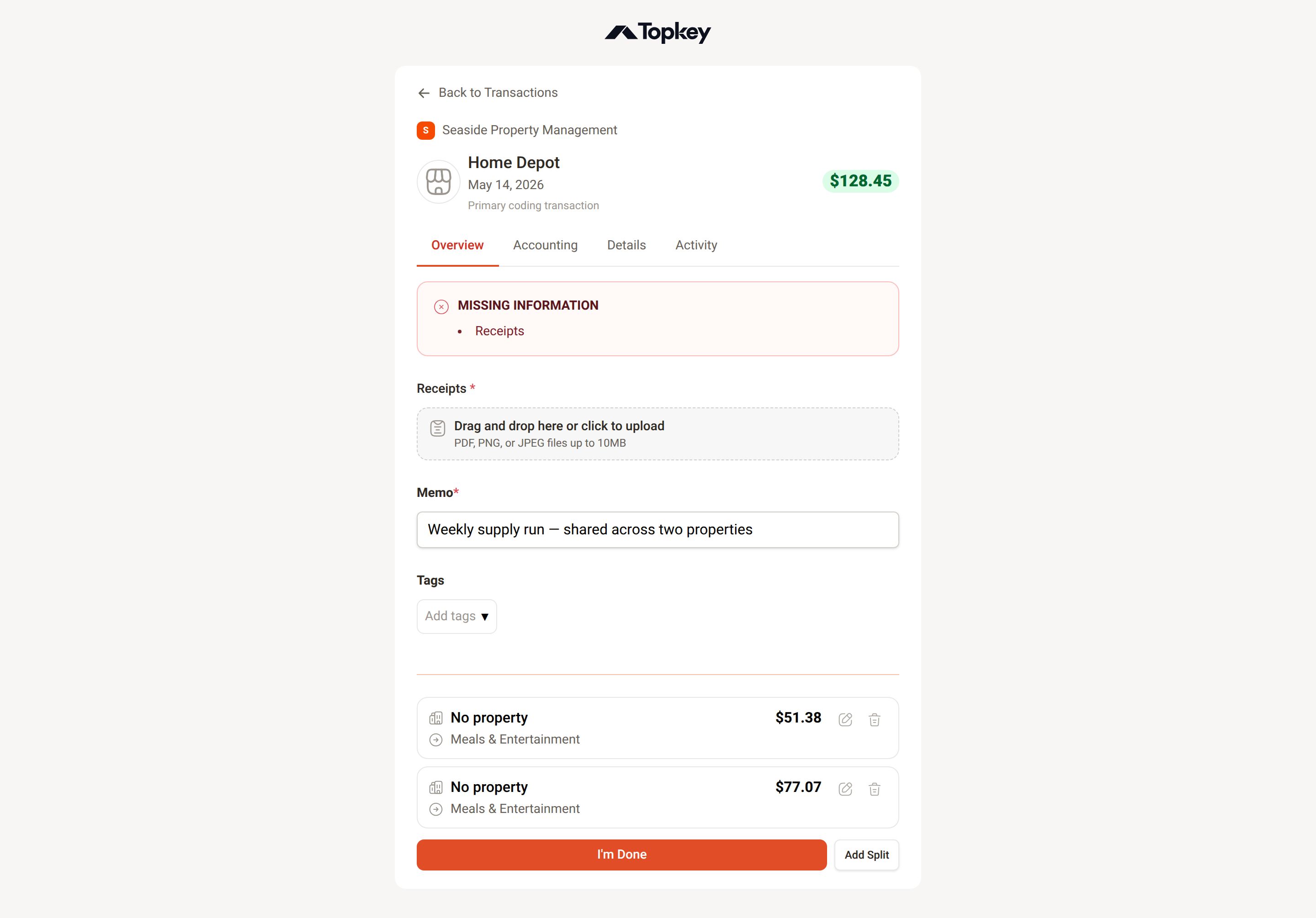
- Tap the Receipts upload area to take a photo of the receipt or select an image from the device's photo library. PDF, PNG, and JPEG files up to 10 MB are accepted.
- Enter a Memo describing the purchase.
- Assign a property and category to each split if required.
- Tap I'm Done to submit.
Required fields are shown inline. If any required information is missing, the form will indicate what needs to be completed before submission can proceed — the same validation rules that apply in the main Topkey app apply here.
The Webform is ideal for cardholders who make purchases in the field. Because the SMS link arrives shortly after each purchase, the receipt is still fresh and easy to photograph on the spot.
Each cardholder's Webform link is tied to a long-lived access token that is specific to that cardholder. If a link is ever compromised, an admin can regenerate the access token from the cardholder's profile in Topkey, which invalidates the old link and creates a new one.
Choosing the right method
| Situation | Recommended method |
|---|---|
| Cardholder just made a purchase and has the receipt in hand | Webform — fast, phone-first, no login needed |
| Receipts arrive by email (suppliers, hotels, ride-shares, online orders) | Receipts Inbox — forward the email and let Topkey match automatically |
| Admin needs to attach a receipt on behalf of a cardholder | Receipts Inbox — forward the receipt email to the account's receipts address |
Frequently Asked Questions
What happens if I forward a receipt email but no matching transaction exists yet? The receipt will land in the Receipts Inbox with a Receipt pending review status. It will remain there until a matching transaction appears or until you match it manually. Topkey checks for a match based on the amount, card number, and date.
Can a receipt be matched to a transaction that already has a receipt? No. If a transaction already has a matched receipt, Topkey will not allow a second receipt to be matched to it from the Inbox. You would need to remove the existing receipt from the transaction first.
What should a cardholder do if the SMS link is not working? An admin can regenerate the cardholder's access token from the cardholder's profile page in Topkey, which will produce a new valid link. The admin can also trigger a new SMS manually from the transaction record. If you continue to experience issues, Contact Support.