Bill Pay
Recurring Bills
Recurring bills let you set up a template bill that automatically generates new bills on a schedule — saving you from manually re-entering the same vendor payment every week, month, or year. This is ideal for predictable, ongoing expenses like landscaping, pool service, or software subscriptions.
Setting Up a Recurring Bill
You enable recurring billing from within an existing bill's edit view. Before you begin, make sure the bill has a due date — this is required for recurring bills.
- Navigate to Bill Pay → Bills and open the bill you want to make recurring.
- In the details panel on the right side of the screen, locate the Edit details section.
- Enable the Recurring toggle.
- Once enabled, configure the following settings:
Frequency
Choose how often a new bill should be generated:
- Weekly — generates a new bill every week
- Monthly — generates a new bill every month
- Annually — generates a new bill once per year
Days Before Due Date
Set how many days before the due date Topkey should create the new bill. For example, entering 5 means a bill will appear in your queue 5 days before it is due, giving you time to review and approve it before payment.
Auto-Approve
Enable Auto-approve to skip the normal approval workflow for bills generated by this template. When enabled, generated bills are automatically approved and move directly to the ready-to-pay stage.
Automatic Payment
Optionally, you can configure the recurring template to automatically pay generated bills from a specific account:
- Enable the Set up automatic payment option.
- Select the payment account you want to use.
- Save your changes. The bill is now a recurring template and will be labeled Recurring Template in the bill list.
The Recurring Templates Tab
The Recurring Templates tab in Bill Pay gives you a central place to view and manage all of your active recurring bill templates.
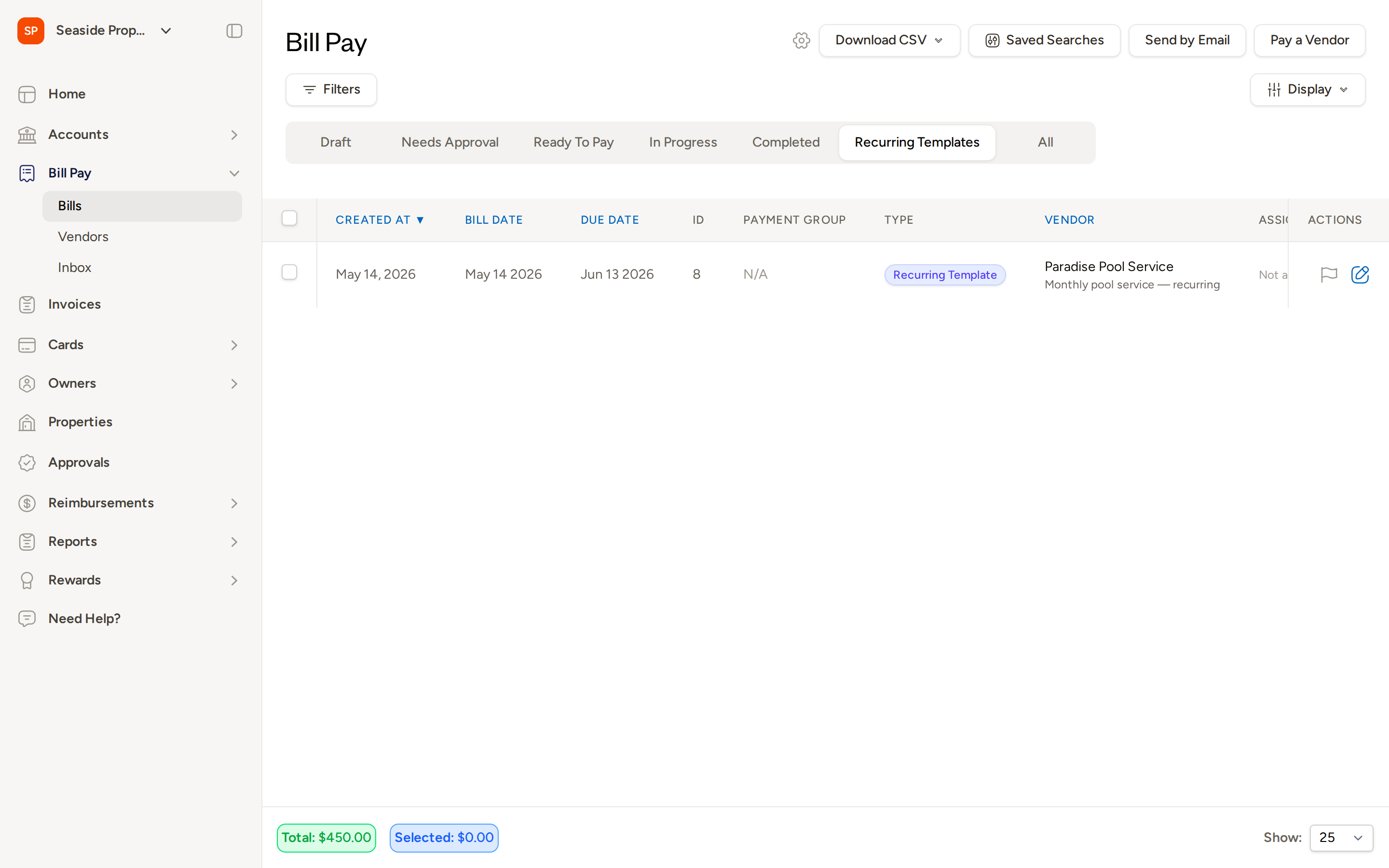
To access it:
- Navigate to Bill Pay → Bills.
- Click the Recurring Templates tab at the top of the bill list.
Each row displays the template's creation date, bill date, due date, ID, vendor, and type (shown as Recurring Template).
Managing Recurring Templates
Editing a Template
To update a recurring template's frequency, timing, or payment settings:
- Open the Recurring Templates tab.
- Click the edit icon in the Actions column for the template you want to change.
- Update any settings in the Edit details section — frequency, days before due date, auto-approve, or payment account.
- Save your changes. Updates apply to future generated bills only; previously generated bills are not affected.
Viewing Bills Generated from a Template
Bills generated by a recurring template are linked back to the template. You can find them by browsing the other status tabs (such as Draft, Needs Approval, or Ready To Pay) and looking for bills from the same vendor.
Deleting a Template
Deleting a recurring template stops all future bill generation. Previously generated bills are not deleted.
- Open the Recurring Templates tab.
- Click the edit icon in the Actions column for the template you want to remove.
- Disable the Recurring toggle and save — or use the delete action if available — to stop future bills from being generated.
How Generated Bills Work
When Topkey generates a bill from a recurring template:
- The bill is created automatically based on the schedule you configured, the set number of days before the due date.
- The bill goes through the normal approval workflow unless you have enabled auto-approve on the template.
- You can edit a generated bill individually — changing the amount, line items, or other details — without affecting the template or future bills.
- Generated bills behave like any other bill in Topkey and can be paid, assigned, or commented on as usual.
Best Practices
- Give yourself review time. Set the days-before value to at least 5 so your team has time to check the bill before it comes due.
- Use auto-approve selectively. Reserve it for vendors with fixed, contractual amounts where no review is needed.
- Audit regularly. Even trusted recurring vendors can change their rates. Schedule a monthly review of your recurring templates to confirm amounts are still accurate.
- Keep templates organized. Use descriptive payment notes or vendor names so generated bills are easy to identify in your bill list.
Frequently Asked Questions
Can I have multiple recurring templates for the same vendor? Yes. If a vendor bills you for different services at different frequencies — for example, weekly cleaning and monthly landscaping — you can set up separate recurring templates for each.
What happens to generated bills if I delete the recurring template? Deleting a template stops future bill generation only. Any bills that were already generated remain in your bill list and are not affected.
Can I change the amount on a generated bill without affecting the template? Yes. Each generated bill is independent. You can edit the amount, line items, or any other detail on a generated bill, and those changes will not carry over to the template or to future bills.