Integrations
Breezeway Integration
The Breezeway integration links Topkey's work order management with Breezeway's operations platform. Once connected, work orders created in Topkey sync to Breezeway as tasks, and status updates made in Breezeway reflect back in Topkey automatically — eliminating double-entry for your operations team.
What the Integration Does
- Topkey → Breezeway: Work orders created in Topkey are pushed to Breezeway as tasks, where your operations team can manage them.
- Breezeway → Topkey: When a task is updated or completed in Breezeway, its status and completion data sync back to Topkey.
- Unified work orders list: Every work order — whether imported from Breezeway, pulled from your PMS, or created manually in Topkey — appears in a single list on the Work Orders page.
Setting Up the Connection
Topkey connects to Breezeway through the Breezeway V2 partner API. Because this requires partner-level authorization, you will need to coordinate with Topkey to retrieve the necessary tokens before completing setup.
To obtain the API tokens required for this integration, reach out to Contact Support. Do not attempt to generate or enter tokens independently — the Topkey team will coordinate token retrieval with Breezeway on your behalf.
Once your tokens are ready, follow these steps:
- In Topkey, go to Connections → Integrations in the left sidebar.
- Under Browse Integrations, locate the Breezeway tile and click it.
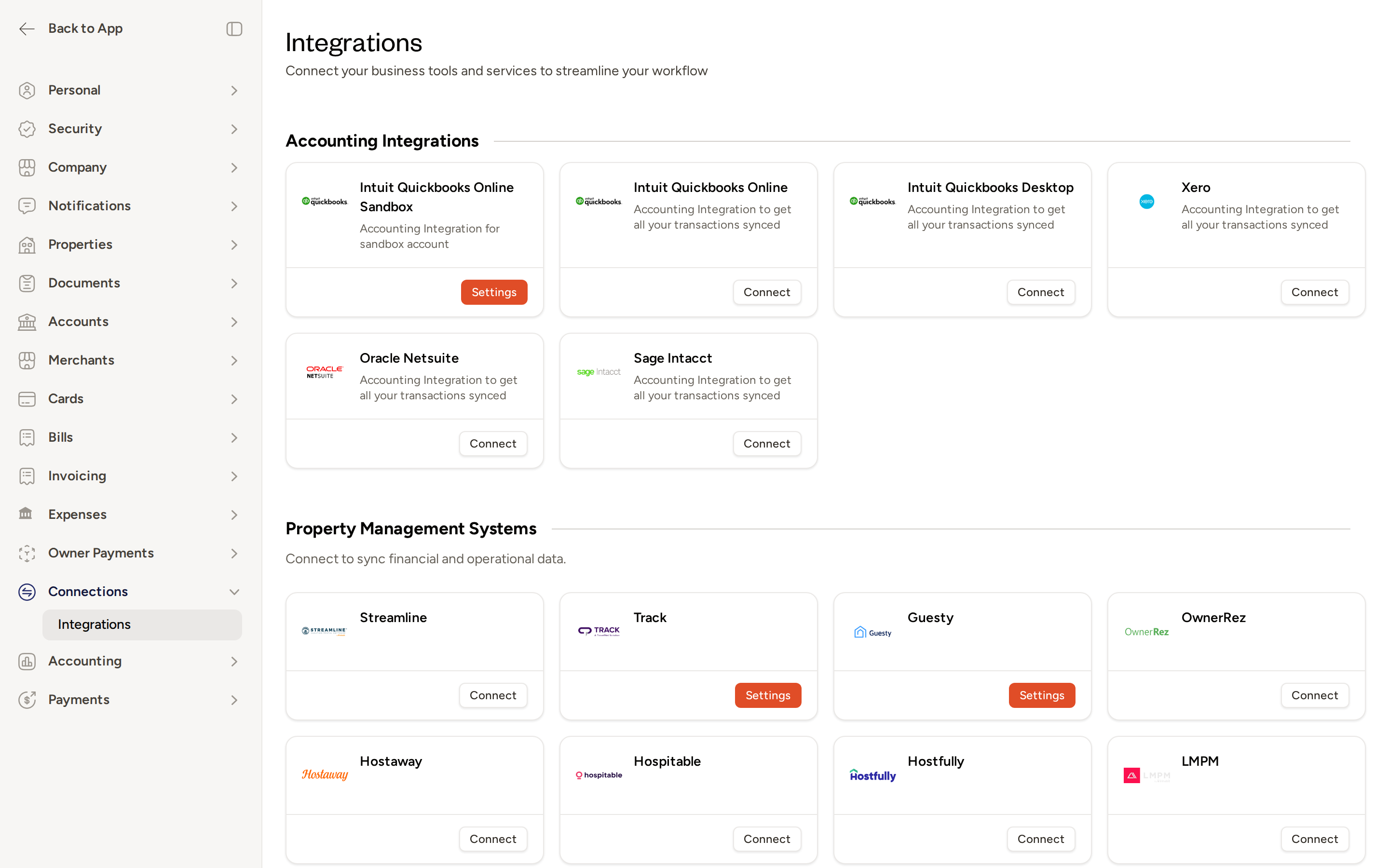
- On the connection setup page, select your Breezeway company from the list of partner-approved companies. This list is populated via the Breezeway V2 partner API and shows only companies that Breezeway has authorized for this connection — you do not need to enter individual API credentials.
- Click Connect. Topkey will verify the selection and establish the link.
- Once connected, the integration settings page displays your connected Breezeway account and available configuration options.
This is a one-time setup step. After your connection is established, ongoing sync happens automatically based on your configured sync strategy.
Configuring the Integration
After connecting, review and configure the following settings on the Breezeway integration settings page.
Sync Strategy
Choose how work orders created in Topkey are pushed to Breezeway:
- Automatic: Work orders are pushed to Breezeway immediately when created in Topkey.
- On demand: Work orders are pushed manually when you choose to sync them.
Property Mapping
Before creating your first synced work order, ensure every Topkey property is matched to its corresponding Breezeway property.
Mismatched or unmapped properties will prevent task creation in Breezeway. Map all properties before creating your first synced work order.
Operator Assignment
Breezeway tasks can be assigned to a specific operator or vendor at the time of sync. You can:
- Set a default assignee so all new Breezeway tasks are pre-assigned to a specific team member or vendor.
- Leave the assignee blank, allowing the Breezeway team to claim tasks themselves.
Work Order Assignment Rules
In addition to the default assignee setting, you can configure work order assignment rules to automatically assign a specific vendor to Breezeway-imported tasks based on matching criteria such as property, department, or task name. When a rule matches an incoming task, Topkey stamps the vendor on the work order automatically — without overwriting any vendor you have set manually.
Assignment rules are evaluated each time a Breezeway task is imported or updated. If multiple rules could apply, the most specific match takes precedence.
Use assignment rules to route maintenance tasks to your maintenance vendor and housekeeping tasks to your housekeeping vendor automatically, saving your team from manually reassigning tasks each time they are imported.
Working with the Work Orders Page
When Breezeway is connected, the Work Orders page (/work_orders) becomes your central hub for reviewing, managing, and pushing tasks to your PMS. All work orders — regardless of source — appear in a single unified list.
Filters
An expanded filter bar is available at the top of the work orders list. The following filters are available when Breezeway is connected:
- Search — full-text search across work order name, description, Breezeway task ID, and property name.
- Status — filter by Topkey work order status: Draft, Saved, Not Linked, or With Error.
- Source — show only Breezeway tasks or only PMS objects.
- Department — filter by Breezeway department: Maintenance, Housekeeping, Inspection, Accounting, Concierge, Finance, Guest Services, Linens, Lost and Found, Management, Office, Owner Services, Reservations, Safety, or Vendors.
- Task Status — filter by the status Breezeway has reported for the task: Created, Drafted, In Progress, Approved, Finished, Closed, or Deleted.
- Bill To — filter by who the task is billed to: Damage, Guest, Internal/No Charge, Owner, Insurance, or Review.
- Subdepartment — appears when subdepartments are configured for your Breezeway connection.
- Assignees — filter by the Breezeway crew member(s) assigned to tasks.
- Tags — filter by tags synced from Breezeway.
- Properties and Property Groups — filter by individual property or property group.
- Breezeway Groups — filter by Breezeway property groups, when configured.
- Date ranges — filter by Created date, Finished date, or Due Date.
- Amount with Markup — filter by a numeric range.
Filters with active values appear inline in the filter bar. All others collapse into the Filters option. You can save frequently-used filter combinations as Saved Searches to quickly return to your preferred view.
Departments
Each Breezeway task carries a department label — such as Maintenance or Housekeeping — that is visible in the work orders list. Use the Department filter to narrow the list to one or more departments without leaving the page. This is particularly useful when reviewing tasks by team before processing them at end of week or month.
Task Metadata
Every work order imported from Breezeway displays the following task metadata in the list:
- Breezeway task ID — shown as a clickable link (for example,
#12345). Clicking it opens the task directly in the Breezeway app in a new tab, so you can jump from Topkey to Breezeway without searching manually. - Task priority — the priority level as set in Breezeway.
- Task status — the current status as reported by Breezeway (for example, In Progress or Finished).
- Bill To — who the task is billed to, as recorded in Breezeway.
Click the Breezeway task ID link in the Task Metadata column to open the corresponding task directly in Breezeway — no need to search for it manually.
Bulk Syncing Work Orders to Your PMS
The primary workflow for processing batches of Breezeway tasks at end of week or end of month is the bulk Send to PMS action:
- On the Work Orders page, select the work orders you want to sync using the checkboxes in the list.
- Click Send to PMS in the bulk-actions bar that appears.
- A review screen opens showing each selected work order, the export mode, and any validation errors surfaced inline.
- Review the list, correct any errors, and click Submit.
- Topkey queues all selected work orders for sync simultaneously and displays a confirmation message. After syncing, each work order moves to Saved status and Topkey records the sync timestamp.
Use the Department filter to group tasks by team — for example, all Maintenance tasks — before selecting them for bulk sync. This makes end-of-period processing faster and more organized.
Tips for Getting the Most from This Integration
- Map all properties before your first sync. Unmapped properties will cause task creation to fail in Breezeway.
- Use the Department filter to review tasks by team before bulk-syncing to your PMS.
- Use Saved Searches to preserve frequently-used filter combinations, such as all open Maintenance tasks for a specific property group.
- Check the Task Status filter to identify tasks that Breezeway has marked as Finished before processing them in Topkey.
Frequently Asked Questions
What happens if a property in Topkey isn't mapped to a Breezeway property? Work order creation will fail for that property. Topkey will show a validation error on the work order. Map the property in your Breezeway integration settings, then retry the sync.
Will changes I make to a work order in Topkey after it has been synced update the task in Breezeway? Status updates and completion data flow from Breezeway back to Topkey. For changes made in Topkey after the initial push, check your configured sync strategy — automatic sync will push updates immediately, while on-demand sync requires you to manually trigger the update.
Can I connect Breezeway if my company is not listed on the partner company selection screen? The company list is populated from the Breezeway V2 partner API and includes only companies Breezeway has approved for this connection. If your company does not appear, contact Contact Support so the Topkey team can coordinate with Breezeway to get your company added.