Admin
Transaction Settings
Transaction Settings give account admins precise control over what cardholders must provide before a card transaction is considered complete — receipts, memos, categories, property assignments, accounting fields, and more. Use these settings to enforce documentation standards across your team and ensure every transaction has the information your bookkeeping and reporting workflows require.
Getting There
Navigate to Cards → Transaction Settings in the left sidebar. The page is organized into two tabs:
- Settings — configure which fields are required and set automation preferences
- Exemptions — carve out specific cards or merchants from one or more requirements
Required Fields
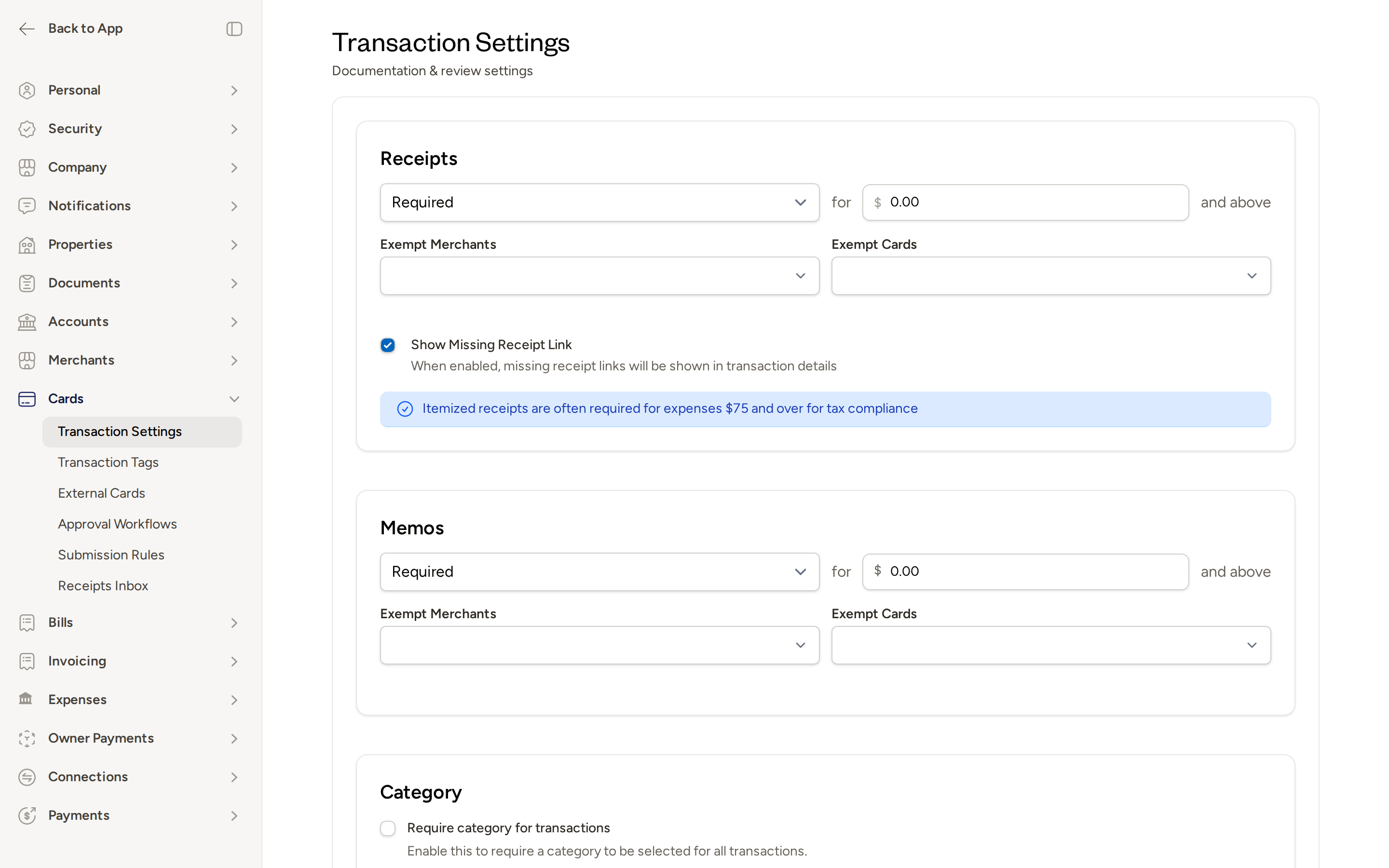
For each field below, you can set it to Required and optionally set a minimum dollar amount so the requirement only applies to transactions at or above that threshold. Transactions below the threshold will not be held incomplete for that field.
Receipts
Turn on Required under Receipts to make a receipt attachment mandatory on every card transaction before it can be submitted.
- Set the for $ and above amount to apply the receipt requirement only to transactions above a specific dollar amount (for example, $75.00). Transactions below that amount will not require a receipt.
- Enable Show Missing Receipt Link to display a prompt in transaction details when a receipt has not yet been attached. This makes it easy for cardholders to submit a receipt from the transaction view.
- Use Exempt Merchants and Exempt Cards to carve out specific merchants or cards from the receipt requirement (see Exemptions below).
Itemized receipts are often required for expenses $75 and over for tax compliance. Topkey surfaces this reminder directly on the Transaction Settings page.
Memos
Turn on Required under Memos to require a short written note on every card transaction before it can be submitted. Memos are useful when you want cardholders to provide a brief description of every purchase for bookkeeping or owner reporting purposes.
- Set a minimum dollar threshold so only transactions above that amount require a memo.
- Use Exempt Merchants and Exempt Cards to exclude specific merchants or cards from the memo requirement.
Category (GL Code)
Turn on Required under Category to require cardholders to select an expense category (GL code) before a transaction can be submitted. This ensures every transaction is coded correctly for your chart of accounts.
- A minimum dollar threshold can be set so only transactions above that amount require a category.
- Exempt specific cards from this requirement using Exempt Cards.
Property
Turn on Required under Property to require every card transaction to be assigned to a specific rental property before it can be submitted. Property assignment is essential for accurate owner statements and property-level expense reporting.
- A minimum dollar threshold can be set so only transactions above that amount require a property.
- Exempt specific cards from this requirement using Exempt Cards.
Work Order
Turn on Required under Work Order to require cardholders to link a work order to every card transaction before it can be submitted. This is useful for teams that manage maintenance workflows and want every spend tied back to a specific job.
Accounting Fields
Turn on the individual toggles under Accounting to require one or more accounting fields — Class, Location, Tax Code, and Department — on every card transaction before submission. These fields are particularly important when you have an accounting integration that needs these values to sync correctly.
Completion Window
The Completion Window setting controls how many days after a transaction date Topkey waits before automatically marking an incomplete transaction as complete. This prevents a backlog of stale transactions from remaining open indefinitely.
- Set the number of days in the Completion Window Days field.
- Enable Auto Complete Outside Window to have Topkey automatically mark transactions complete once they fall outside the window, even if required fields are still missing.
Enabling Auto Complete Outside Window will mark transactions complete regardless of whether required fields have been filled in. Use this setting carefully if you rely on completion status to gate approval workflows.
Automation: AI and Auto-Classification
Topkey offers two automation features that reduce the manual effort of coding transactions.
AI Category Suggestions
Enable AI Category Suggestions to have Topkey automatically suggest an expense category when a cardholder opens a transaction for review. Suggestions are based on the merchant name and transaction details. Cardholders can accept or change the suggested category before submitting.
Auto-Classification Rules
Enable auto-classification to have Topkey automatically assign a merchant name or property to new transactions based on how similar transactions were coded in the past.
- Auto-classify by Merchant — automatically applies the merchant name from prior transactions at the same merchant.
- Auto-classify by Property — automatically assigns the property from prior transactions with the same merchant.
- Ignore on Conflict — when enabled, if Topkey finds conflicting historical coding for a transaction (for example, the same merchant was assigned to different properties in the past), it will leave the field blank rather than applying a potentially incorrect value.
Auto-classification works best after your team has coded several weeks of transactions. The more history Topkey has, the more accurate the suggestions become.
Exemptions
The Exemptions tab is where you carve out specific cards or merchants from one or more required fields. Exemptions are additive — a card can be exempt from multiple requirements simultaneously.
Exempt Cards
Select one or more cards to exempt from the Receipt or Memo requirement. For example, a shared purchasing card used for recurring vendor payments where receipts are not available can be excluded from the receipt requirement without affecting all other cards.
Card exemptions for Category and Property are also supported and can be configured inline within each field's settings section on the Settings tab.
Exempt Merchants
Select one or more merchants to exempt from the Receipt or Memo requirement. This is ideal for recurring SaaS subscriptions or utility vendors where a receipt email is not generated per transaction.
Use merchant exemptions for any vendor where you have a standing contract or subscription — these transactions rarely produce itemized receipts and adding an exemption prevents cardholders from being blocked unnecessarily.
Submission Rules
Submission Rules is a separate settings page (navigate to Cards → Submission Rules in the left sidebar) that controls whether all mandatory fields must be completed before a transaction can be submitted for review or approval.
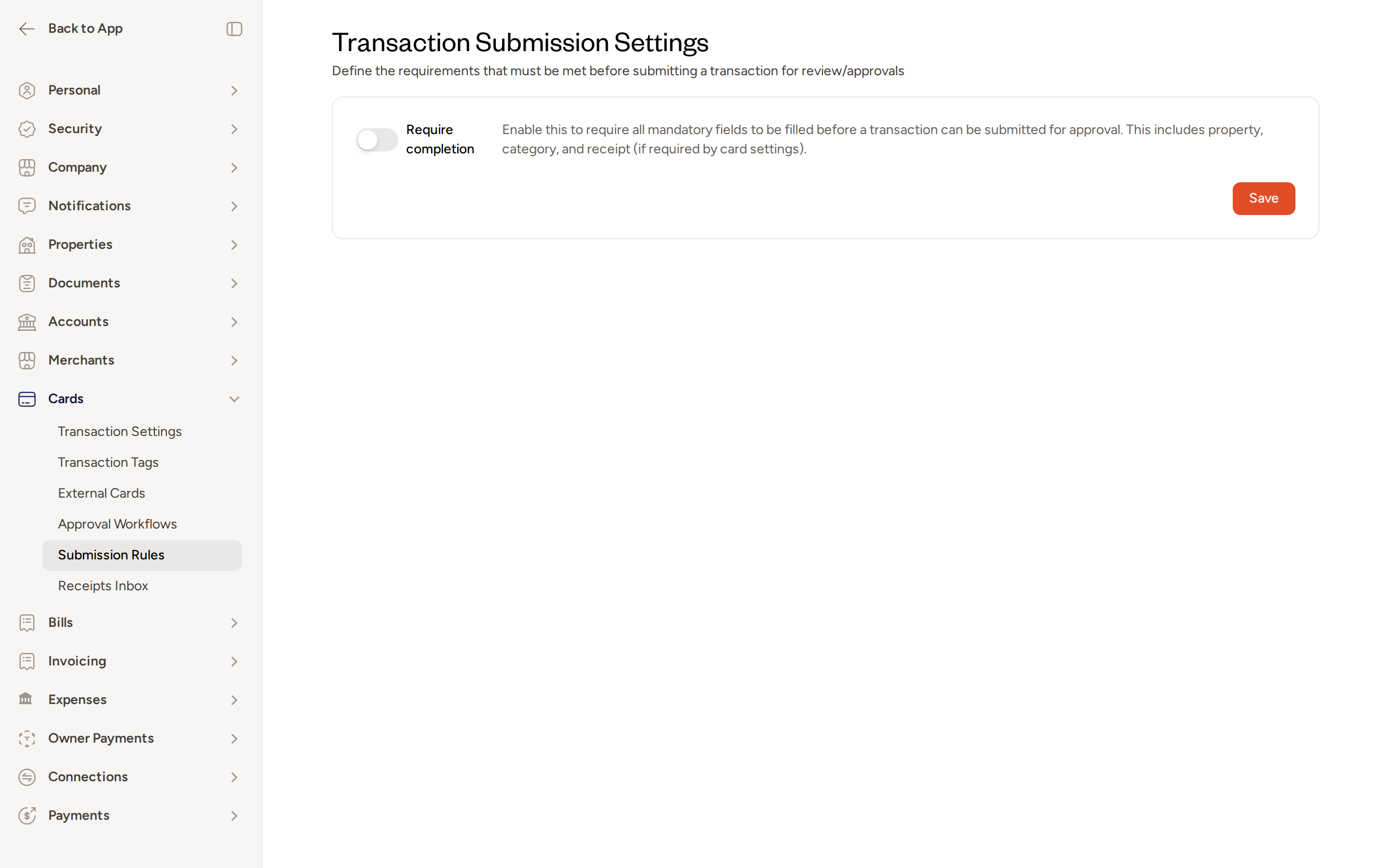
Enable Require completion to enforce that all required fields — including property, category, and receipt (if required by your Transaction Settings) — must be filled in before a cardholder can submit a transaction. When this is turned off, cardholders can submit transactions even if required fields are still incomplete.
Click Save after making changes to this page.
Submission Rules work hand-in-hand with your Transaction Settings. The fields you mark as required on the Settings tab are exactly the fields the Require completion toggle enforces at submission time.
How These Settings Affect the Cardholder Experience
When required fields are configured, cardholders see a checklist of outstanding items when they open a transaction for review. A transaction cannot be marked as submitted until all non-exempt required fields are complete. Admins can see at a glance which transactions are still incomplete — for example, which ones are missing a receipt or have no property assigned — directly from the card transactions list.
Tips for Getting Started
If your team is new to transaction documentation requirements, start by enabling Receipt and Category as required fields. Once cardholders are comfortable with those two steps, add the Property requirement to ensure every expense is attributed to the right rental property.
Use the minimum dollar threshold on receipts to align with IRS guidance — many property managers set this to $75 so that small incidental purchases do not create unnecessary friction for cardholders.
Be generous with exemptions for subscription and vendor cards. If a card is used exclusively for a recurring software subscription or utility, exempt it from both the receipt and memo requirements so cardholders are not blocked on transactions they cannot easily document.
Frequently Asked Questions
What happens to existing transactions when I turn on a new required field? When you save a change to Transaction Settings, Topkey re-evaluates the completion status of all existing transactions in the background. Transactions that are now missing a newly required field will be marked incomplete. Allow a few minutes for all transactions to be updated after saving.
Can I require a receipt for high-value transactions only, without requiring it on every purchase? Yes. Set the Receipt field to Required and enter a minimum dollar amount in the for $ and above field. Only transactions at or above that amount will require a receipt before submission.
If a card is exempt from a requirement, does that affect the cardholder's ability to submit the transaction? Yes — exemptions are applied before submission is evaluated. If a card is exempt from the receipt requirement, the cardholder can submit the transaction without attaching a receipt, regardless of whether Require completion is enabled on the Submission Rules page.
For help configuring Transaction Settings for your account, Contact Support.