AI Automations
Customizable System Prompts
Topkey's AI agents follow a set of built-in instructions — called system prompts — that determine how they make decisions. You can edit these prompts to reflect your business's unique vendors, property naming conventions, and accounting rules, so the AI works the way your operation expects.
What System Prompts Are
Each AI agent in Topkey — such as the agent that classifies expenses or the one that assigns GL codes — operates according to a system prompt. This prompt is a set of written instructions that tells the agent how to interpret data, what logic to apply, and what format to use when producing results.
For example, the expense categorization agent uses its prompt to decide which chart of accounts category best fits a given transaction. If your business has unusual vendors or property-specific rules, the default prompt may not always get it right. Customizing the prompt lets you encode that business logic directly.
Finding Your AI Agent Prompts
To view all active prompts for your account:
- Go to Settings in the left navigation.
- Under the Company section, select AI Prompts.
The AI Agent Prompts page lists every active prompt grouped by agent. For each prompt, you can see the agent name, prompt key, last modified date, who made the last change, and the current revision number.
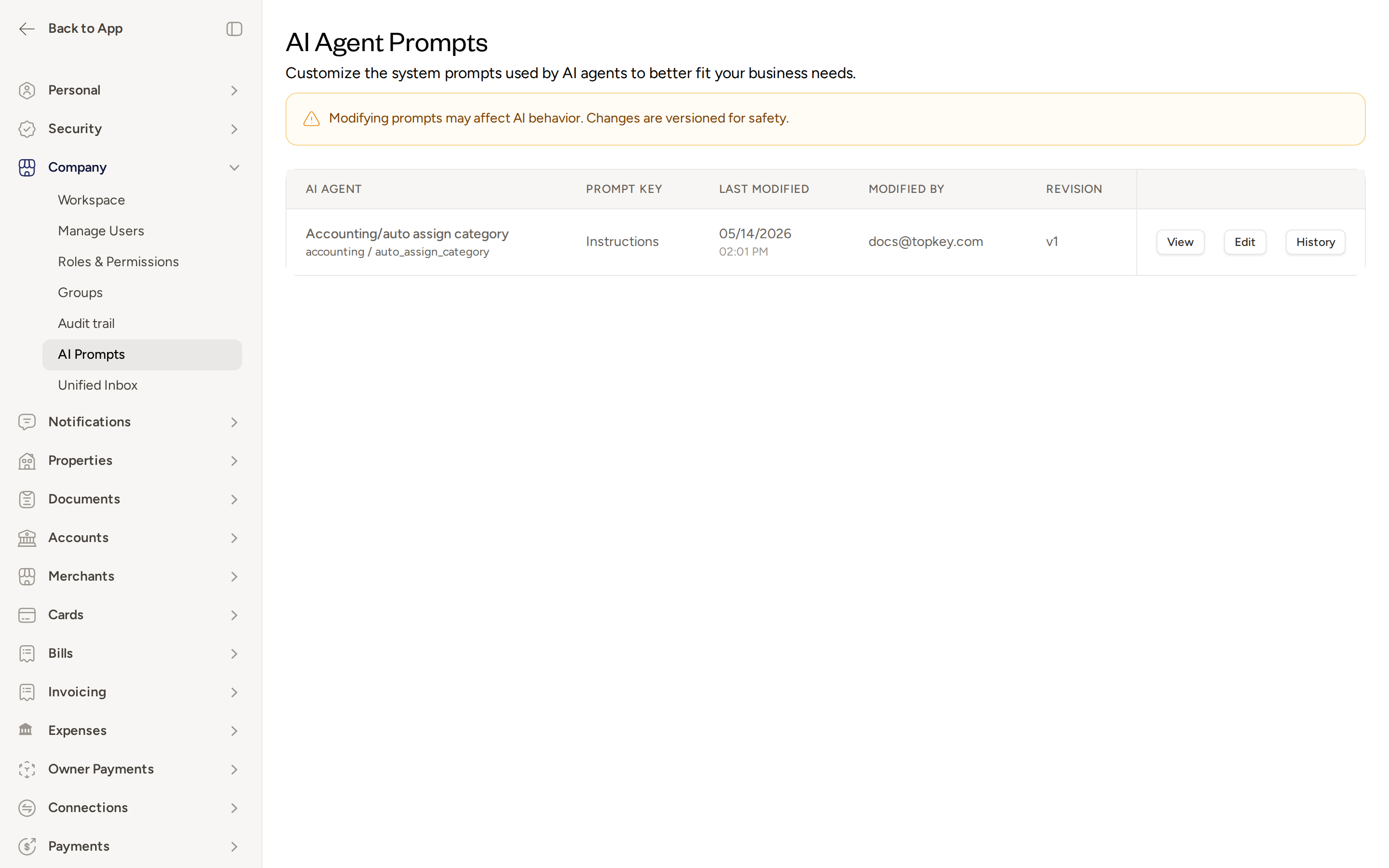
Modifying prompts can significantly change how the AI behaves. All changes are versioned so you can revert if needed, but review your edits carefully before saving.
Loading the Latest Default Prompts
If your account doesn't yet have prompts loaded, or you want a fresh starting point before customizing, use the Import Defaults action. This loads Topkey's latest baseline prompts into your account in bulk, giving you a clean foundation to build on.
After importing, all prompts will appear in the AI Agent Prompts list and are ready to edit.
Editing a Prompt
- On the AI Agent Prompts page, find the prompt you want to change.
- Click Edit to open the prompt editor.
- The editor displays the current Prompt Content — the full text of instructions the agent is using.
- Make your changes directly in the prompt content area.
- Enter a brief note in the Reason for Change field to describe what you changed and why. This note is saved with the revision and helps you track your edits over time.
- Save your changes. The updated prompt becomes the active version immediately.
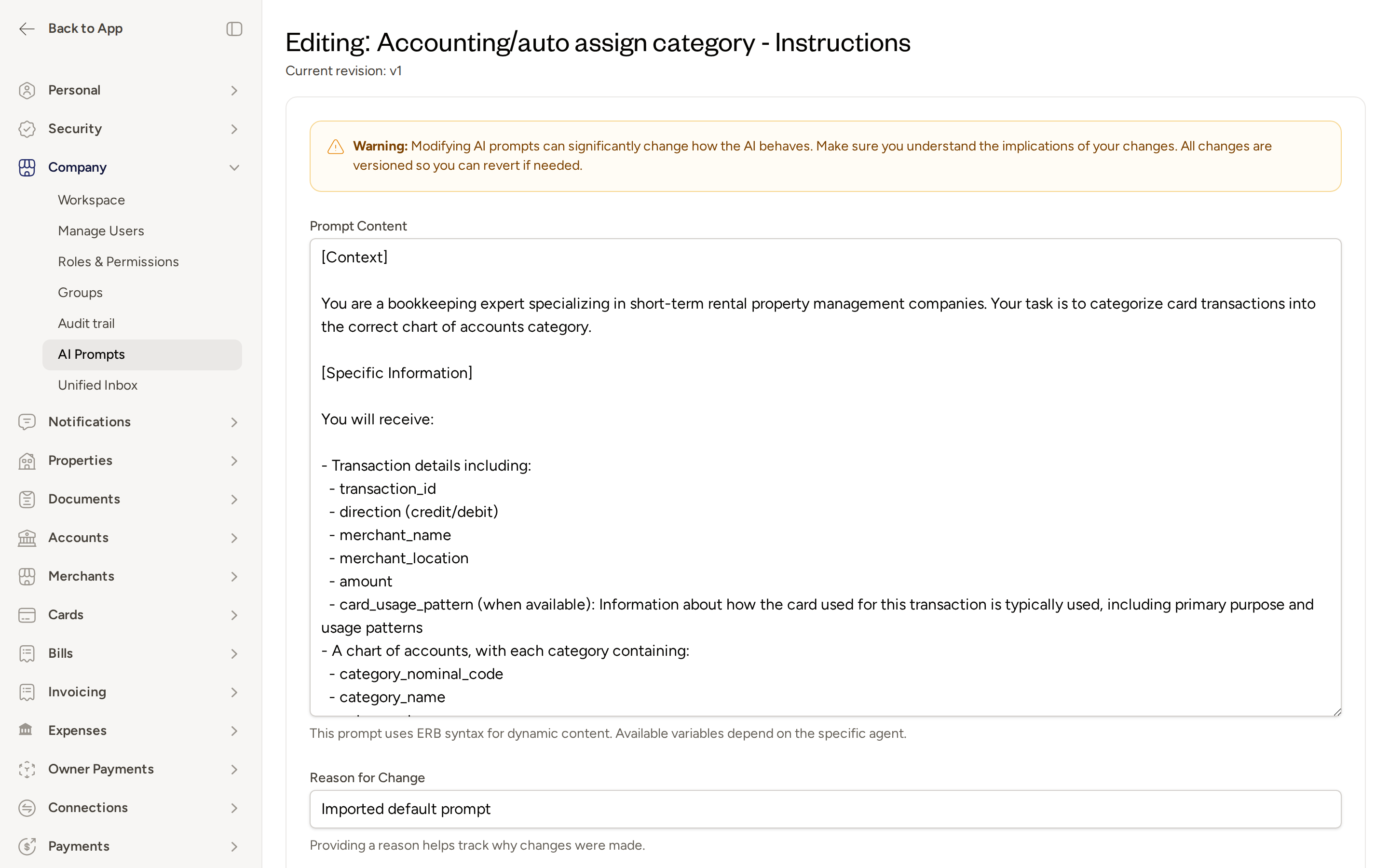
The editor shows the current revision number at the top of the page (for example, "Current revision: v1"). Each time you save, a new revision is created and the previous version is preserved in the history.
Improving a Prompt with AI
If you're not sure exactly how to rewrite a prompt, you can describe the change you want in plain English and let Topkey's AI suggest an updated version for you.
- Open the prompt you want to improve by clicking Edit.
- Click Improve with AI.
- Describe the change you'd like — for example, "Always assign cleaning supply purchases to the Housekeeping expense category" or "Treat transactions from Lowe's and Home Depot as Maintenance and Repairs."
- The AI will generate an updated version of the prompt based on your description.
- Review the suggested changes, then save if you're satisfied.
The more specific your description, the better the AI's suggestion will be. Focus on one rule or behavior at a time rather than describing multiple changes at once.
Viewing Version History and Restoring a Previous Version
Every time you save a prompt, Topkey creates a new revision. You can view the full change history for any prompt and restore a previous version if a change didn't work as expected.
- On the AI Agent Prompts page, click History next to the prompt you want to review.
- The history view lists all past revisions in order, including who made each change and when.
- To restore a previous version, select it and confirm. The selected version becomes the new active prompt, and a new revision is created to record the restore action.
Resetting to the Topkey Default
If your customizations aren't producing the results you want, you can discard them entirely and return to Topkey's original baseline prompt.
- Open the prompt editor by clicking Edit.
- Click Reset to Default.
- Confirm the action. The prompt reverts to Topkey's baseline content, and a new revision is saved to record the reset.
Resetting to default does not delete your previous revisions. You can still view them in the prompt's history.
Best Practices for Customizing Prompts
- Be specific. Focus each customization on a single, well-defined rule. Vague or broad instructions are harder for the AI to apply consistently.
- Don't contradict the core instructions. The baseline prompt contains foundational logic that keeps the agent functioning correctly. Add to it rather than replacing it wholesale.
- Test your changes. After saving a customized prompt, run a few real transactions through the affected feature and confirm the AI is behaving as expected.
- Use the Reason for Change field. A brief note explaining why you made a change makes it much easier to understand your history if you need to troubleshoot later.
- Start from defaults. If you're customizing for the first time, use Import Defaults to load the latest baseline, then make targeted edits from there.
Frequently Asked Questions
Will my prompt changes affect all users on my account? Yes. System prompt customizations apply at the account level, so any changes you make will affect how the AI behaves for all users in your Topkey workspace.
What happens if an AI-assisted improvement doesn't look right? You can discard the suggestion without saving, or use the History view to revert to any previous revision after saving. No change is permanent — every revision is stored and can be restored.
Can I have different prompts for different properties or agents? Each AI agent has its own prompt, so you can customize each agent independently. However, prompts apply across your entire account and are not scoped to individual properties.
For additional help, Contact Support.