Inventory
Inventory Templates
Inventory templates let you save pre-defined bundles of supplies so you can populate the storefront cart in seconds rather than adding items one by one. Instead of searching for every product during a checkout, you select a template and the items are added automatically.
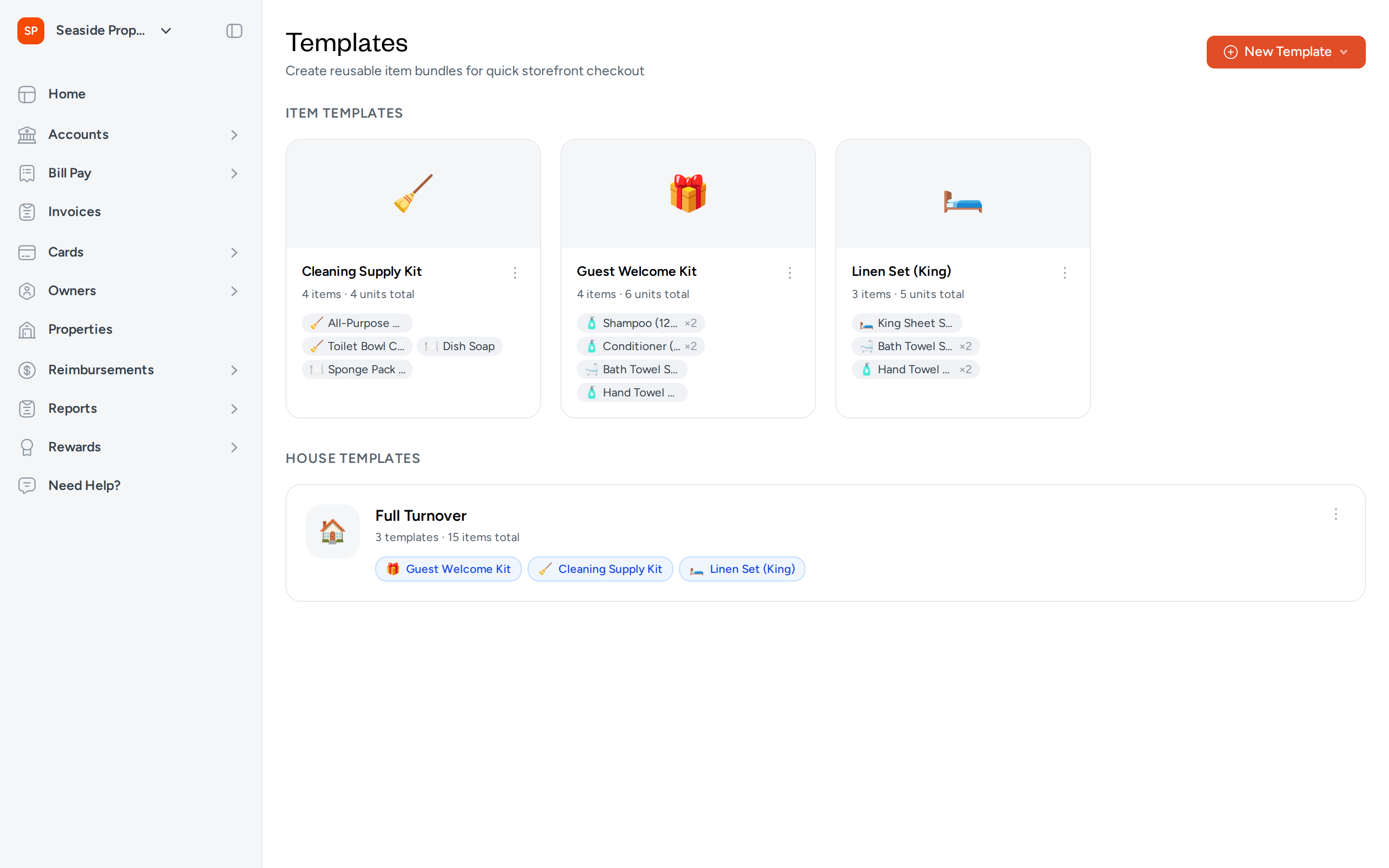
Types of Templates
Topkey supports two types of templates:
- Item Templates — a named list of specific inventory items with quantities. For example, a "Guest Welcome Kit" might include shampoo, conditioner, bath towels, and hand towels. Use item templates to represent a logical group of supplies for a single purpose.
- House Templates — a bundle of item templates combined into one. For example, a "Full Turnover" house template might pull together a Cleaning Supply Kit, a Linen Set, and a Guest Welcome Kit. When you apply a house template at checkout, all items from every included item template are added to the cart at once.
Build your item templates first. House templates are assembled from existing item templates, so you need at least one item template before you can create a house template.
Creating an Item Template
Item templates are the building blocks of your inventory workflow. Each one represents a specific bundle of supplies with defined quantities.
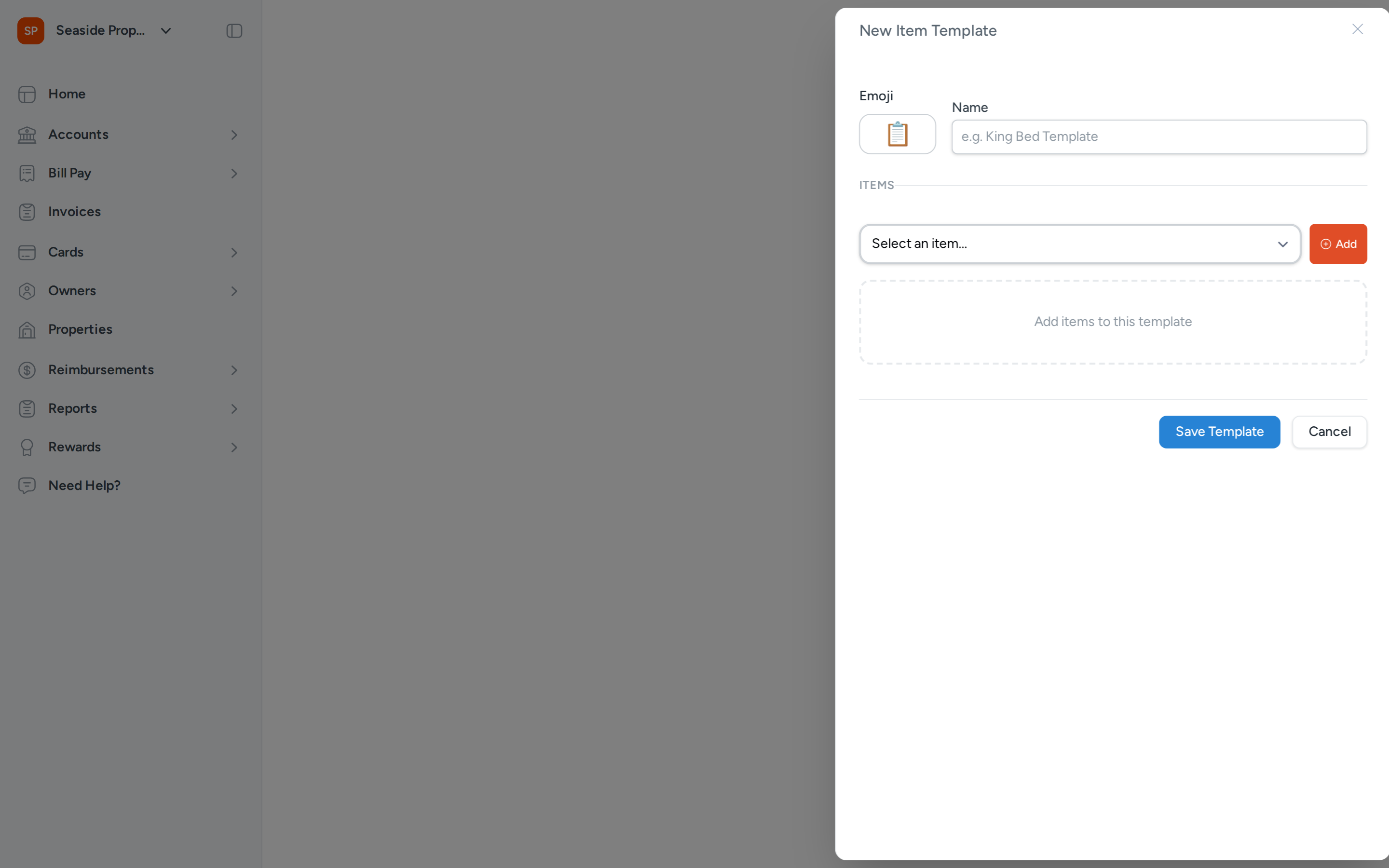
- Navigate to Inventory and select the Templates tab.
- Click New Template in the top-right corner, then select Item Template from the menu.
- Click the emoji button to choose an emoji that represents the template — this makes it easy to identify at a glance.
- Enter a descriptive name in the Name field (for example, "Guest Welcome Kit" or "Cleaning Supply Kit").
- Under the Items section, use the selector to find and choose an item from your catalog, then click Add.
- Repeat step 5 for each item you want to include. For any item that requires more than one unit, adjust the quantity after adding it.
- Click Save Template when you're done.
Only active items in your catalog appear in the item selector. If an item is missing, check that it has not been deactivated in your catalog.
Creating a House Template
House templates let you combine multiple item templates into a single one-click bundle — ideal for full property turnovers or multi-step restocking routines.
- Navigate to Inventory and select the Templates tab.
- Click New Template in the top-right corner, then select House Template from the menu.
- Click the emoji button to choose an emoji for the template.
- Enter a descriptive name in the Name field (for example, "Full Turnover" or "Standard 2BR Setup").
- Under the Templates section, use the selector to find and choose an item template to include, then click Add.
- Repeat step 5 for each item template you want to bundle together.
- Click Save Template when you're done.
House templates can only include item templates — you cannot nest one house template inside another.
The Templates List
The Templates page displays all your saved templates in two sections: Item Templates and House Templates.
Item template cards show:
- The template emoji and name
- The number of distinct items and total units included
- A preview of the first few items in the bundle (with quantities where more than one unit is included)
House template rows show:
- The template emoji and name
- The number of item templates included and the total item count across all of them
- Badges for each included item template
This overview makes it easy to confirm the contents of a template before using it at checkout.
Using Templates at Checkout
When creating a checkout on the storefront, you can apply a template to quickly populate the cart:
- Open the storefront and start a new checkout.
- Select a template from the template options available in the checkout.
- The items from the template — or from all item templates within a house template — are added to the cart automatically.
- Review the cart and adjust quantities as needed before completing the checkout.
House templates combine the items from all their included item templates into a single cart. Duplicate items across templates are merged so the quantities add together rather than appearing as separate line items.
Editing a Template
- On the Templates page, find the template you want to update.
- Click the options icon (⋯) on the template card or row.
- Select Edit.
- Update the name, emoji, or items as needed.
- Click Save Template to apply your changes.
Deleting a Template
- On the Templates page, find the template you want to remove.
- Click the options icon (⋯) on the template card or row.
- Select Remove.
- Confirm the removal when prompted.
Removing a template is permanent. If a house template includes an item template that you remove, the house template will no longer have access to that bundle. Review any house templates that reference the item template before removing it.
Frequently Asked Questions
Can I use the same item template in more than one house template? Yes. An item template can be included in as many house templates as you need. Any changes you make to the item template will be reflected in every house template that uses it.
What happens if an item in my template goes out of stock? The template still includes the item, and it will be added to the cart when you apply the template at checkout. Stock availability is checked at the time of checkout, so you may need to adjust quantities if stock is insufficient.
Can I change the order of items in a template? The items in a template appear in the order they were added. To reorder them, edit the template and remove and re-add items in the order you prefer.
Questions? Contact Support