Bill Pay
Managing Bills
Topkey gives you a full set of tools to manage bills efficiently across your team — whether you're processing a batch of invoices, tracking who's responsible for each bill, or keeping a clean audit trail of every change. This page covers bulk actions, CSV exports, flags, duplicate detection, assignees, activity history, and several other bill management features.
Bulk Actions
You can perform actions on multiple bills at once from the bill list. This is useful when you need to submit, approve, or delete a large number of bills without opening each one individually.
Selecting Bills
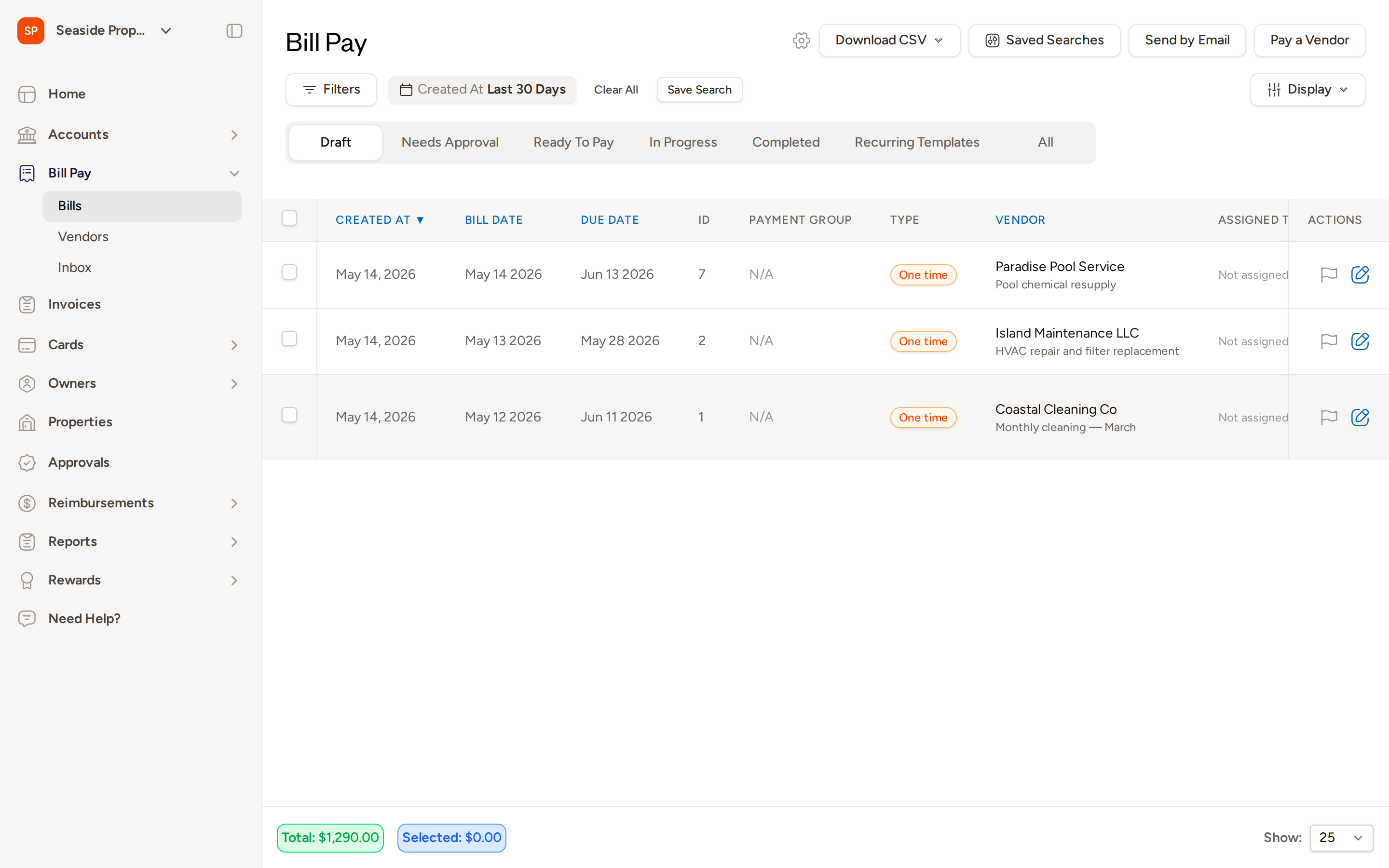
Check the checkbox to the left of each bill you want to include. To select all bills visible on the current page, check the checkbox in the column header. A toolbar appears at the bottom of the list showing the count and total amount selected.
Bulk Submit
Select one or more bills in Draft status, then click Submit in the bulk action toolbar. Topkey will attempt to submit each selected bill and notify you of any that could not be submitted.
The Submit button only appears when you are on the Draft tab and have edit permissions.
Bulk Delete
Select the bills you want to remove, then click Delete in the bulk action toolbar. You will be asked to confirm before any bills are deleted. Bulk delete is available for bills in Draft or Rejected status.
Deleted bills are removed from your active bill list. See Restoring a Deleted Bill below if you need to recover one.
Bulk Assign (More Actions)
To bulk-assign properties, vendors, GL codes, categories, or due dates across multiple bills at once, select the bills and click More in the bulk action toolbar. This opens a panel where you can choose which fields to update and apply them to all selected bills simultaneously.
Bulk Approve
Select bills that are in Needs Approval status and use the bulk action toolbar to approve them all at once. This is available to users with approval permissions.
Bulk Invoice Download
Select the bills whose attached invoice files you want, then open the Download menu in the bulk action toolbar and choose Download Invoices. Topkey packages the files into a ZIP archive and emails you a download link when it is ready.
For large batches, invoice downloads are processed in the background. You will receive an email when your ZIP file is ready.
CSV Export
You can export bill data to a CSV file for reporting, accounting reconciliation, or record-keeping.
Export Selected Bills
Select the bills you want to export, then open the Download menu in the bulk action toolbar. Choose one of the two CSV options:
- Download CSV (single row) — each bill appears as one row, with line item details combined.
- Download CSV (separate rows) — each line item appears on its own row, which is useful when you need to analyze spending at a granular level.
Export All Filtered Bills
To export every bill matching your current filters (not just the ones you've checked), click Download CSV at the top right of the bill list. This exports all results from your active search or filter, regardless of what is selected on screen.
CSV exports are processed in the background. Once your file is ready, Topkey sends it to your email address. A "Processing…" message appears while the export is being prepared.
Bill Flags
You can flag any bill to mark it for follow-up or to draw your team's attention to it. The flag icon appears on the right side of each row in the bill list.
- Click the flag icon on a bill to toggle it on or off.
- Use the Filters panel to filter the bill list to show only flagged bills, making it easy to work through items that need attention.
Duplicate Detection
When you create or upload a bill, Topkey automatically checks for potential duplicates based on vendor, amount, and date. If a likely duplicate is found, a warning banner appears on the bill.
- Review the warning to determine whether the bill is truly a duplicate.
- If the bill is legitimate and not a duplicate, click Mark as Not Duplicate to dismiss the warning and proceed normally.
Do not dismiss a duplicate warning without reviewing the original bill. Paying a duplicate vendor bill can be difficult to reverse.
Assignees
You can assign a team member to a bill to indicate who is responsible for managing and approving the bill.
- Open a bill and locate the Assignee field in the details panel on the right side of the screen.
- Select the team member you want to assign.
- From the bill list, use Filters to filter by a specific assignee so each person can quickly see the bills they own.
Activity Tab
Every bill has an Activity tab that provides a complete audit history of everything that has happened to it.
The activity log records:
- Who created the bill and when
- Every edit made, including what changed and who made the change
- Submission, approval, and payment events with timestamps
- Status transitions (for example, when a bill moved from Draft to Needs Approval)
- Comments and replies left by team members
Open any bill and click the Activity tab to review its full history. This is especially useful for resolving disputes or understanding why a bill is in its current state.
Threaded Comments
You and your team can communicate directly on a bill using comments. On any bill's Activity tab, type a message in the comment field and submit it. Colleagues can reply to your comment, keeping all discussion about the bill in one place rather than scattered across email or chat.
Duplicating a Bill
If you need to create a new bill with the same details as an existing one — for example, a recurring vendor charge — you can duplicate it rather than starting from scratch.
Open the bill, click the action menu (the three-dot or gear icon), and select Duplicate. Topkey creates a new bill in Draft status with all the original bill's details pre-filled. You can then edit any fields before submitting.
Restoring a Deleted Bill
If a bill was deleted by mistake, you can restore it.
- In the bill list, enable the option to show deleted bills. Look for the Display menu at the top right and toggle on deleted bills to show them alongside active bills.
- Find the deleted bill in the list.
- Open it and select Restore from the action menu. The bill returns to the status it had before it was deleted.
Showing or Hiding Deleted Bills
By default, deleted bills are hidden from the bill list. To include them in your view, open the Display menu at the top right of the bill list and enable the option to show deleted bills. Toggle the setting off to return to the standard view.
Returning a Bill for Revision
If you are a reviewer and a submitted bill needs corrections before it can be approved, you can return it to the submitter without issuing a full rejection. Open the bill and use the action menu to return it for revision, adding a comment to explain what needs to change. The bill moves back to Draft status so the submitter can make corrections and resubmit.
Canceling an Approval Request
If a bill has been submitted for approval but you need to pull it back — for example, because details need to change before reviewers see it — you can cancel the in-progress approval request. Open the bill and select Cancel Approval Request from the action menu. The bill returns to Draft status without being marked as rejected, and the approval workflow is reset.
Unlocking a Bill for Editing
Bills that have been approved or are in a locked state cannot be edited directly. If you need to make a change, open the bill and select Unlock from the action menu. The bill becomes editable for a set time window, after which it automatically re-locks. Make your changes and save before the window closes.
Accounting Sync Actions
For accounts connected to an external accounting system, you can manually control how a bill is synced.
- Push to Accounting — Open the bill and select Push to Accounting from the action menu to manually send the bill's data to your connected accounting system, rather than waiting for the next automatic sync.
- Archive / Unarchive — Use the action menu to archive a bill from your accounting sync (to exclude it from being exported) or unarchive it to include it again.
AI Property Suggestions
When Topkey's AI processes an uploaded invoice, it may suggest which property each line item belongs to based on the content of the document. These suggestions appear on the line items for your review.
- Click Accept on a suggestion to apply it to the line item.
- Click Reject to dismiss the suggestion and assign the property manually.
Reviewing and acting on AI suggestions helps keep your books accurate without requiring manual data entry for every line item.
Vendor Inbox: Managing Emails
Bills received through your vendor email forwarding address appear in Bill Pay → Inbox. You can manage those emails directly from the inbox:
- To delete a single email, open it and select Delete from the action menu.
- To delete multiple emails at once, select them using the checkboxes and use the bulk Delete action in the toolbar.
Deleting an email from the inbox does not delete any bill that was already created from it.
Frequently Asked Questions
Can I bulk-approve bills from different status tabs at the same time? No. Bulk actions apply to the bills visible in your current tab. To bulk-approve, navigate to the Needs Approval tab, select the bills, and use the approval action from the toolbar.
Why did my CSV export not arrive immediately? CSV exports are processed in the background, especially for large result sets. Topkey emails your completed file to the address associated with your account. If it has been more than a few minutes and you haven't received it, check your spam folder or Contact Support.
What happens if I unlock a bill and don't save my changes before the lock window closes? The bill automatically re-locks after the set time window. Any unsaved changes will be lost. Save your edits promptly after unlocking to avoid having to unlock the bill again.