Cards
Card Settings
Card Settings in Topkey give you precise control over how card transactions are tracked, reviewed, and enforced across your team. This page covers three areas that work together: Submission Rules (what cardholders must provide before a transaction is complete), Card Lock Settings (automatic enforcement when cardholders fall behind), and Notification Routes (who gets alerted when cards are issued or action is needed).
Submission Rules
Navigate to Settings → Transactions → Submission Rules to configure the requirements that must be met before a transaction can be submitted for review or considered complete.
Configuring Required Fields
Submission rules let you define exactly what information every card transaction must include. These are account-wide rules — they apply to all cardholders unless a card-level or rule-based exemption is in place (covered below).
The four fields you can make required are:
- Receipt — the cardholder must attach a receipt image to the transaction
- Memo — the cardholder must enter a written note explaining the purchase
- Category — the cardholder must assign a GL (general ledger) category
- Property — the cardholder must link the transaction to a property
When a field is marked required, the cardholder's transaction inbox shows it as an unchecked item. The cardholder cannot submit the transaction until every required field is filled.
Minimum Dollar Thresholds
For each required field, you can set a minimum dollar amount. When a threshold is set, only transactions at or above that amount are subject to that requirement. For example, you might require a receipt only on transactions over $25, keeping low-value purchases frictionless while ensuring documentation on larger spend.
A good starting point is to require Receipt and Category only. This keeps your books clean without overwhelming cardholders. Add Property once your team is comfortable with the workflow.
AI-Powered Category Suggestions
Topkey can automatically suggest an accounting category on each transaction based on the merchant's history. Enable Auto-suggest accounting categories using AI in your transaction settings to turn this on. Cardholders can accept or change the suggestion — it speeds up categorization without removing their control.
Require Completion
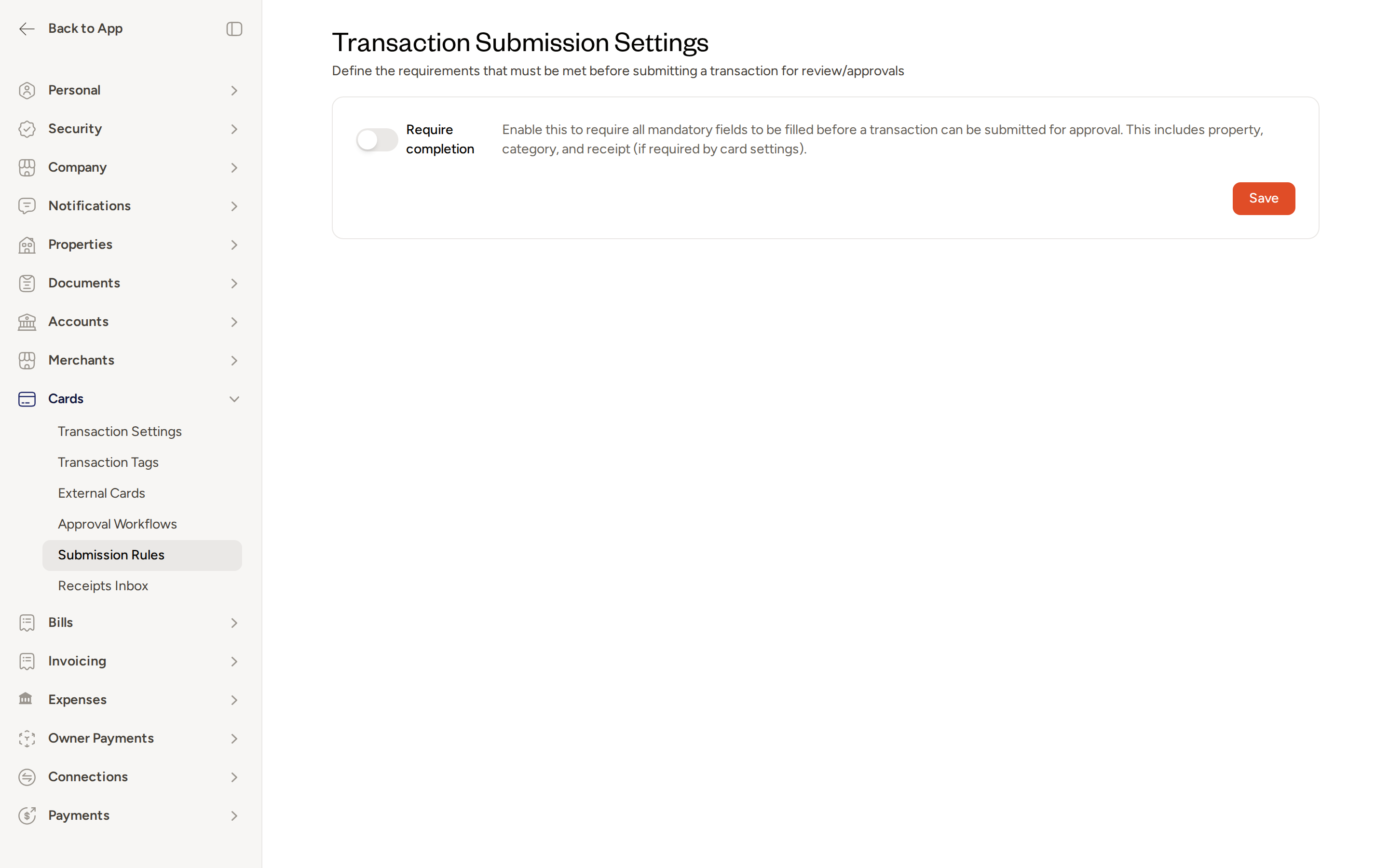
The Require completion toggle on the Submission Rules page controls whether all mandatory fields must be filled before a transaction can be submitted for approval. When enabled, Topkey enforces that property, category, receipt, and any other required fields are complete before the cardholder can send the transaction for manager review.
Transaction Approval Workflow
You can configure a transaction approval workflow that requires cardholders to submit completed transactions to a manager for review before they are considered fully processed. This adds an additional checkpoint beyond field completion.
Within the approval workflow settings, you can:
- Auto-request approval — Topkey automatically sends the transaction for manager review once all required fields are filled, without the cardholder needing to take an extra step
- Send approval notifications — notify the assigned approver when a transaction is waiting for their review, and notify the cardholder when their submission is approved or denied
Approval workflows are configured separately under Settings → Transactions → Approval Workflows. Submission Rules and Approval Workflows work together: Submission Rules control what must be filled in, while Approval Workflows control who reviews the completed transaction.
Exemptions
Exemptions are located on the Settings → Transactions (Transaction Settings) page, under the Exemptions tab. They let you relax specific requirements for particular cards or for transactions that match certain conditions, without changing your account-wide rules.
Card-Level Exemptions
A card-level exemption removes one or more requirements for a specific card. This is useful when a card has a non-standard workflow — for example, a shared marketing card where receipts are collected and filed by a marketing administrator rather than the cardholder.
To add a card exemption:
- Go to Settings → Transactions and select the Exemptions tab.
- Choose the requirement you want to create an exemption for (Receipt, Memo, Category, or Property).
- Select the card or cards that should be exempt from that requirement.
- Save your changes.
Cardholders using an exempt card will not see that field as a required item on those transactions.
You can exempt a card from all four requirements, which opts it out of compliance entirely. Use this sparingly — it means Topkey will not prompt the cardholder for any documentation on that card.
Rule-Based Exemptions
In addition to card-level exemptions, you can create rule-based exemptions that automatically exempt transactions matching specific conditions. Each rule is built using a filter with a field, an operator, and a value — for example, exempting all transactions under a certain amount, or transactions from a specific merchant category.
When a transaction matches the conditions of a rule-based exemption, Topkey does not show the exempted fields as required for that transaction. Rule-based exemptions apply automatically without needing to assign them card by card.
Rule-based exemptions are a good fit when your exemption logic depends on the transaction itself (such as amount or merchant type) rather than which card was used.
Card Lock Settings
Navigate to Settings → Card Lock Settings to configure automatic enforcement rules that temporarily lock a card when a cardholder has not completed their required transaction fields within a set number of days.
How Card Locking Works
When a card lock rule is active, Topkey monitors each cardholder's incomplete transactions. If the required fields are still missing after the number of days you specify, the card is automatically locked. The cardholder receives a notification and a reminder before the deadline so they have a chance to catch up.
Once the cardholder submits all pending transactions and meets the required fields, the card unlocks automatically — no admin action needed.
Creating a Lock Configuration
To create a new card lock rule:
- Go to Settings → Card Lock Settings and select New.
- Select the cards this rule applies to.
- Enter the number of days to wait after a transaction is incomplete before locking the card.
- Choose which requirements trigger the lock — Receipt, Memo, Category, and/or Property.
- Save the configuration.
Each card can only belong to one lock configuration at a time. If you try to add a card that is already assigned to another rule, Topkey will alert you.
You can maintain multiple lock configurations for different groups of cards. For example:
- 7-day lock rule for Marketing cards
- 14-day lock rule for Operations cards
Changes to a lock configuration are processed in the background and may take a few seconds to apply across all affected transactions.
Reminder Notifications
Before a card is locked, Topkey sends the cardholder a reminder notification. The timing and frequency of these reminders are configured separately on the Settings → Notifications → Reminders page, where you can set schedules for:
- Incomplete transaction reminders
- Card compliance deadline reminders
- Reminders for unsubmitted transactions awaiting approval
Notification Routes
Navigate to Settings → Notifications → Routing to configure who receives alerts when specific card events occur.
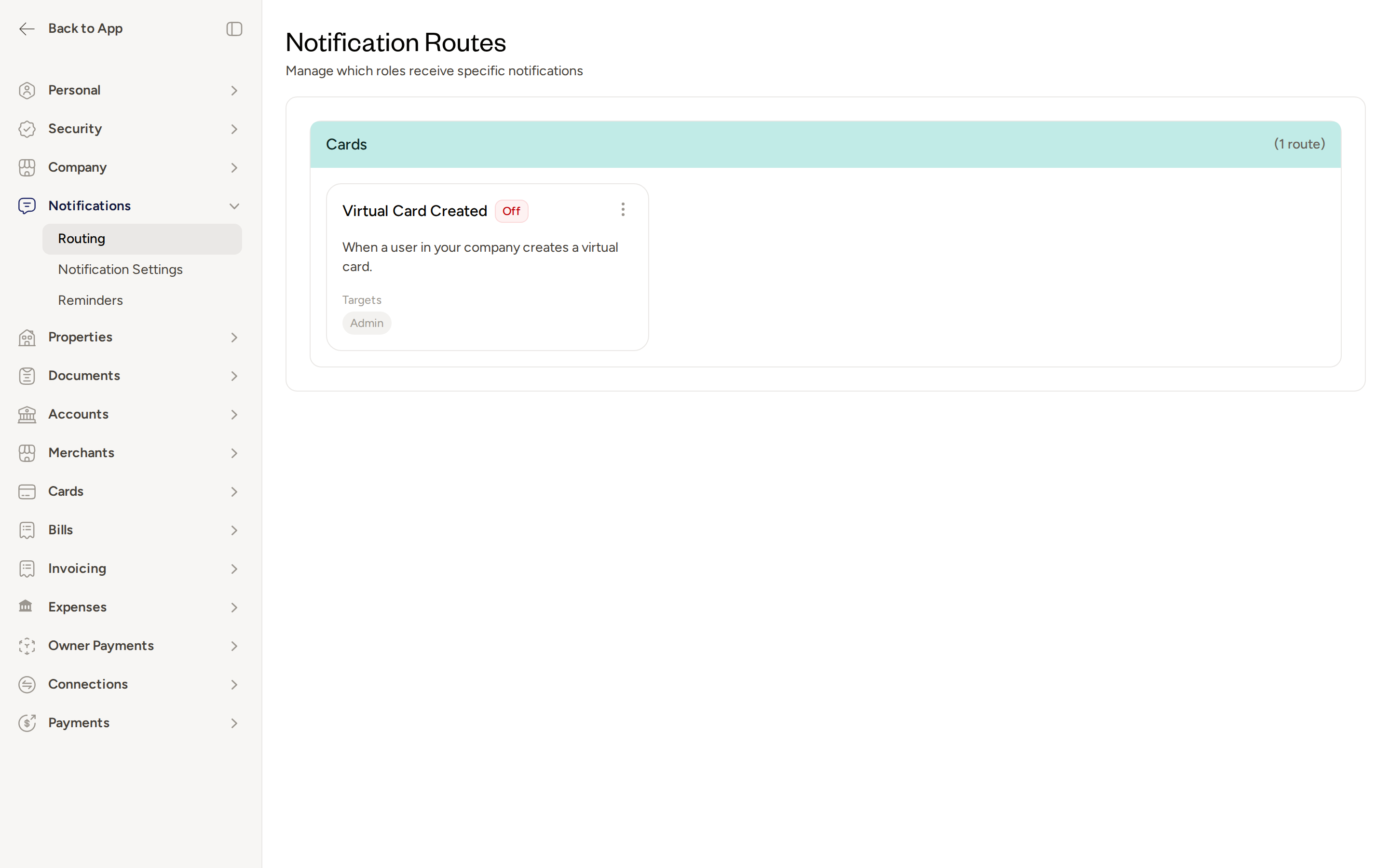
Each notification route connects a specific event type to one or more recipients. Routes can target roles (such as all admins) and can be enabled or disabled at any time. Disabling a route keeps it configured but stops it from sending — useful if you want to pause notifications temporarily without losing your setup.
Card Notification Types
The following card-related notification types are available to route:
- Virtual Card Created — sent when a new virtual Topkey card is issued
- Physical Card Created — sent when a physical Topkey branded debit card is issued and shipped
For the card lock workflow, transaction reminder notifications (such as Card Compliance Reminder and Incomplete Reminder) are also available under the Transactions notification category.
Creating a Notification Route
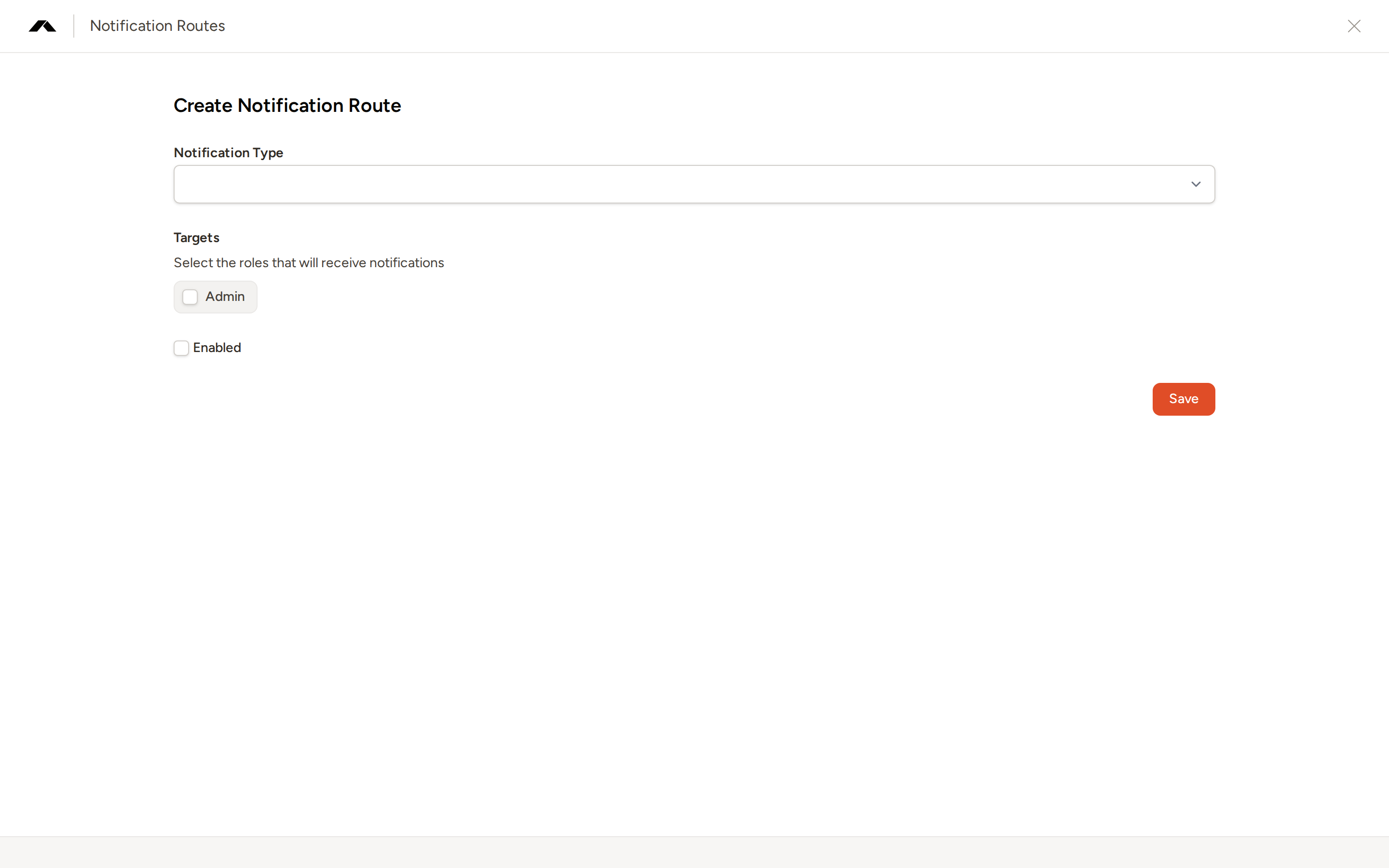
- Go to Settings → Notifications → Routing and select New.
- Choose a Notification Type from the list.
- Under Targets, select the roles that should receive this notification (for example, Admin).
- Check Enabled to activate the route immediately.
- Select Save.
Start by routing Physical Card Created and Virtual Card Created to the Admin role so your team always knows when a new card is in circulation.
How These Settings Work Together
Submission Rules, Card Lock Settings, and Notification Routes are designed to work as a system:
- Submission Rules define what cardholders must provide on every transaction (and any exemptions that apply).
- Card Lock Settings automatically enforce those rules by locking cards when cardholders fall behind.
- Notification Routes keep the right people informed when cards are issued, reminders go out, or a lock is triggered.
A typical setup might look like this:
| Setting | Configuration |
|---|---|
| Required fields | Receipt + Category required |
| Exemption | Marketing card exempt from Receipt |
| Lock rule | 14-day lock for all Operations cards |
| Notification route | Admin notified when any card is created |
| Reminders | Cardholders reminded 1 day before lock deadline |
Frequently Asked Questions
What happens to a locked card — can the cardholder still see it? Yes. The cardholder can still view the card and their transaction history, but they cannot make new purchases until all incomplete transactions meet the required fields. Once they submit the pending transactions, the card unlocks automatically.
Can I require a receipt only for larger purchases and skip it for small transactions? Yes. Set a minimum dollar threshold for the Receipt requirement in your transaction settings. Transactions below that amount will not show Receipt as a required field, regardless of the account-wide setting.
If I disable a notification route, will I lose my configuration? No. Disabling a route keeps all of its settings (notification type, target roles) intact — it simply stops sending notifications until you re-enable it. You can toggle it back on at any time from the Notification Routes page.
For additional assistance, Contact Support.