Admin
Download Reports
Topkey's reporting tools let you export key financial data for month-end close, tax preparation, audits, and cash flow analysis. Apply filters before exporting to keep your files focused and manageable — all exports are CSV by default and open cleanly in Excel or Google Sheets.
Transaction Reports
Transaction reports give you a detailed record of card spending across your team, making them useful for month-end expense reporting, cardholder compliance reviews, and sharing data with your accountant.
Where to find it: Go to Cards → Transactions and select Actions → Export, or navigate to Reports and select the transactions export option.
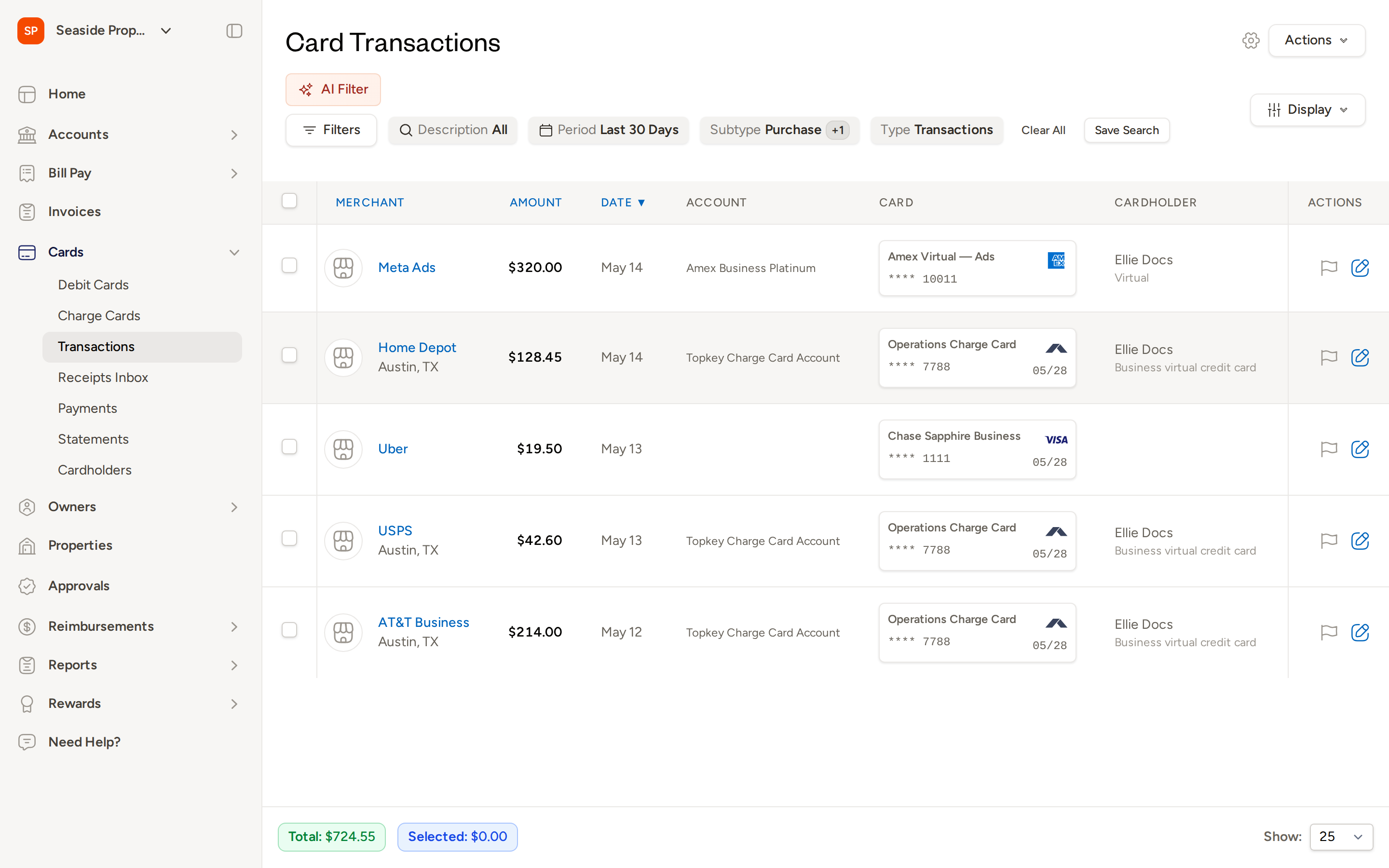
Filters available
Before exporting, use the Filters bar to narrow your results:
- Date range — select a start and end date (both ends are inclusive)
- Card — filter to a specific card by the last four digits
- Cardholder — filter to one or more team members
- Property — filter to transactions coded to a specific property
- Category — filter by expense category
- Status — filter by Submitted, Approved, or Flagged
- Merchant — search for a specific merchant name
What's included in the export
Each row in the exported file represents one transaction and includes:
- Transaction date
- Merchant name
- Amount
- Card (last four digits)
- Cardholder name
- Property
- Category
- GL code
- Memo
- Receipt status
- Approval status
- Accounting sync status
Common use cases
- Sending a monthly expense summary to your accountant
- Auditing cardholder spending against policy
- Reconciling card transactions to your bank statement
- Checking which transactions are missing receipts or GL codes
Vendor List
The Vendor List export gives you a snapshot of all your bill pay vendors, including their payment method and banking details. Use it for 1099 preparation and vendor audits.
Where to find it: Go to Bill Pay → Vendors. Select the vendors you want to export, or use Filters to narrow the list, then use the export option in the actions menu.
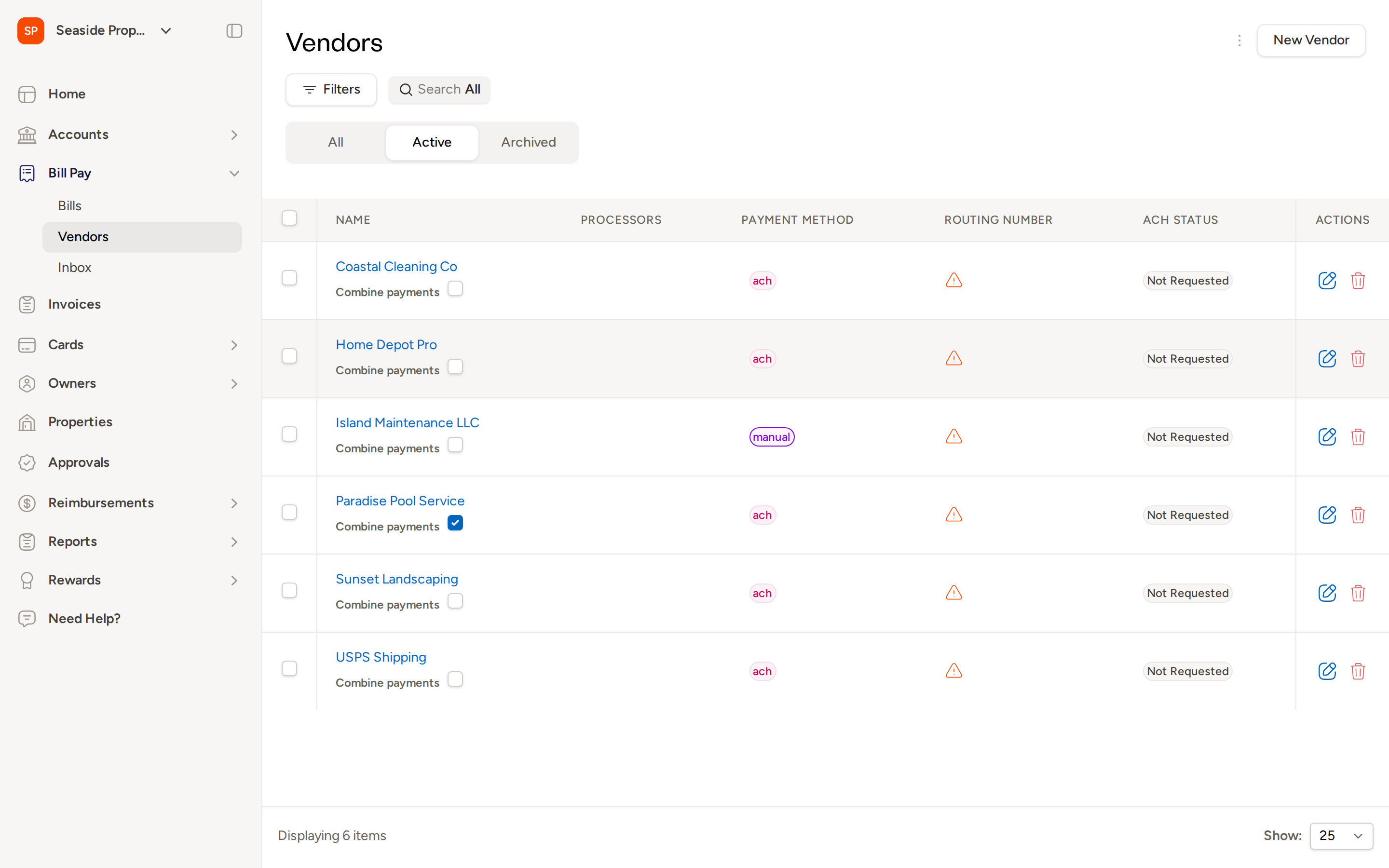
What's included in the export
- Vendor name
- Email address
- Payment method (ACH or manual)
- Masked bank details (routing number shown partially)
- ACH status
- Total paid year-to-date
- Outstanding balance
1099 Report
For tax filing, Topkey includes a dedicated Vendors 1099 report under Reports → Vendors 1099. This report filters to vendors who meet the IRS reporting threshold and formats the data for tax preparation.
Filters available on the 1099 report:
- Tax year (current year and up to three prior years)
- Vendor
- Payment type
- Show filter (for example, showing only vendors marked as 1099 vendors)
Export formats available:
- Track1099 NEC format — the default format, ready to upload directly to Track1099 for e-filing
- Additional CSV formats for other tax workflows
When you request the export, Topkey generates the file in the background and emails you a download link when it's ready.
Bill Pay List
The Bill Pay export gives you a full record of your bills — their amounts, due dates, statuses, and payment details. Use it for accounts payable aging, cash flow forecasting, and reconciling payments to your bank.
Where to find it: Go to Bill Pay → Bills and use the Actions menu to export, or navigate to Reports → Bills.
Filters available
Use Filters to refine your export before downloading:
- Date range (bill date, due date, or created date)
- Vendor
- Status (Draft, Pending Approval, Approved, Paid, Overdue)
- Property
- GL code
- Amount range
What's included in the export
- Bill number
- Vendor name
- Amount
- Bill date
- Due date
- Status
- Property
- GL code
- Payment date
- Payment method
- Check or ACH reference number
Bill Aging Report
The Bill Aging Report is a separate view that shows your outstanding (unpaid) bills grouped by how overdue they are. Navigate to Reports → Bills Aging Report to access it.
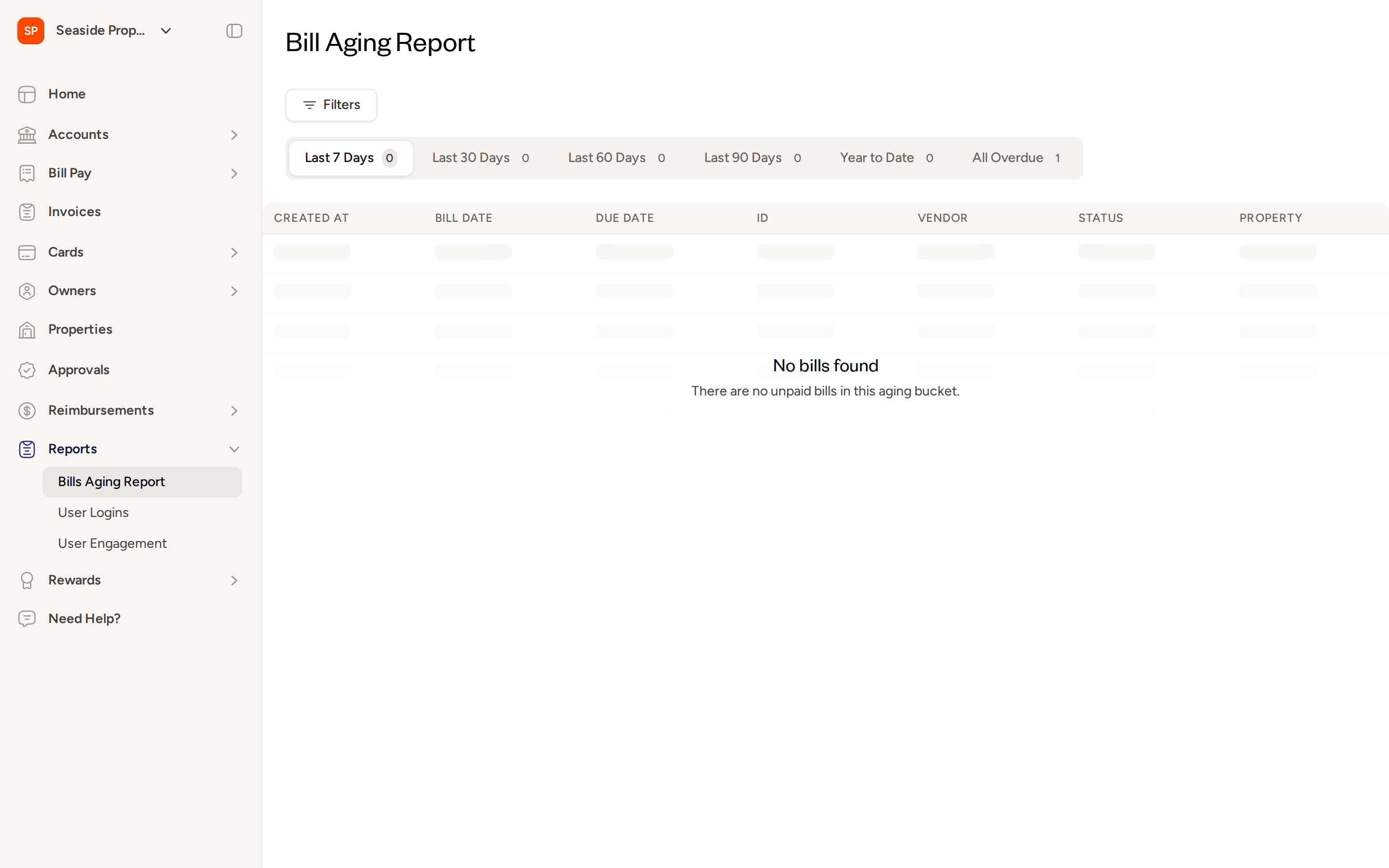
Use the tabs at the top to switch between aging windows:
- Last 7 Days — bills with a due date within the past 7 days
- Last 30 Days — bills with a due date within the past 30 days
- Last 60 Days — bills with a due date within the past 60 days
- Last 90 Days — bills with a due date within the past 90 days
- Year to Date — all bills due since the start of the current year
- All Overdue — every unpaid bill regardless of due date
Each tab displays a count of matching bills. The report columns include Created At, Bill Date, Due Date, ID, Vendor, Status, Property, and Amount.
Owner Payments
The Owner Payments section lets you review and export records of distributions made to property owners.
Where to find it: Go to Owners and use the export option, or navigate to Reports → Owner Payments.
1099 Report for Owners
For tax filing, Topkey includes a dedicated Owners 1099 report under Reports → Owners 1099. This report summarizes owner payment totals by tax year and formats the data for 1099-MISC reporting.
Filters available on the 1099 report:
- Tax year (current year and up to three prior years)
- Owner
- Payment type
- Tax classification
- Details filter (for example, showing all owners or only those with payments on record)
Export formats available:
- CSV — a single file with all owner totals, suitable for review or upload to your tax software
- ZIP archive — a package of individual owner statements, useful when you need to distribute separate documents to each owner
When you request either export format, Topkey generates the file in the background and emails you a download link when it's ready.
Additional Reports
Expense Report by Person
The Expense Report by Person shows reimbursable expense activity broken down by cardholder. Use it to review what each team member has submitted for reimbursement over a given period.
Where to find it: Go to Reports → Expense Report by Person.
User Engagement Report
The User Engagement report shows how actively each team member is using Topkey — including coding transactions, submitting bills, and approving expenses. Use it to spot team members who may need a reminder to keep up with their Topkey tasks.
Where to find it: Go to Reports → User Engagement.
User Logins Report
The User Logins report tracks login activity and frequency for each user over a selected time period. Use it to confirm that your team is actively accessing the platform or to investigate any unusual activity.
Where to find it: Go to Reports → User Logins.
General Tips
- All exports are CSV by default. Open the file in Excel or Google Sheets to apply formatting, pivot tables, or additional filtering.
- Date ranges are inclusive on both ends — a range of June 1 to June 30 includes transactions on both June 1 and June 30.
- For large accounts, apply filters before exporting to avoid files with thousands of rows.
- Larger exports (such as 1099 reports) are generated in the background. You'll receive an email with a download link when the file is ready.
Frequently Asked Questions
Can I export only the transactions for a specific property or cardholder?
Yes. On the Cards → Transactions page, use the Filters bar to select a property or cardholder before exporting. Only the transactions matching your active filters will be included in the downloaded file.
Which 1099 export format should I use for vendors?
If you file through Track1099, use the Track1099 NEC format — this is the default and uploads directly to Track1099 without reformatting. If you use a different tax platform, select the CSV format and check your provider's import requirements.
How do I get a list of all unpaid bills to share with my finance team?
Go to Reports → Bills Aging Report and select the All Overdue tab to see every unpaid bill. You can use the Filters button to narrow by vendor or property, then export the results from the Bill Pay → Bills export with the Overdue status filter applied.
Questions about a specific report or export format? Contact Support