Integrations
Amazon Business Integration
The Amazon Business integration links your Amazon Business account to Topkey so that order data is imported automatically and matched to the corresponding card transactions. Once connected, cardholders no longer need to manually upload Amazon receipts — Topkey attaches itemized line-item detail directly to each matched transaction.
What the Integration Does
When Amazon Business is connected, Topkey:
- Imports your Amazon Business order history, including itemized line items, order IDs, and purchase dates
- Automatically matches each Amazon order to the Topkey card transaction that shares the same amount and approximate purchase date
- Attaches the itemized receipt data to the matched transaction — no manual receipt upload required
Setting Up the Connection
Connecting Amazon Business uses an OAuth flow, which means you will temporarily leave Topkey to authorize access in Amazon and then be returned automatically.
- In Topkey, go to Connections → Integrations.
- Select Amazon Business.
- Click Connect. You will be redirected to Amazon's authorization page.
- Sign in with your Amazon Business credentials.
- Review the permissions requested and approve the connection.
- Amazon redirects you back to Topkey. The integration is now active.
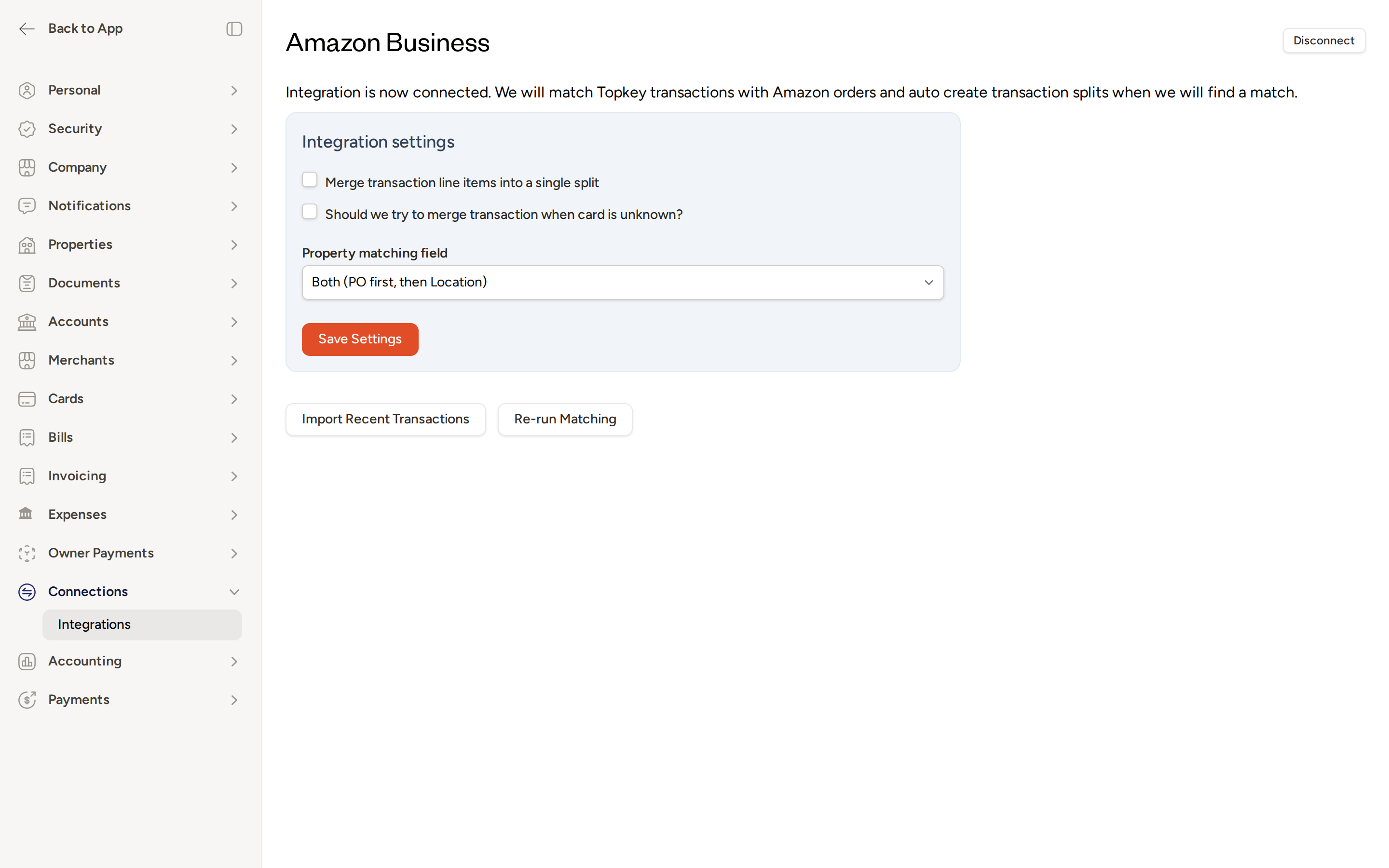
Once connected, the page confirms that Topkey will match transactions with Amazon orders and auto-create transaction splits when a match is found.
Integration Settings
After connecting, you can configure how Topkey handles imported order data. These settings are available on the Amazon Business integration page under Integration settings.
- Merge transaction line items into a single split — When enabled, all line items from an Amazon order are combined into one transaction split rather than listed individually.
- Should we try to merge transaction when card is unknown? — When enabled, Topkey will attempt to match Amazon orders even when the card used for the purchase is not recognized in Topkey.
- Property matching field — Controls how Topkey maps Amazon order data to a property. Choose from:
- Both (PO first, then Location) — Topkey checks the Purchase Order number first, then falls back to the Location field.
- Purchase Order Number only — Topkey uses only the Purchase Order number for property matching.
- Location only — Topkey uses only the Location field for property matching.
Click Save Settings after making any changes.
How Matching Works
After the integration is connected, Topkey imports your recent Amazon order history and attempts to match each order to a card transaction automatically.
Topkey matches an Amazon order to a card transaction when:
- The order total matches the card transaction amount
- The order date falls within a close range of the card transaction date
- The card used for the order is recognized in Topkey
When a match is found, the card transaction is updated with an itemized receipt drawn from the Amazon order data. No manual receipt upload is needed.
Working with Unmatched Orders
Orders that Topkey could not automatically match to a card transaction appear on the Amazon Business Transactions page. Navigate there by selecting Amazon Transactions in the left sidebar.
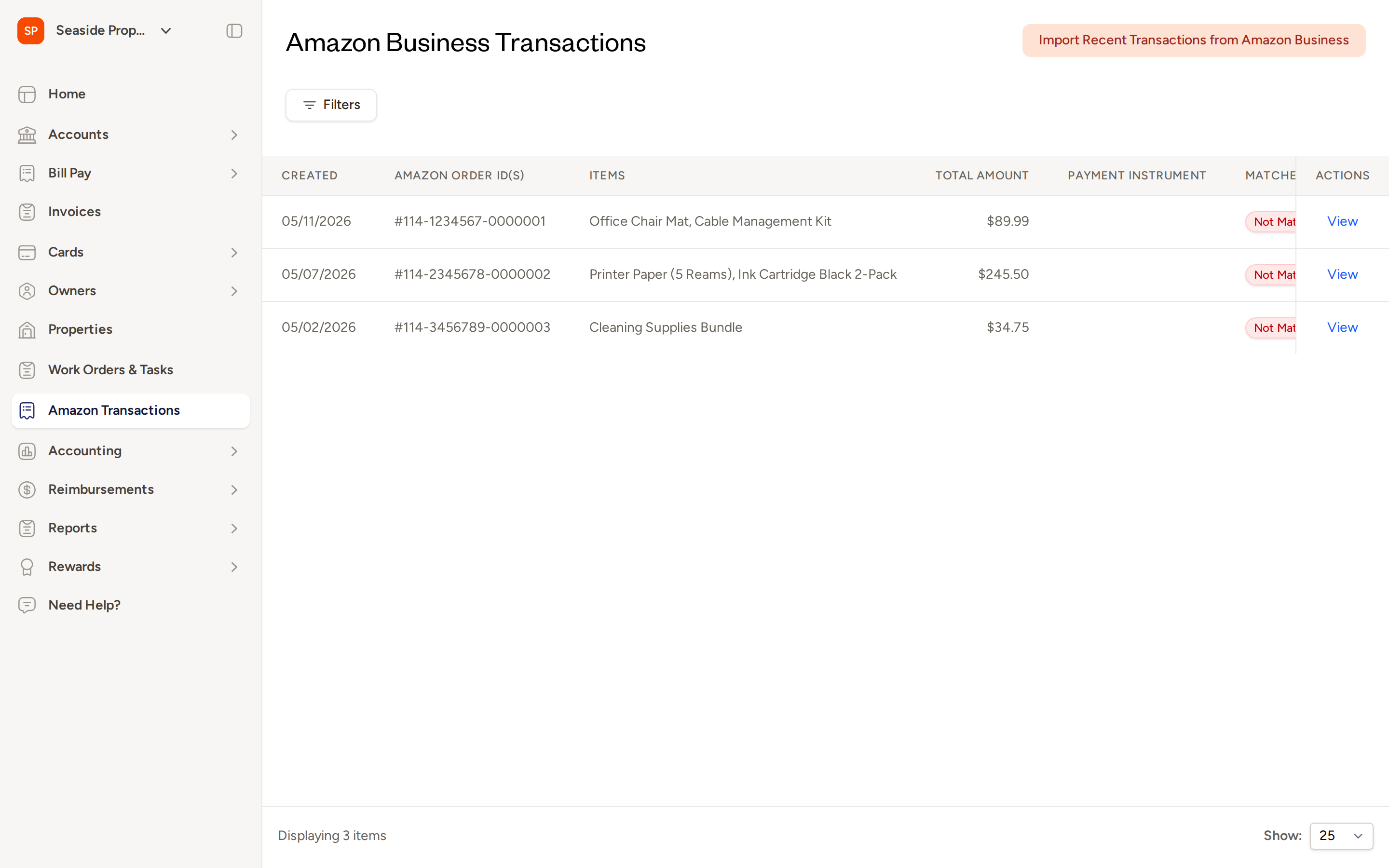
The list shows each order's creation date, Amazon order ID, items purchased, total amount, payment instrument, and match status. Orders marked Not Matched need attention.
Filtering the Transactions List
Use Filters to focus on orders that need action. You can filter by match status:
- Matched — orders successfully linked to a Topkey transaction
- Unmatched — orders not yet linked to any transaction
- All — every imported Amazon order
Manually Matching an Order
- Find the unmatched order in the list and click View.
- On the order detail view, select the Topkey card transaction you want to link it to.
- Confirm the match. Topkey links the order to the selected transaction and attaches the receipt data.
Retrying Automatic Matching
If you believe an unmatched order should have been matched automatically — for example, after a card transaction posts with a short delay — you can ask Topkey to try again:
- Click View on the unmatched order.
- On the order detail view, click Try Matching.
Topkey reruns the automatic matching logic for that order. If a suitable card transaction is now available, the order is matched and removed from the unmatched queue.
Unmatching a Previously Matched Order
If an order was matched incorrectly, you can reset it:
- Click View on the matched order.
- Click Unmatch.
The order returns to unmatched status and the receipt data is removed from the previously linked card transaction. You can then match the order to the correct transaction manually.
Importing Transactions Manually
On the Amazon Business integration settings page, the Import & sync panel on the right gives you two on-demand actions:
- Import Recent Transactions — pulls the latest order data from Amazon Business into Topkey immediately, without waiting for the next scheduled import.
- Re-run Matching — reruns automatic matching across all currently unmatched orders. Use this after resolving a connection issue or after card transactions have finished posting.
Frequently Asked Questions
How far back does Topkey import Amazon orders when I first connect? Topkey imports orders from approximately the past 30 days when the integration is first connected. Orders older than that will not be imported automatically. If you need to match older orders, contact Support.
What happens if Topkey finds more than one possible card transaction for an Amazon order? When multiple card transactions could match an order, Topkey flags the order so you can review the candidates and select the correct one manually. This prevents incorrect automatic matches.
Can I connect Amazon Business if my team uses multiple Topkey accounts? Yes. The Amazon Business integration can be configured as a shared connection across accounts. Orders are matched to card transactions within the appropriate account based on the card used for the purchase. Contact Support if you need help setting up a multi-account configuration.