Transactions
Matching Transactions to Bills
When you pay a bill using a card, Topkey records two related pieces of information: the bill (what you owed the vendor) and the card transaction (how you paid). Matching links these two records together so the expense appears only once in your reports and is pushed to your accounting system as a single entry.
Why Matching Matters
A bill and a card transaction each represent the same underlying expense from different angles. Without matching:
- The bill shows up as an unpaid or separately tracked expense in reporting.
- The card transaction posts as an independent expense.
- Your accounting system may receive two entries for the same payment, and your reports will overstate costs.
When you match them, Topkey marks the bill as paid, copies the bill's property and GL code splits onto the transaction, and prevents the transaction from being pushed to accounting as a separate line item.
How Matching Works
Topkey offers three ways a transaction can be matched to a bill: automatically, through a suggested match, or manually.
Automatic Matching
When a bill is paid through Topkey's bill pay system by card and the card transaction posts, Topkey automatically links the two records. No action is required on your part. The bill is marked as paid and the transaction inherits the bill's splits immediately.
Suggested Matches
When Topkey detects a bill that is likely related to a card transaction, it surfaces a Suggested Bill Match card in the Details tab of the transaction. The suggestion includes a confidence score, the bill number, vendor name, and amount.
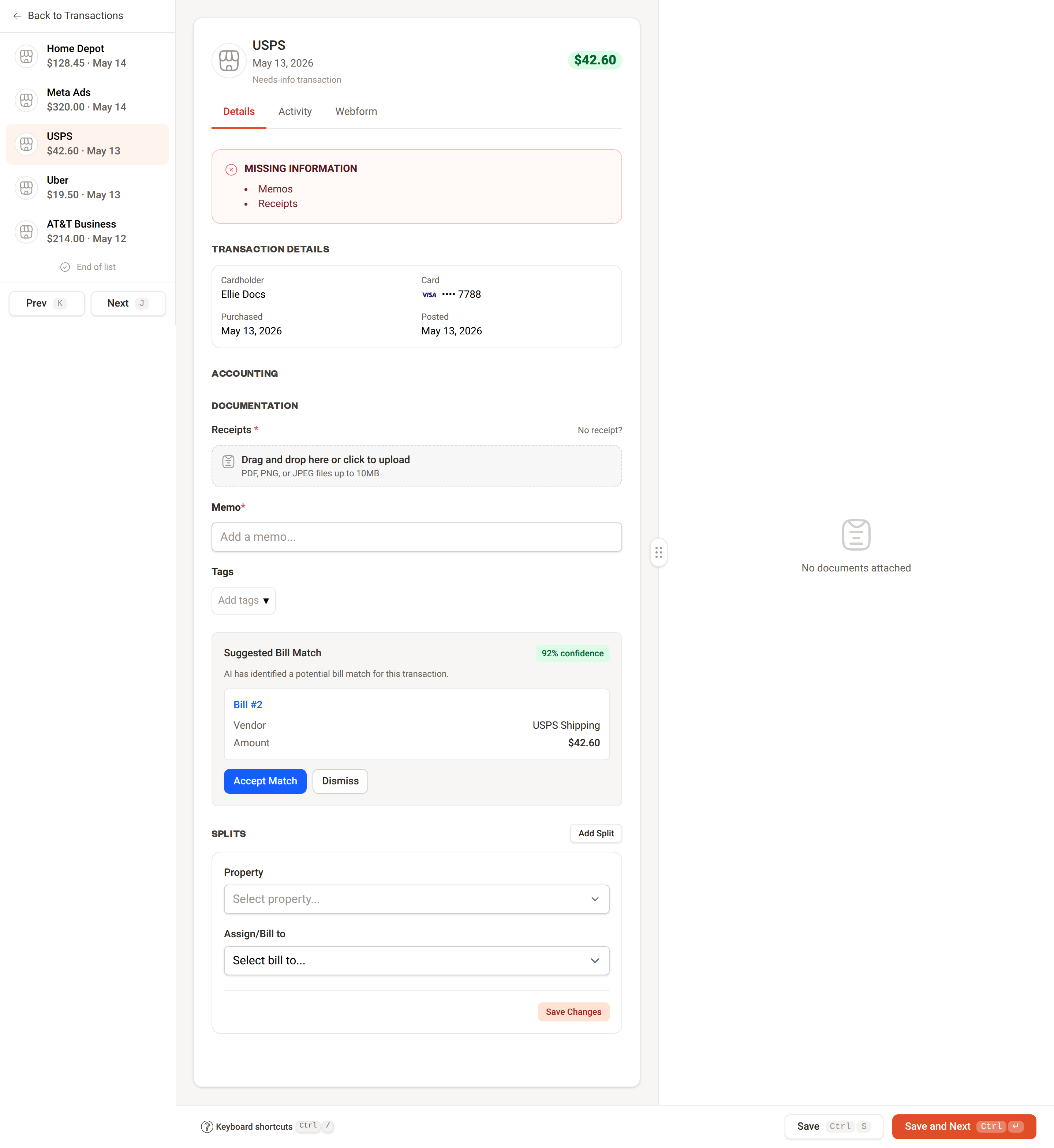
To act on a suggestion:
- Open the transaction and select the Details tab.
- Review the suggested bill details — vendor, amount, and bill number.
- Click Accept Match to link the transaction to the bill, or click Dismiss to remove the suggestion without matching.
Manual Matching
If no suggestion appears, or if you dismissed a suggestion and want to match manually, you can search for and select a bill directly from the transaction.
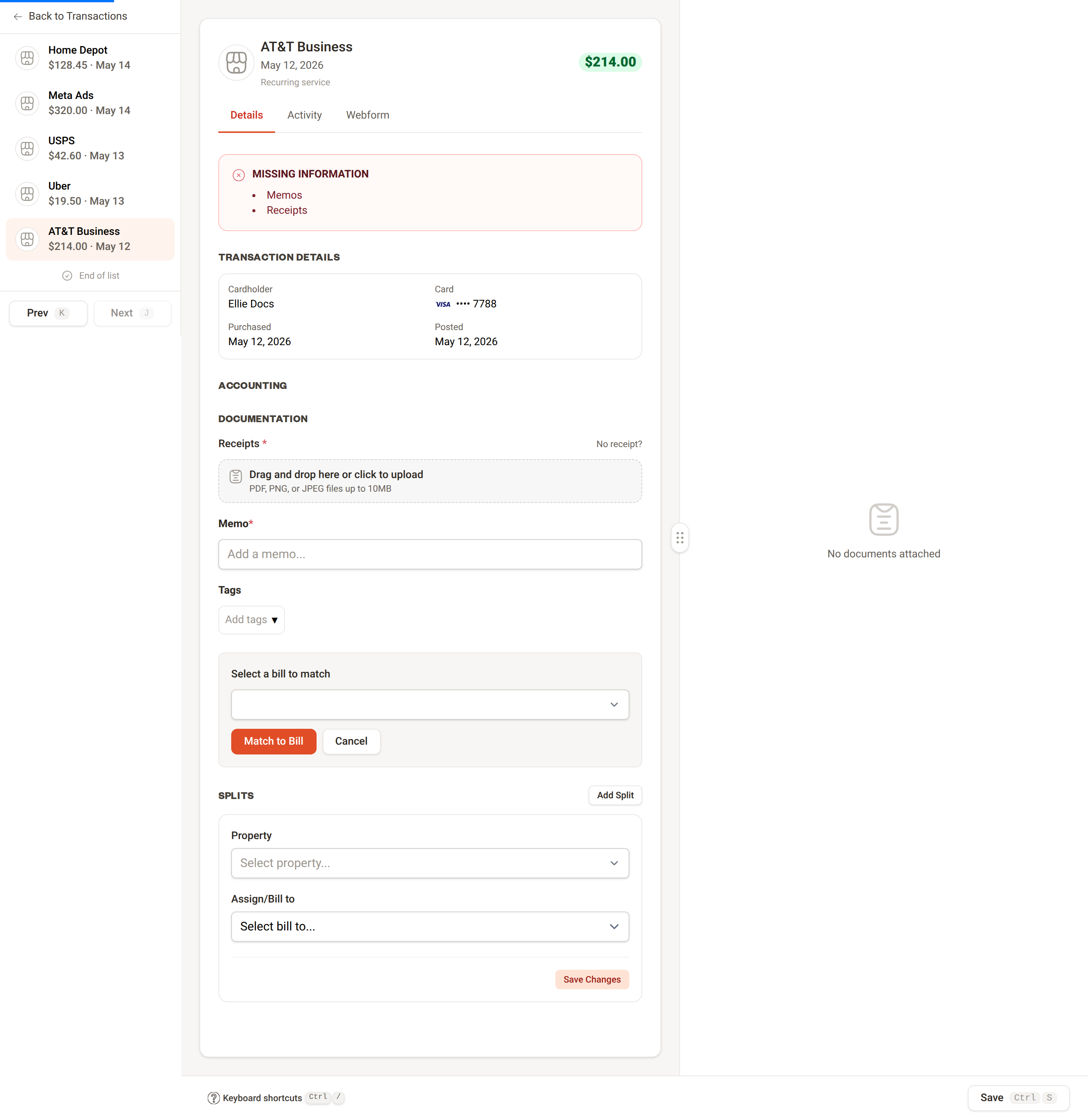
- Open the transaction and select the Details tab.
- Scroll to the Select a bill to match section.
- Use the search field to find the bill by vendor name, bill number, or invoice number.
- Select the correct bill from the results.
- Click Match to Bill to complete the match, or Cancel to close without saving.
What Happens After Matching
Once a match is made — by any method — Topkey performs the following:
- Marks the bill as paid using the transaction date as the payment date.
- Copies the bill's line-item splits (property, category, and GL code) onto the transaction.
- Links the records bidirectionally — the bill displays which card was used for payment, and the transaction displays which bill it is matched to.
- Prevents a duplicate accounting entry — the transaction will not be pushed to your accounting system as a separate expense.
Unmatching a Transaction
If a match was made in error, you can undo it from the transaction.
- Open the matched transaction and select the Details tab.
- Click Unmatch from bill.
When you unmatch:
- The bill returns to its previous unpaid state.
- The transaction's splits revert to what they were before the match.
- Both records are treated independently again and can be matched to other records or handled separately.
Edge Cases
Split payments across multiple transactions: If a single bill was paid in more than one card transaction, each transaction can be matched to the bill individually. The bill remains marked as paid once all payments are accounted for.
Amount differences: If the transaction amount and the bill amount don't match exactly, Topkey still allows the match but flags it for review so you can confirm the discrepancy is expected.
Frequently Asked Questions
What if I paid a vendor with a card but never created a bill in Topkey? If no bill exists, there is nothing to match to. You can still code the transaction directly by assigning a property and category in the Splits section. If you want the full audit trail that matching provides, create the bill in Bill Pay first, then match the transaction to it.
Will matching a transaction change what gets sent to my accounting system? Yes. Once a transaction is matched to a bill, Topkey uses the bill's coding (property, category, GL code) for the accounting entry and suppresses the transaction from being pushed as a separate expense. This prevents duplicate entries in your accounting system.
Can I match a transaction to a bill that has already been paid manually? Yes. If the bill has an existing manual payment recorded, Topkey replaces that manual payment record with the card transaction match. The bill remains marked as paid, and the transaction becomes the payment of record. Contact Support if you have questions about how this affects your historical records.