Cards
Creating a Topkey Card
Topkey Visa debit cards let you issue spending cards directly from your Topkey Deposit Account to anyone in your organization. You can issue a virtual card instantly for online or recurring purchases, or order a physical Topkey branded debit card that is mailed to the cardholder. Both card types are issued through Thread Bank and managed entirely within Topkey.
The Cards Hub
Select Cards in the left navigation to open the Cards hub. This is where every card in your account is listed — virtual and physical, active and frozen.
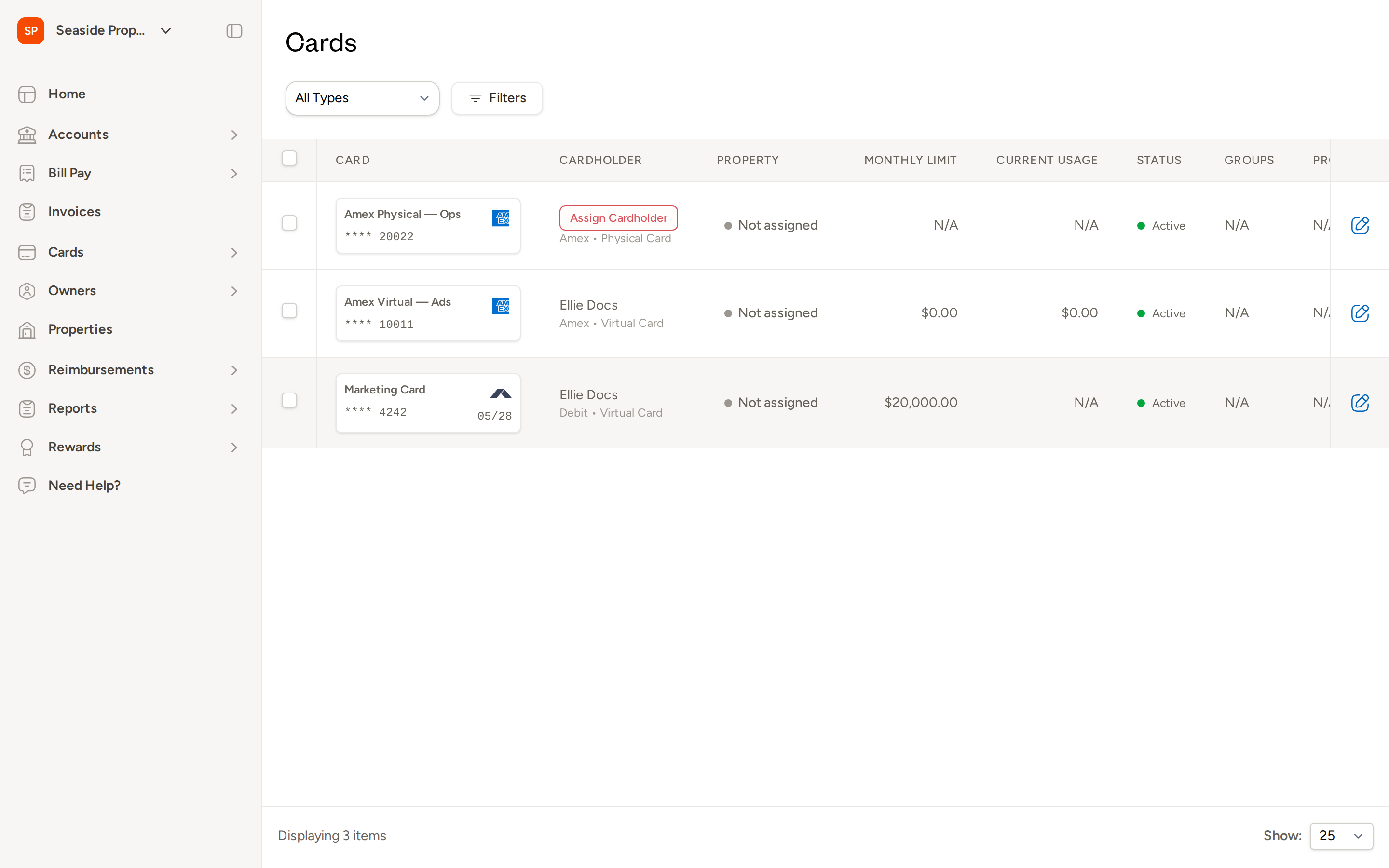
From the Cards hub you can:
- Filter cards by type (Debit, Amex, or External), status, cardholder, or property
- Select multiple cards and apply bulk actions
- Click any card row to open its detail panel
- Select New Card to launch the card creation wizard
Creating a Card
Select New Card from the Cards hub to open the card creation wizard. The wizard walks you through four steps.
Step 1: Choose a Card Type
Select one of the following:
- Virtual Debit — available immediately after creation; ideal for online purchases and subscriptions
- Physical Debit — a Topkey branded Visa debit card mailed to the cardholder's address
Step 2: Set Up the Cardholder
Choose an existing cardholder from your organization or create a new one inline.
To select an existing cardholder: Search by name and select the cardholder from the results.
To create a new cardholder inline: Fill in the following fields:
- First Name and Last Name
- Email address
- Phone number
- Date of Birth (required for BSA compliance)
- Mailing address (required for physical cards)
Creating a new cardholder automatically creates a Topkey login for them. This allows the cardholder to sign in to the portal and view their own cards and transactions.
Step 3: Set Card Details
Enter the following information for the card:
- Card Name — a descriptive label for the card (for example, "Marketing Card" or "Maintenance — Denver Portfolio")
- Monthly Limit — the maximum the card can spend in a calendar month
- Daily Limit — an optional cap on daily spending
You can also assign the card to one or more card groups at this step. Card groups control GL-code routing for transactions made on this card.
Giving each card a clear, descriptive name makes it easier to find and filter cards in the hub, especially as your portfolio grows.
Step 4: Review and Create
Review all the details you've entered. When everything looks correct, confirm to issue the card.
Topkey will issue the card through Thread Bank and return:
- The card's status
- The last 4 digits of the card number
- The expiration date
Virtual cards are active immediately and ready to use.
Physical cards are shipped to the cardholder's address on file. The cardholder must activate the card when it arrives (see Activating a Physical Card below).
Activating a Physical Card
When a physical card arrives, the cardholder activates it from the card's detail page.
- Open Cards in the left navigation and locate the card.
- Select the card to open the Card Details panel.
- Select Activate and follow the prompts.
Only the cardholder or an account administrator can activate a physical card.
Managing Cardholders
Select Cards → Cardholders in the left navigation to see everyone in your organization who holds a Topkey card.
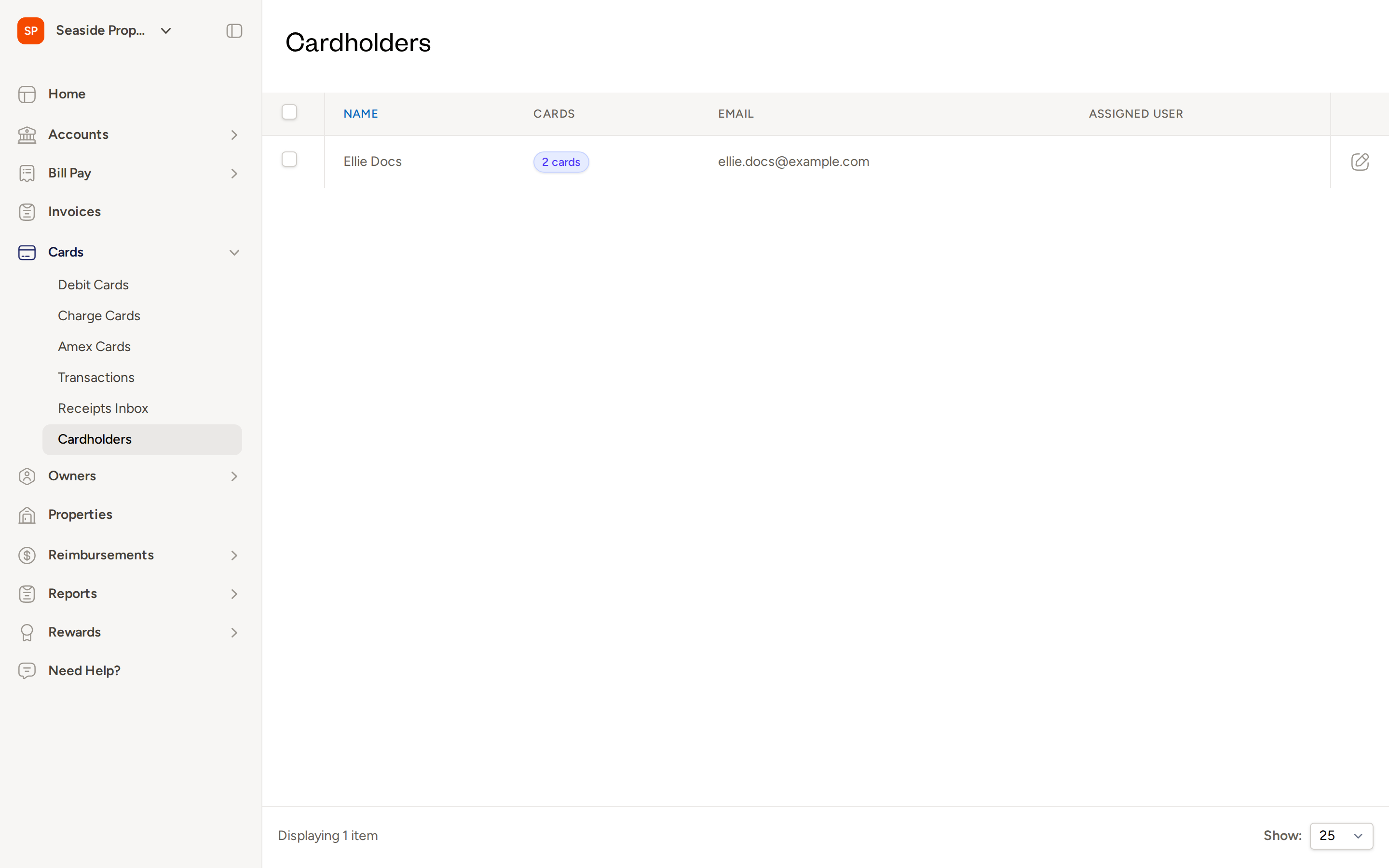
Each row shows the cardholder's name, email address, number of cards, and whether a Topkey login has been assigned.
Cardholder Profile
Select a cardholder's name to open their profile.
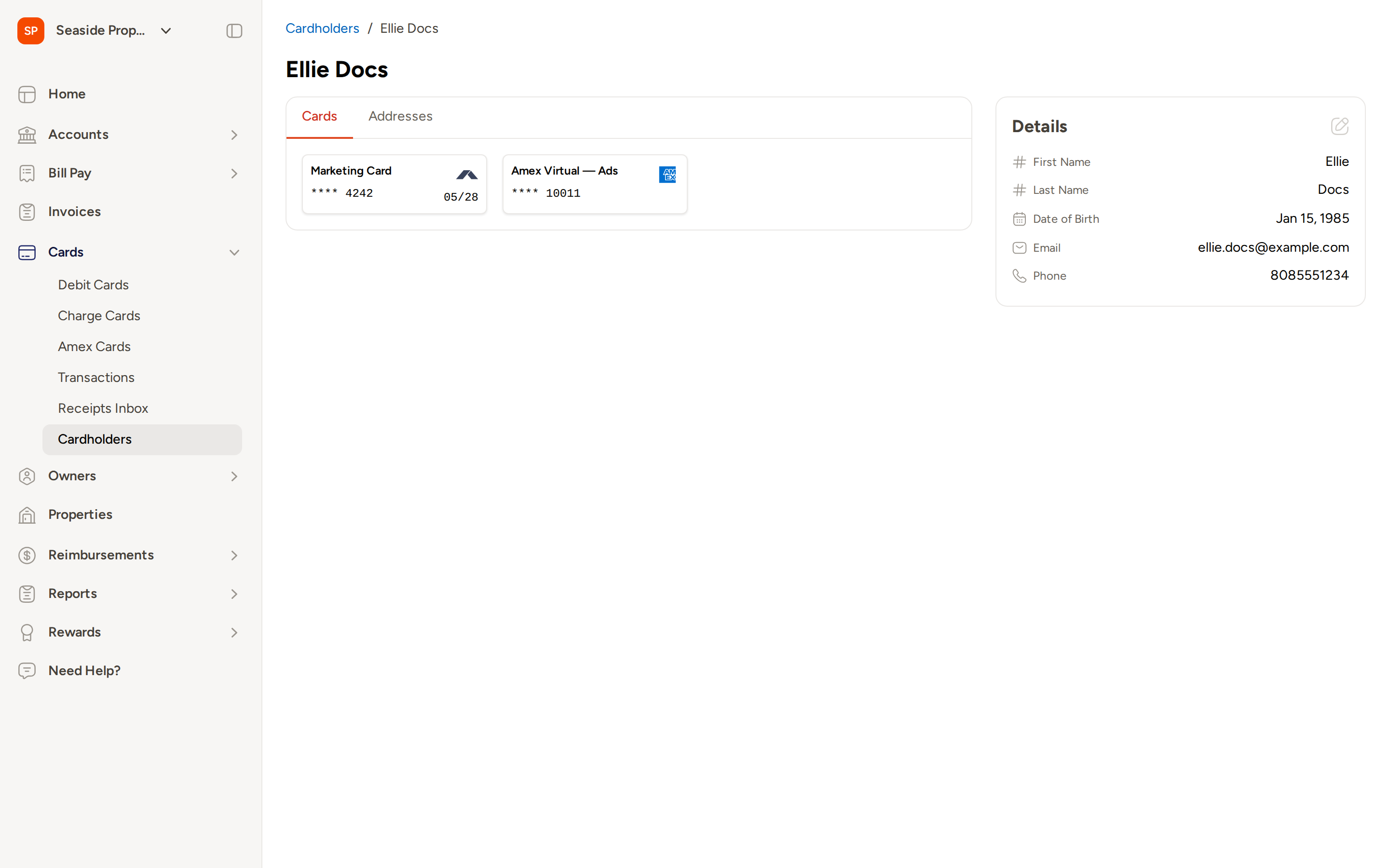
The profile includes:
- All cards assigned to this cardholder
- Address information (via the Addresses tab)
- Contact details: name, date of birth, email, and phone number
Creating a Topkey Login from the Card Detail Page
If a cardholder does not yet have a Topkey login, you can create one directly from the card's detail page without navigating to the Cardholders section.
- Open the card from the Cards hub.
- Select the Cardholder tab in the Card Details panel.
- Select the option to create a portal login for the cardholder.
Once created, the cardholder can sign in to Topkey to view their own cards and transactions.
Card Detail Page
Select any card in the Cards hub to open its Card Details panel.
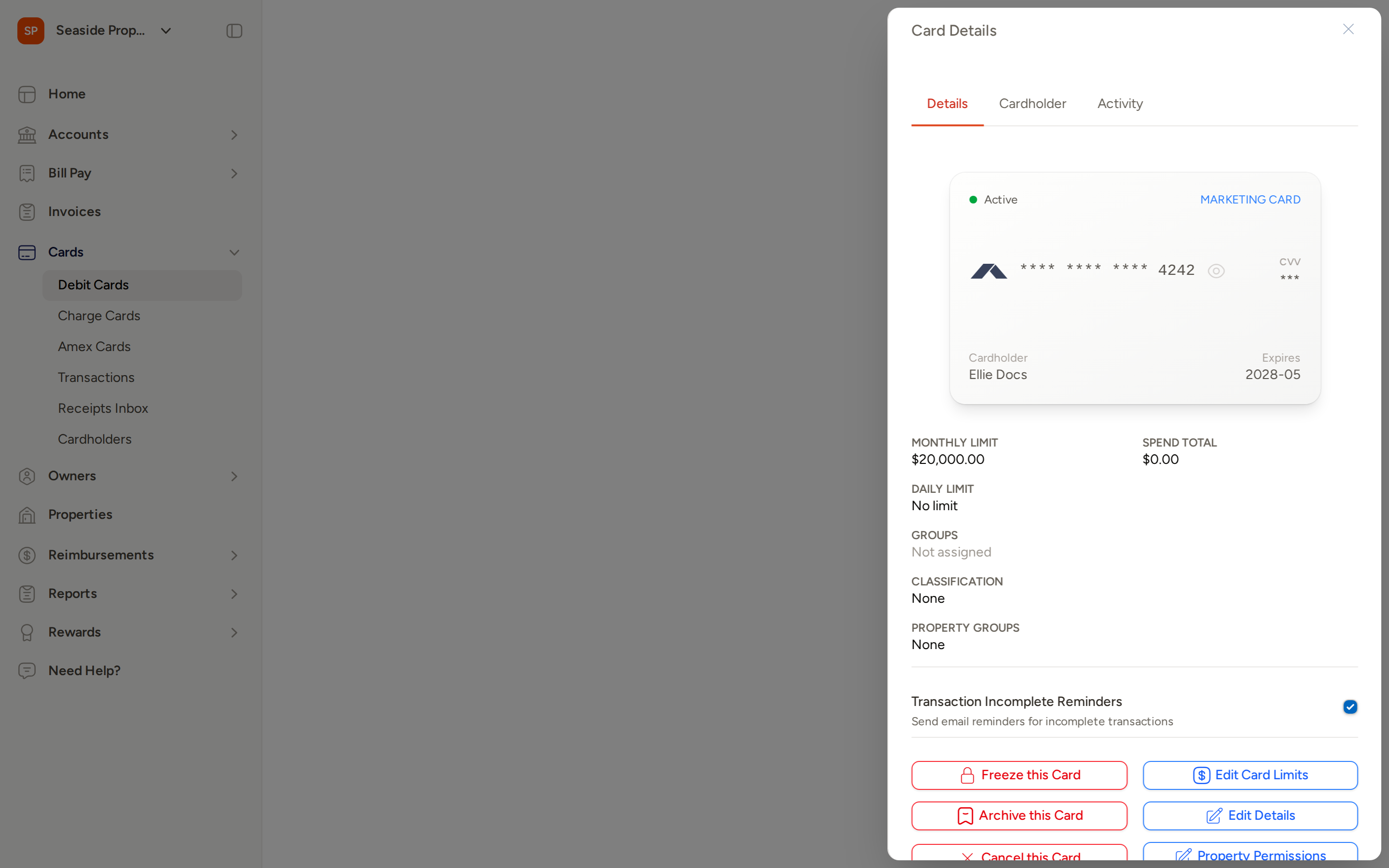
The Details tab shows:
- Card status, name, last 4 digits, and expiration date
- Monthly Limit, Spend Total, and Daily Limit
- Groups and Property Groups assigned to the card
- Classification
- Transaction Incomplete Reminders toggle — when enabled, the cardholder receives email reminders for transactions that are missing receipts or notes
Viewing Full Card Credentials (Virtual Cards)
Virtual cards include a Show card details option on the Details tab that reveals the full card number and CVV through a secure vault. Physical cards do not display full credentials in the portal.
SMS Transaction Notifications
You can control whether a cardholder receives an SMS alert each time their card is used.
- Open the card's detail page.
- On the Details tab, locate the SMS notifications setting.
- Toggle SMS notifications on or off as needed.
Card Actions
The following actions are available from the card detail page:
| Action | What it does |
|---|---|
| Freeze this Card | Temporarily blocks all new purchases. The card can be unfrozen at any time. |
| Archive this Card | Removes the card from your active list and freezes it. Archiving is typically used for cards that are no longer needed but should be retained for records. |
| Cancel this Card | Permanently closes the card. This action cannot be undone. Use this when a card should be closed entirely, not just paused. |
| Edit Card Limits | Update the monthly or daily spending limits. |
| Edit Details | Update the card name or linked property. |
| Property Permissions | Set which properties this card can be used for (see Property Permissions below). |
Cancel this Card permanently closes the card and cannot be reversed. If you only need to pause spending temporarily, use Freeze this Card instead.
Reporting a Lost or Stolen Card
If a card is lost or stolen:
- Open the card's detail page.
- Select the appropriate action to mark the card as lost or stolen.
- Topkey will block the card immediately.
You can then issue a replacement card for the same cardholder from the card detail page.
Setting or Changing a PIN
Debit cardholders can set or change their card PIN from the card detail page. Select the PIN option and follow the on-screen instructions.
Property Permissions
Each card has a permission level that controls which properties it can be used for:
- Full — the card is permitted for all properties in your account
- Limited — the card is not associated with any properties
- Selected — the card is restricted to specific properties or property groups you choose
To update permissions, open the card detail page and select Property Permissions.
Assigning a Cardholder to an Existing Card
If a card was issued without a cardholder, an Assign Cardholder button appears in the Cards hub next to that card. Use this to attach a cardholder after the fact.
- Select Assign Cardholder next to the unassigned card.
- Search for and select an existing cardholder, or create a new one.
- Set the card name and assign a property if needed.
- Save to complete the assignment.
Frequently Asked Questions
What is the difference between archiving and cancelling a card? Archiving removes a card from your active list and freezes it, but the card record is retained for historical reference. Cancelling permanently closes the card — it cannot be reactivated or used again. Use archiving when you may need the card record later; use cancel when you are certain the card is no longer needed.
Can a cardholder see their own card transactions? Yes. Every cardholder is automatically given a Topkey login when they are created. They can sign in to the portal to view their cards and transaction history. If a cardholder was created before a login existed, you can create one from the card's detail page using the Cardholder tab.
What happens if a physical card is never activated? The card remains in an inactive state and cannot be used for purchases until it is activated. If the card is lost in transit, you can mark it as lost from the card detail page and request a replacement.
For additional assistance, Contact Support.