Transactions
Merchant Categories and Rules
Card networks send raw transaction descriptors that can be inconsistent and difficult to read — the same Home Depot might appear as "HD STORE 0418", "THE HOME DEPOT #0418", or "HOMEDEPOT.COM" depending on which location or channel was used. Topkey's merchant rename rules let you map those raw descriptors to a single, clean merchant name so your transactions, reports, and accounting exports stay consistent automatically.
Why Merchant Data Matters
Every time a card transaction posts, Topkey records the raw descriptor sent by the card network. Without normalization, the same real-world vendor can fragment across dozens of variations, making spend reports unreliable and requiring manual categorization on every transaction.
Merchant rename rules solve this by telling Topkey: "whenever you see this raw descriptor, treat it as this merchant." Once a rule exists:
- All future matching transactions are automatically linked to the correct merchant name.
- You can optionally assign a default Topkey's Category (Bill to) so those transactions are coded without any manual effort.
- You can retroactively apply the rule to past transactions so your historical data stays clean.
Updating a Merchant from a Transaction
The fastest way to create a merchant rule is directly from a transaction that has an incorrect or messy merchant name.
- Open any transaction and go to its Overview tab.
- Click the merchant name shown on the transaction.
- In the Update Merchant panel that appears, use the Select or create merchant search field to find an existing merchant or type a new canonical name to create one on the fly.
- Click Save.
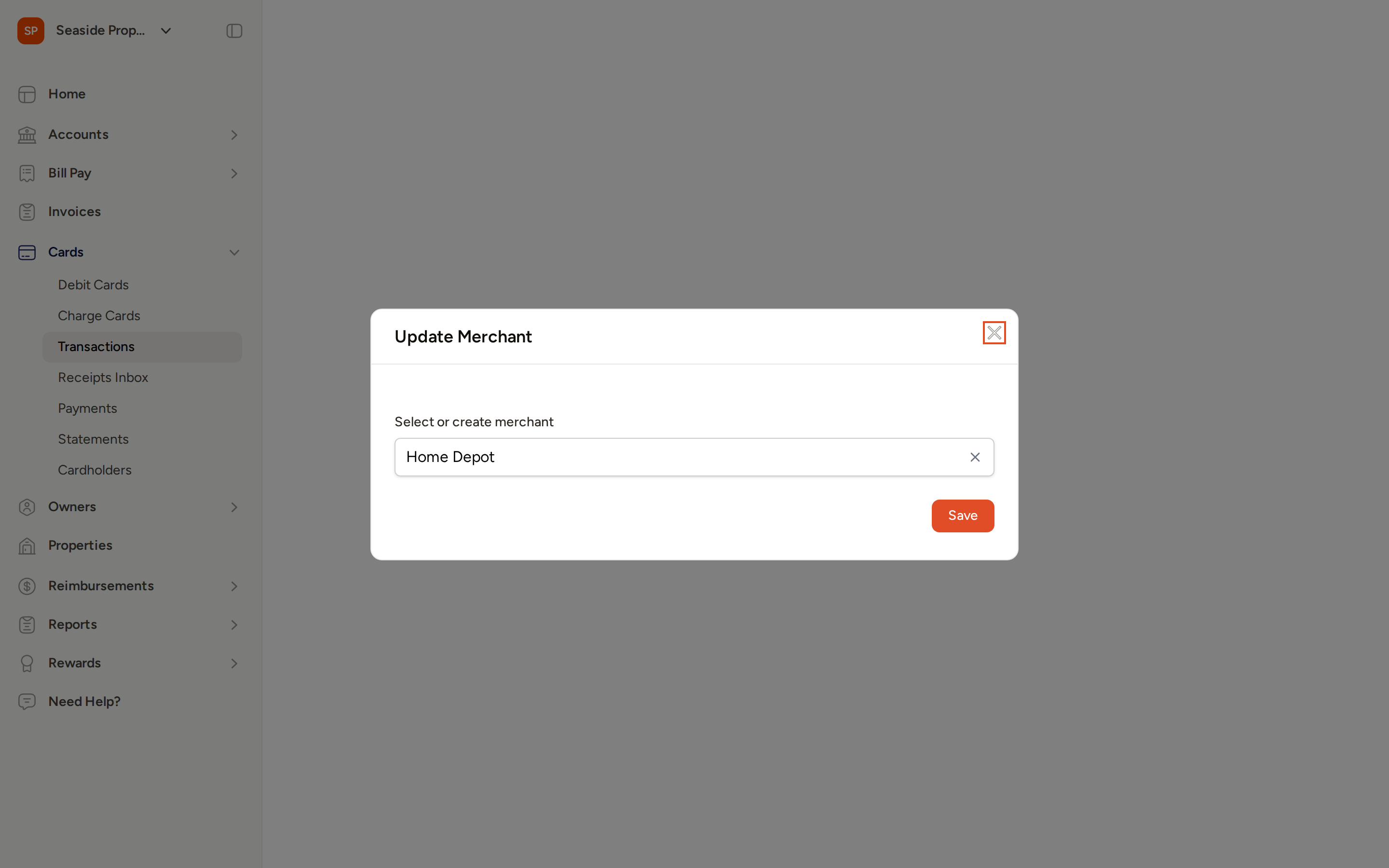
If you type a name that doesn't match any existing merchant, Topkey will create a new canonical merchant record for you when you save.
Merchant Rename Rules
Viewing All Rules
Go to Settings → Merchants → Rename Rules to see every rename rule configured on your account.
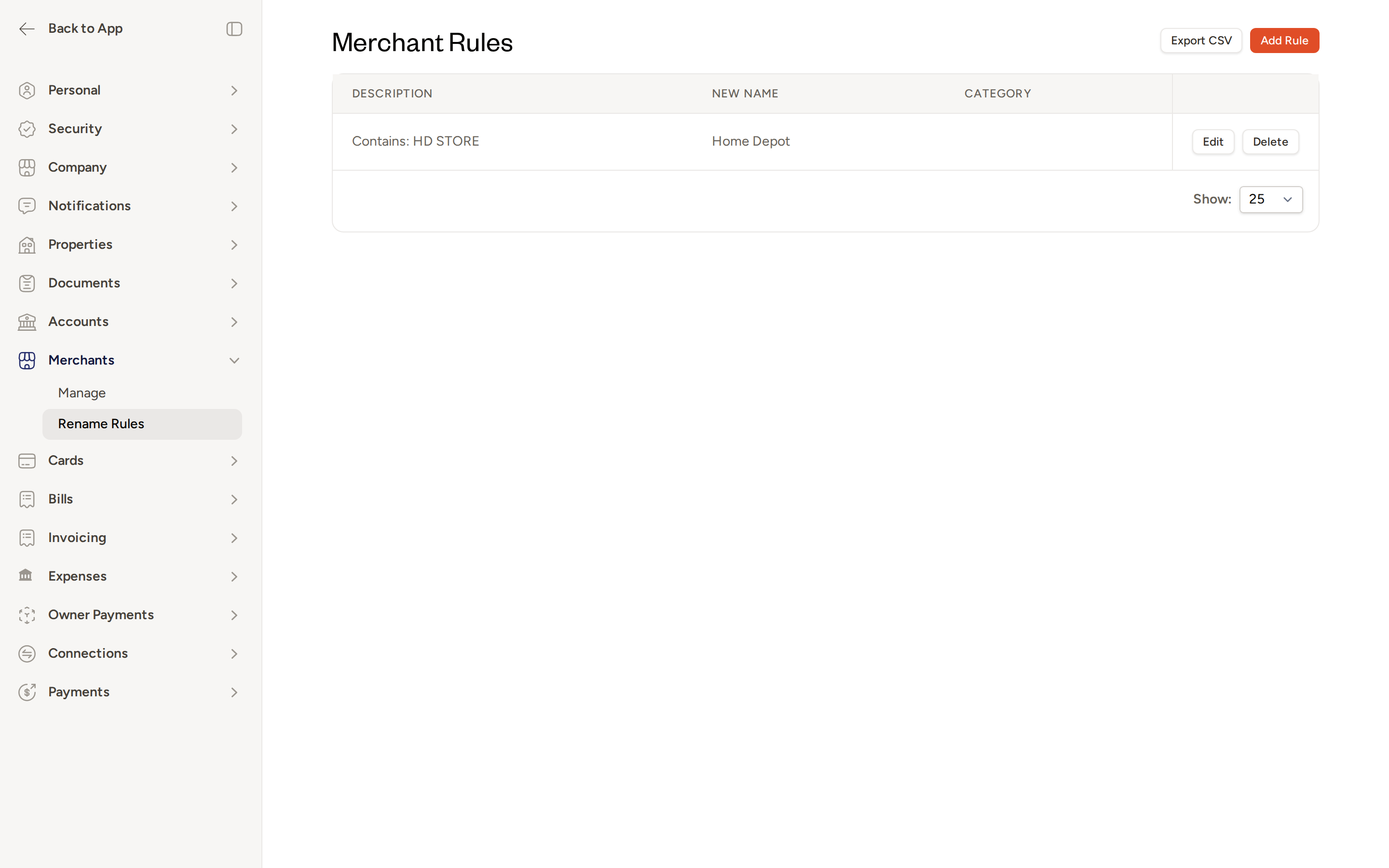
Each rule in the list shows:
- Description — how the rule matches raw descriptors (for example, "Contains: HD STORE" or "Exactly matches: HOMEDEPOT.COM")
- New Name — the canonical merchant name transactions will be renamed to
- Topkey's Category (Bill to) — the category automatically assigned to matched transactions, if one is set; GL Category and other accounting fields may also appear here if your account has accounting integrations enabled
- Property — the property automatically assigned to matched transactions, if one is set
From this page you can also click Export CSV to download a spreadsheet of all your rules — useful for auditing or sharing with your accounting team.
Creating a New Rule
From the Rename Rules page, click Add Rule.
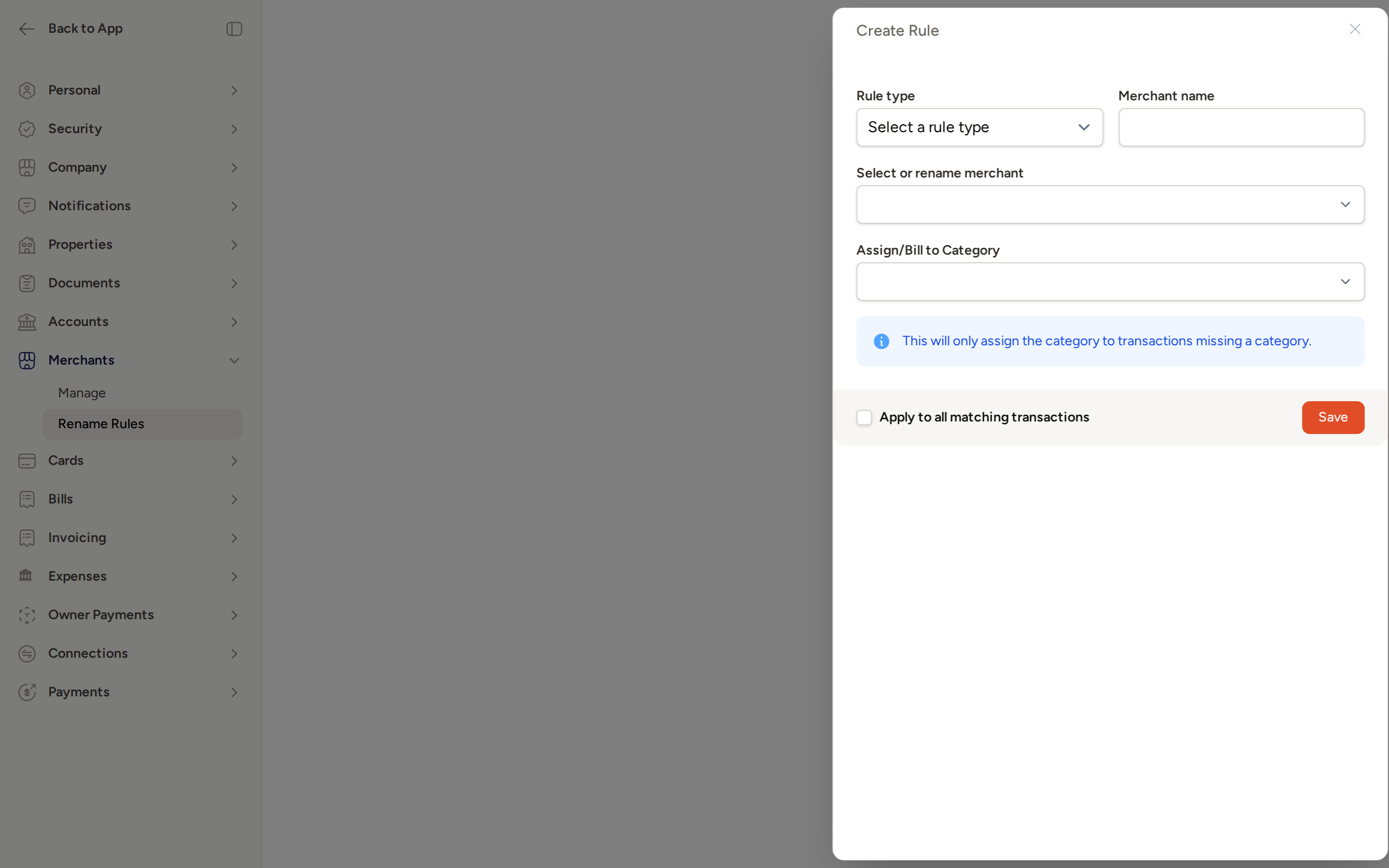
In the Create Rule panel, fill in the following fields:
- Rule type — choose how the rule should match:
- Exact — the raw descriptor must match your value exactly (best for a single specific descriptor)
- Contains — the raw descriptor must contain your value as a substring (useful when the same vendor has many location-specific variations, like "HD STORE")
- Merchant name — the raw descriptor value to match against (for example, "HD STORE 0418" for an exact rule, or "HD STORE" for a contains rule)
- Select or rename merchant — choose an existing canonical merchant from your account, or type a new name to create one
- Assign/Bill to Category — optionally select a Topkey's Category (Bill to) to auto-assign to all transactions matched by this rule; note that this will only assign the category to transactions that are missing a category
- Assign Property — optionally assign a property to matched transactions; this will only apply to transactions that are missing a property assignment
- Rule type — choose how the rule should match:
Check Apply to all matching transactions if you want Topkey to retroactively rename and recode every past transaction that matches this rule.
Click Save.
When Apply to all matching transactions is checked, Topkey processes the update in the background. You'll see a confirmation that reads "Matching transactions will be updated in the background." Depending on how many transactions match, this may take a few minutes.
Use a Contains rule when a vendor's descriptor includes a store number or location suffix that varies (for example, "HD STORE" matches "HD STORE 0418", "HD STORE 1025", and so on). Use an Exact rule when you want to match only one specific descriptor precisely.
Editing an Existing Rule
If you need to update a rule — for example, to change its match type, adjust the target merchant, or add a category — click Edit next to the rule on the Rename Rules page. The same form used to create the rule will open, and you can update any field. Click Save when done.
Deleting a Rule
Click Delete next to any rule on the Rename Rules page to remove it. Deleting a rule does not rename transactions that were already matched — it only stops the rule from applying to new transactions going forward.
Deleting a rule cannot be undone. If transactions were normalized by the rule, their merchant names will remain as-is unless you manually update them.
How the Pieces Fit Together
When a card transaction posts, Topkey records the raw descriptor from the card network. It then checks your rename rules in order:
- Exact rules are checked first — if the raw descriptor matches a rule value exactly, the transaction is linked to that rule's target merchant.
- Contains rules are checked next — if the raw descriptor contains a rule value as a substring, the same normalization applies.
- If a matching rule also has a Topkey's Category (Bill to) set, and the transaction doesn't already have a category, it is automatically coded to that category.
The result is that every transaction displays the clean, canonical merchant name in the Topkey UI, in reports, and in any accounting exports — with no manual recoding needed.
Frequently Asked Questions
What happens if two rules could match the same transaction? Topkey applies the most specific matching rule. Exact rules take precedence over contains rules. If you have overlapping contains rules, review your rule list to ensure the intended rule will apply.
Can I apply a rule to past transactions after I've already created it? Yes. When editing an existing rule, check Apply to all matching transactions before saving. Topkey will process the retroactive update in the background and notify you when it's complete.
What is the difference between the Merchant name field and the Select or rename merchant field in the rule form? The Merchant name field is the raw descriptor pattern Topkey will look for on incoming transactions (what the card network sends). The Select or rename merchant field is the clean, canonical name that matching transactions will be renamed to. These are intentionally separate so you can map many messy raw descriptors to one clean merchant record.
Questions? Contact Support