Admin
Platform Fee
Topkey charges a recurring monthly platform fee for access to the platform. This page explains how the fee is calculated, how it is collected, and how to manage your autopay account and backup payment method.
Finding Your Platform Fee Details
To view your current fee amount, billing cycle, and payment history, navigate to Settings → Company → Platform Fee.
On this page you can see:
- Your current monthly fee amount
- The billing cycle and next payment date
- A full history of past payments, including the amount, date, and status of each transaction
Downloading a Payment Receipt
You can download a PDF receipt for any individual platform fee payment directly from the payment history list. Locate the payment you need in the history, then click the download icon next to it. The receipt will save to your device as a PDF.
How the Fee Is Collected
Topkey collects the platform fee automatically via ACH debit on the 1st day of each month for the current calendar month's access to Topkey. No action is required on your part — autopay is enabled by default.
Choosing Your Autopay Account
You can select which Topkey deposit account is debited for the monthly platform fee.
- Go to Settings → Company → Platform Fee.
- Find the autopay account setting and click to change it.
- In the Choose an autopay account dialog, select the deposit account you want to use.
- Click Next to confirm your selection.
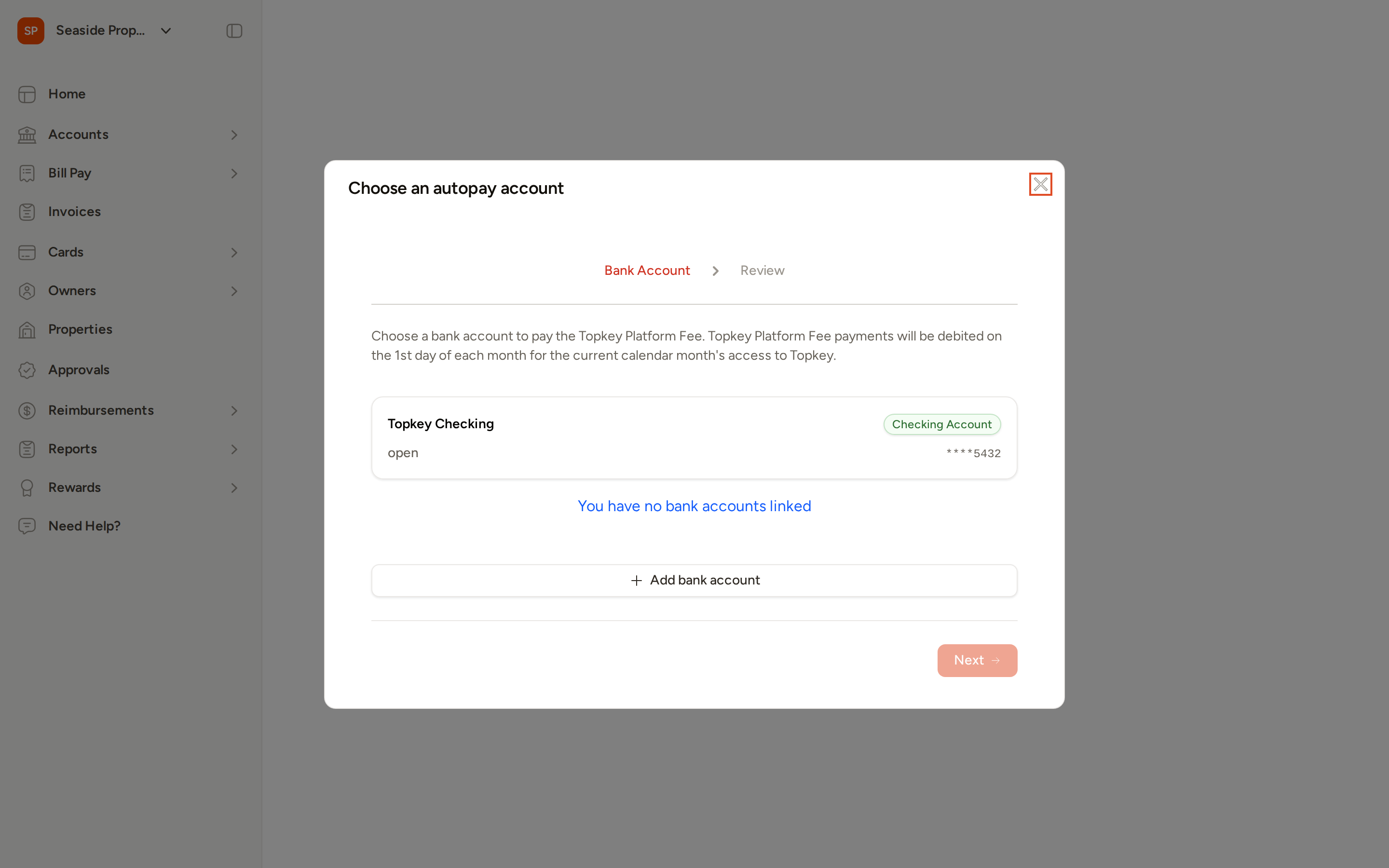
Make sure your selected autopay account has sufficient funds at the start of each month to cover the platform fee and avoid a failed payment.
Backup Payment Method
If the autopay ACH debit from your primary deposit account fails, Topkey will attempt to charge your backup credit card on file. Keeping a backup payment method active helps prevent service interruptions.
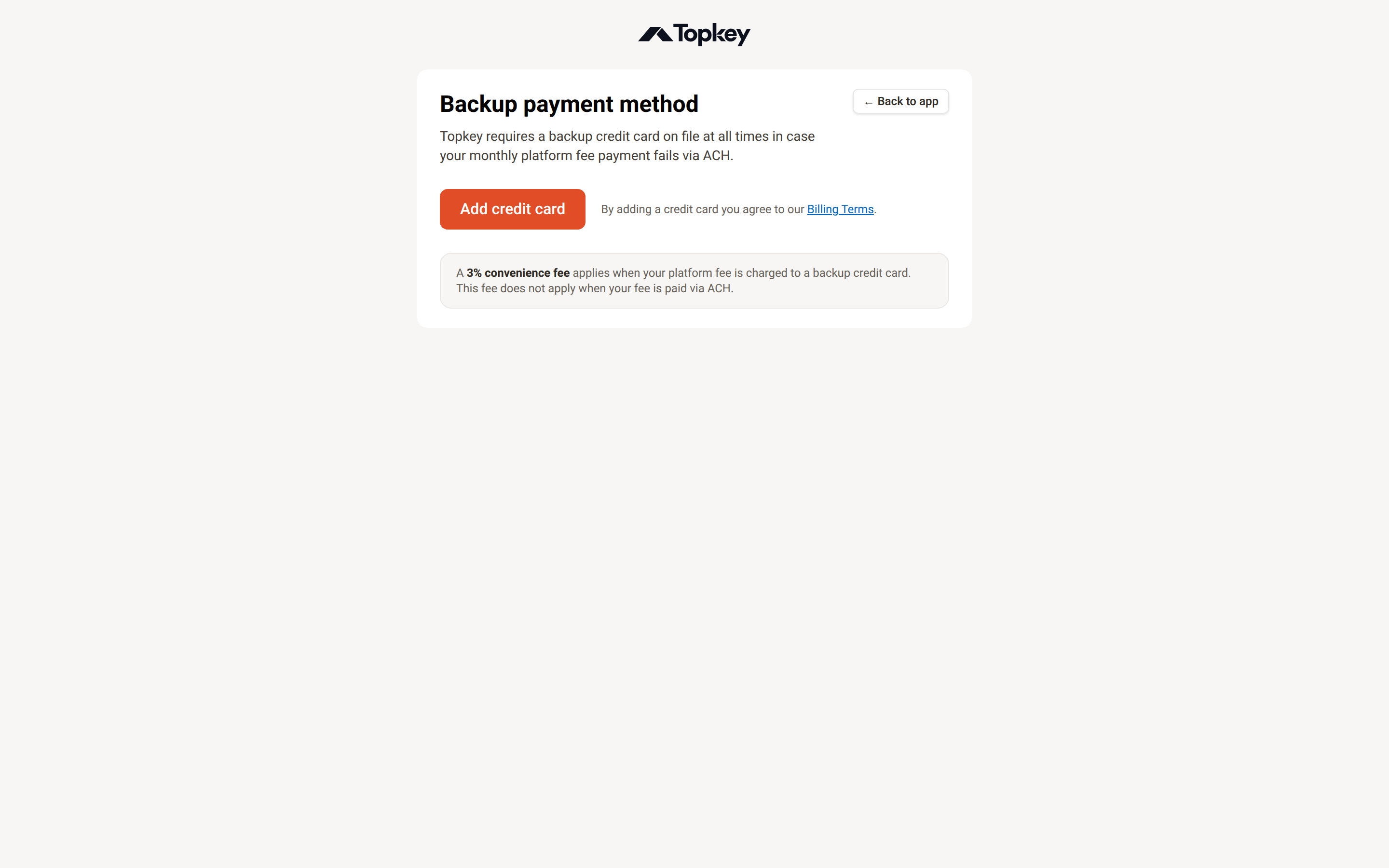
A 3% convenience fee applies when your platform fee is charged to a backup credit card. This fee does not apply when your fee is paid via ACH from your deposit account.
Adding a Backup Payment Method
- Go to Settings → Company → Platform Fee.
- Scroll to the Backup Payment Method section and click Add credit card.
- You will be directed to a secure card setup page. Enter your credit or debit card details.
- Once confirmed, your card is saved as the backup method for future failed payments.
Updating or Removing Your Backup Card
- To update your card, follow the same steps above. The new card will replace the existing one.
- To remove your card, click the remove option next to the saved card on the Backup Payment Method page.
By adding a credit card, you agree to Topkey's Billing Terms. Your backup card is only charged if the primary ACH payment from your deposit account fails.
Failed Payments
If the ACH debit from your primary deposit account fails and there is no backup payment method on file — or if both the primary and backup payment methods fail — Topkey's billing team will contact the account admin directly for further instructions. There is no automated self-serve resolution for a dual payment failure. Access to certain features may be restricted until the outstanding fee is resolved.
Keep a backup payment method on file at all times to reduce the risk of service interruption if your primary account has insufficient funds on the billing date.
Tips
- Check the Platform Fee page at the start of each month to confirm the payment processed successfully.
- If you manage multiple deposit accounts, confirm that the correct account is selected as your autopay account before the 1st of the month.
- Review your payment history regularly to spot any rejected or returned payments early.
Frequently Asked Questions
What happens if my primary deposit account doesn't have enough funds on the billing date?
Topkey will attempt to charge your backup credit card on file. Note that a 3% convenience fee applies when the backup card is used. If both payment methods fail, Topkey's billing team will contact the account admin for further instructions, and access to certain features may be restricted until the fee is paid.
Can I choose which deposit account is used for autopay?
Yes. Go to Settings → Company → Platform Fee and update your autopay account selection. You can choose any open Topkey deposit account connected to your workspace.
How do I get a receipt for a past platform fee payment?
Go to Settings → Company → Platform Fee and find the payment in your payment history. Click the download icon next to the payment to save a PDF receipt to your device.
Questions about your platform fee or billing? Contact Support.