Invoices
Customer Invoice Payments
When you send an invoice, your customer receives a link to a clean, professional invoice page where they can review the details and pay online. This page explains what your customers see and how the payment process works from their perspective.
How Customers Access an Invoice
Customers can open their invoice in two ways:
- Via email — When you send an invoice, Topkey delivers an email to the customer's address containing a direct link to the invoice page.
- Via a shareable link — You can copy the invoice's shareable URL from Topkey and share it through any channel (email, text, portal message, etc.).
Either link takes the customer to a secure, read-only invoice page — no login required.
What the Customer Sees
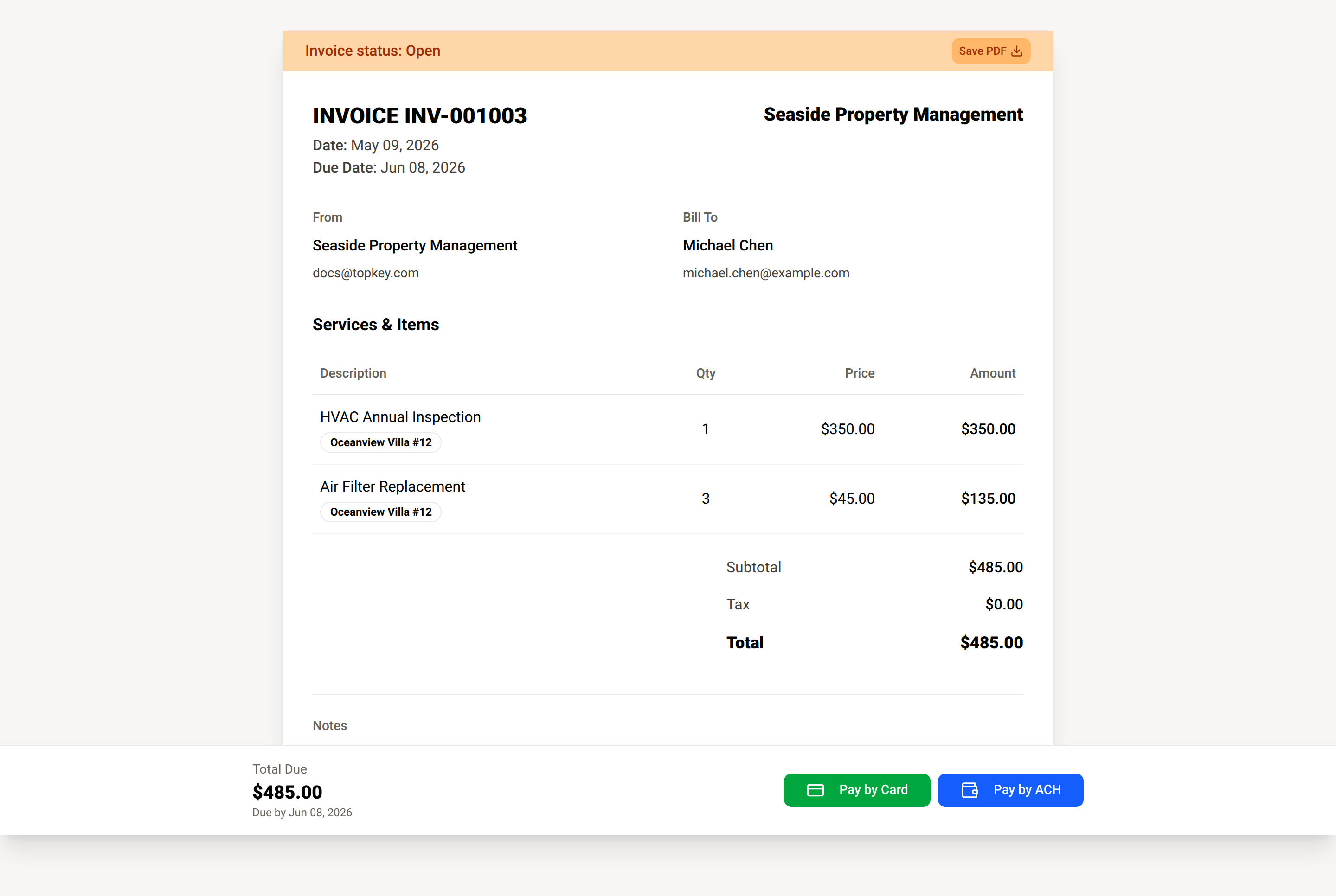
The invoice page includes everything your customer needs to review and pay the invoice:
- Your company name — displayed prominently in the upper right of the invoice.
- Invoice details — invoice number, invoice date, due date, and your contact email.
- Bill To — the customer's name and email address.
- Services & Items — a line-item table showing each item's description, associated property (if applicable), quantity, unit price, and line total.
- Subtotal, Tax, and Total — a summary of all charges.
- Notes — any memo or notes you included on the invoice.
- Total Due and due date — shown prominently at the bottom of the page alongside the payment buttons.
Payment Status Banner
A color-coded banner at the top of the invoice page shows the current status at a glance:
- Open — the invoice is awaiting payment (shown in orange).
- Overdue — the due date has passed and payment has not been received (shown in red, with a warning icon).
- Paid — payment has been received (shown in green).
Payment Methods
The payment options available to your customer depend on how you configured the invoice. Customers will see one of the following:
- Pay by Card — processes a credit or debit card payment through Stripe.
- Pay by ACH — processes a bank transfer through Stripe (ACH Direct Debit).
- Both Pay by Card and Pay by ACH — both buttons are shown when you've enabled both methods.
- No payment button — if you selected manual payment when creating the invoice, no online payment option is shown and the customer pays you outside of Topkey.
The payment buttons your customer sees are determined by the Payment Options setting you chose when creating the invoice. You can offer card only, ACH only, both, or manual payment. See Creating an Invoice for details.
Stripe Processing Fees
By default, Stripe processing fees are deducted from your payout. However, you can configure Topkey to pass these fees on to the customer instead. When this setting is enabled, the customer will see the fee added to their total during checkout before they confirm payment.
You can control fee pass-through in Settings → Invoicing → General Settings.
Autopay for Recurring Invoices
When a customer pays a recurring invoice through Stripe, they have the option to enroll in autopay during the checkout flow. If they opt in, future invoices in that recurring series will be charged automatically to their saved payment method — they won't need to open and pay each invoice manually.
Customers can cancel autopay at any time directly from the shareable invoice page, without needing to contact you.
Autopay only applies to invoices that are part of a recurring series. One-time invoices do not include an autopay enrollment option.
Downloading the Invoice as PDF
The customer can save a copy of the invoice at any time by clicking Save PDF in the top-right corner of the status banner. This generates a print-ready PDF of the invoice.
If you attached a file to the invoice (such as a service report or receipt), the customer will also see a Download Attachment button next to Save PDF.
After Payment Is Made
Once a customer submits payment through Stripe:
- The invoice status updates to Paid.
- The customer receives a payment confirmation email from Stripe.
- You receive a notification that payment was received.
ACH bank transfers take several business days to settle. The invoice status may show Processing until the funds are confirmed. This is normal — no action is needed on your part.
Frequently Asked Questions
Can a customer pay an invoice without creating a Topkey account? Yes. The invoice page is accessible via a secure link and requires no login. Your customer simply opens the link and pays directly.
What if my customer doesn't see a payment button? This means the invoice was configured with manual payment selected, or no Stripe account is connected to your Topkey account. To accept online payments, make sure you have connected Stripe in Settings → Connections and that the invoice's payment option is set to card, ACH, or both.
Can a customer cancel autopay if they no longer want to be charged automatically? Yes. Customers can cancel autopay directly from the shareable invoice page at any time. Once cancelled, future invoices in the series will need to be paid manually.
Questions? Contact Support