Owners And Properties
Owner Bulk Actions
Bulk actions let you make changes to multiple owners in a single step — saving time when you need to roll out pricing updates, collect banking details from new owners, or clean up your owner list. You can access bulk actions from the Property Owners list by selecting one or more owners with their checkboxes.
Selecting Owners
- Go to Owners in the left navigation.
- Check the box to the left of each owner you want to act on. To select all visible owners, check the box in the column header row.
- Once at least one owner is selected, the bulk actions toolbar appears above the list.
Bulk Action: Set Inventory Pricing
Use this action to apply a pricing tier to all selected owners at once. This is the fastest way to roll out markup changes across your entire portfolio.
- Select the owners you want to update.
- In the bulk actions toolbar, select Set Inventory Pricing.
- Choose either:
- Cost (No Markup) — owners are billed at cost with no markup applied.
- Markup — a markup is applied to inventory costs for these owners.
- Topkey updates all selected owners immediately and confirms how many were changed.
Bulk Action: Delete
Deleting owners from the bulk actions toolbar archives them — their history is preserved and they can be restored later. This is not a permanent deletion.
- Select the owners you want to archive.
- In the bulk actions toolbar, select Delete.
- Confirm the action when prompted.
- Topkey queues a bulk delete operation. A confirmation message with a View progress link appears so you can monitor the job.
Restoring an Archived Owner
If you need to bring a deleted owner back:
- Go to Owners in the left navigation.
- Open the actions menu (the icon in the upper right of the owners list header) and select Show Archived Owners.
- Locate the owner and restore them from their record.
Bulk Action: More
The More button opens a bulk operations panel with additional actions you can apply to all selected owners at once.
Collect ACH Info
This action sends a secure link to the preferred contact of each selected owner, prompting them to submit their ACH banking details directly.
- Select the owners whose banking info you need to collect.
- In the bulk actions toolbar, select More.
- Choose Collect ACH info and confirm.
- Topkey sends the secure ACH link to the preferred contact for each selected owner.
Combine Payments
This action toggles combined payments for all selected owners, allowing their individual payouts to be grouped together into a single disbursement.
- Select the owners you want to configure.
- In the bulk actions toolbar, select More.
- Choose Combine payments and set the toggle to your desired state.
- Topkey applies the setting to all selected owners.
Batch Edit Banking Details
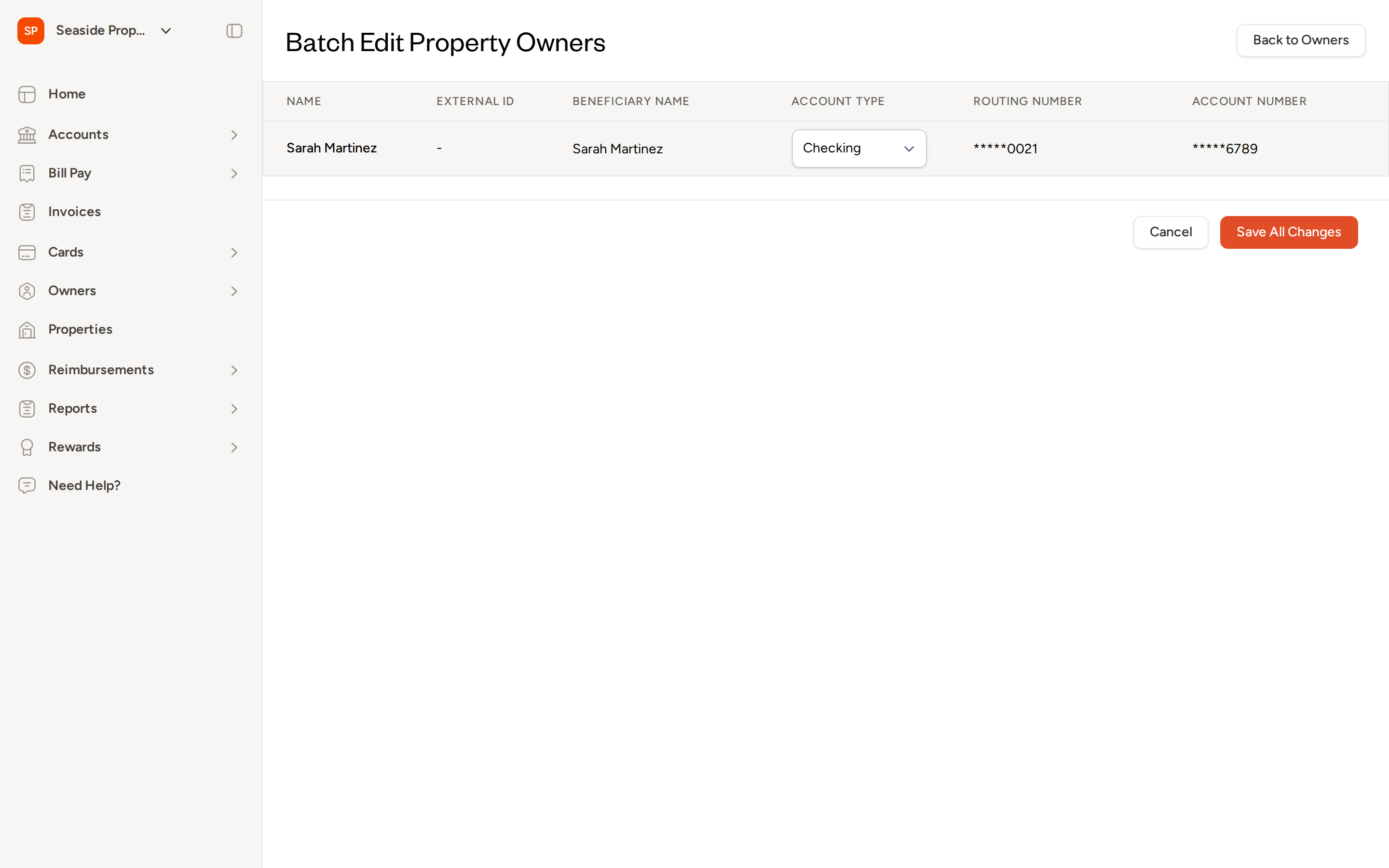
Batch Edit is a dedicated page for updating ACH banking details — account type, routing number, account number, and beneficiary name — across many owners in one pass. Use it when you need to correct or update banking information for several owners without opening each record individually.
Opening Batch Edit
- Go to Owners in the left navigation.
- Select Batch Edit from the action buttons in the page header.
- The Batch Edit Property Owners page opens, listing all owners with their current banking details.
Editing Banking Details
- For each owner you want to update, edit the fields directly in the table:
- Beneficiary Name — the name on the bank account.
- Account Type — select Checking or Savings.
- Routing Number — the bank's routing number.
- Account Number — the owner's bank account number.
- If an owner's routing or account number is already on file, it appears masked (for example,
*****0021). Leave a masked value as-is if you do not want to change it — Topkey will preserve the existing number automatically. - When you have finished making changes, select Save All Changes.
Returning Without Saving
Select Cancel or Back to Owners to leave the Batch Edit page without saving. Any unsaved changes will be discarded.
Bulk Email Owner Statements
You can also email finalized owner statements to multiple owners at once directly from the statements list, without opening each statement individually.
- Go to the Owners statements list.
- Select the checkboxes next to the finalized statements you want to send.
- Use the bulk actions toolbar to email all selected statements.
Topkey sends each statement to the appropriate owner's preferred contacts.
Frequently Asked Questions
Can I undo a bulk delete if I archived owners by mistake? Yes. Archived owners can be restored at any time. Go to Owners, open the actions menu, and select Show Archived Owners to find and restore any archived record. All historical data — statements, banking details, and property relationships — is preserved.
What happens if one owner has an error during a Batch Edit save? If any owner's update fails validation, the entire batch is rolled back and no changes are saved. Topkey displays the errors so you can correct them and try again. This prevents partial updates where some owners are updated and others are not.
When I use "Collect ACH Info" for a bulk selection, which contact receives the secure link? The link is sent to each owner's preferred (starred) contacts. If multiple contacts are starred, the one with the earliest record receives the link. If no contacts are starred, all of the owner's contacts receive it.
Questions? Contact Support