Invoices
Invoicing Overview
The Invoices page is your central hub for tracking and managing all invoices sent to property owners. From here you can monitor invoice statuses, search and filter your invoice list, and take bulk actions to keep your records up to date.
The Invoice List
To access your invoices, select Invoices from the left navigation menu. The invoice list displays all invoices in your account, with the most recent entries shown first.
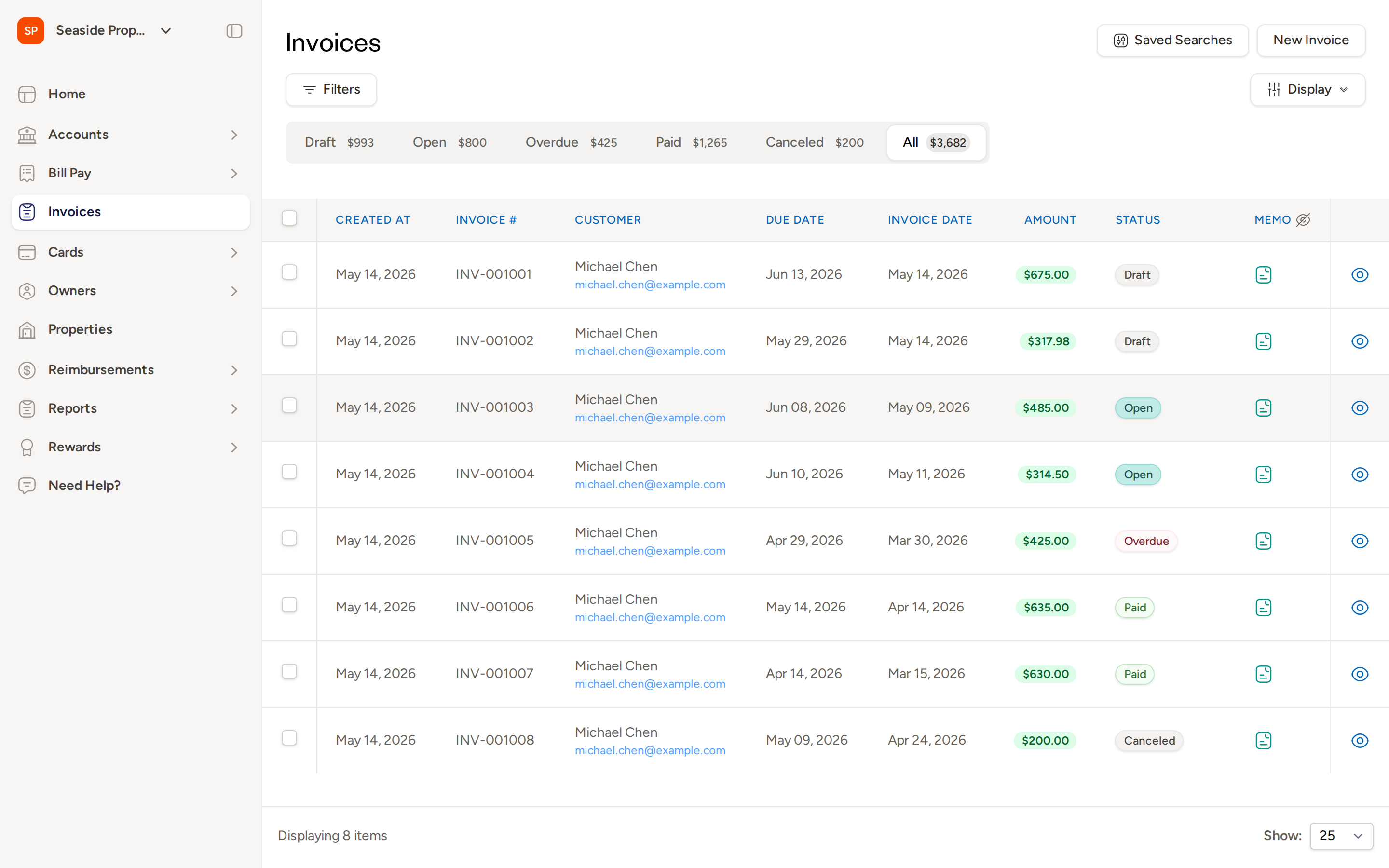
Each row in the list shows the following columns:
- Created At — the date the invoice was created
- Invoice # — the unique invoice number
- Customer — the owner's name and email address
- Due Date — the date payment is due
- Invoice Date — the date shown on the invoice
- Amount — the total invoice amount
- Status — the current status of the invoice (Draft, Open, Overdue, Paid, or Canceled)
- Memo — any internal memo attached to the invoice
Click any column header to sort the list by that column.
Status Tabs
The tabs along the top of the invoice list let you quickly filter invoices by their current status. Each tab displays the total dollar amount of all invoices in that status.
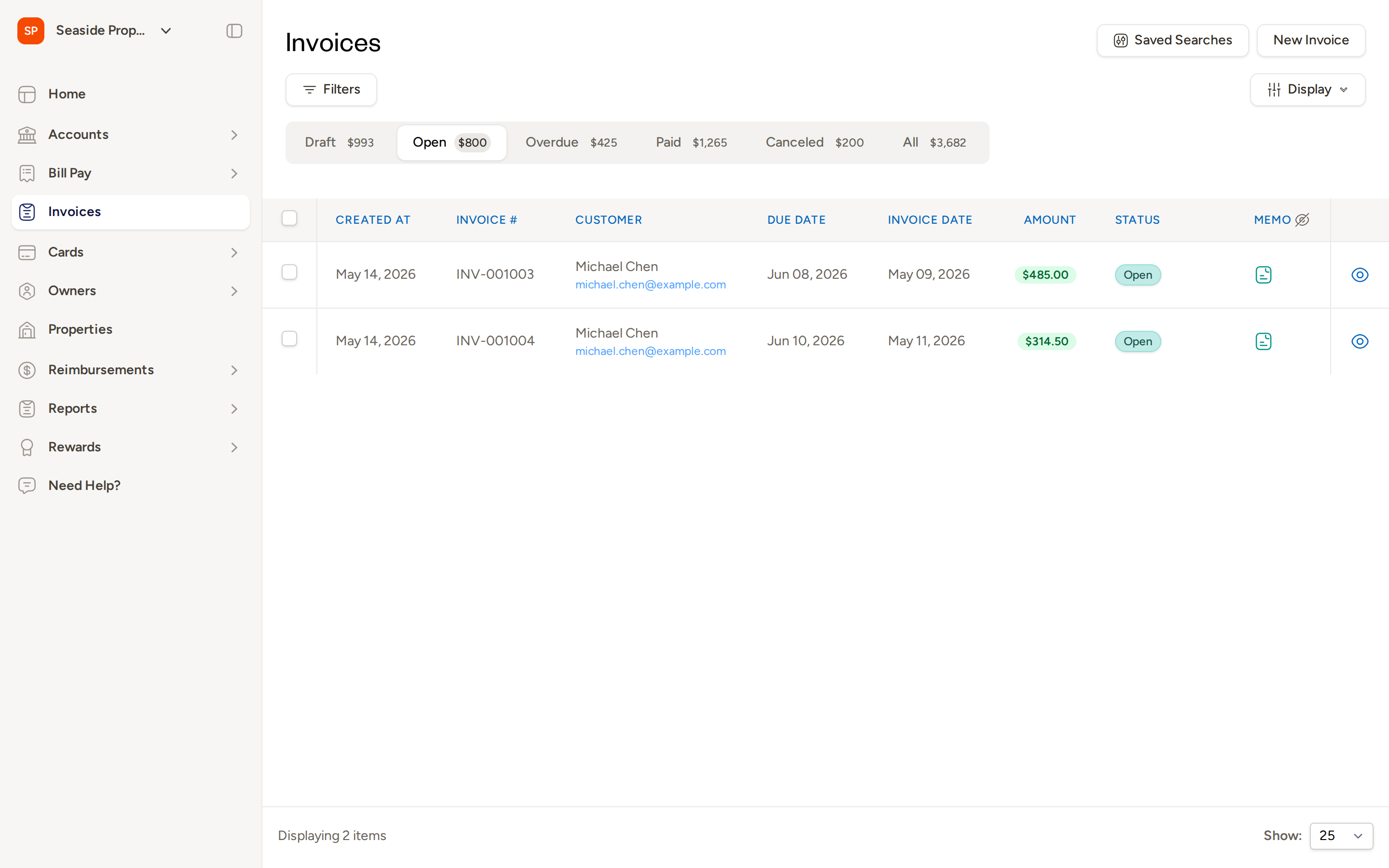
The available tabs are:
- Draft — invoices that have been created but not yet sent to owners
- Open — invoices that have been sent and are awaiting payment
- Overdue — invoices that are past their due date and unpaid
- Paid — invoices that have been paid in full
- Canceled — invoices that have been voided or canceled
- All — every invoice in your account, regardless of status
Click any tab to filter the list to that status. The dollar amount shown on each tab reflects the combined total of all invoices in that group.
Searching and Filtering Invoices
Use the Filters button at the top left of the invoice list to narrow your results. Filters let you search by criteria such as customer, date range, or amount to quickly find the invoices you need.
After applying filters, save your search using the Saved Searches feature (described below) so you can reuse it later without re-entering your criteria.
Saved Searches
Saved Searches lets you store frequently used filter combinations so you can return to them with a single click. Select Saved Searches in the top right corner of the Invoices page to view, create, or manage your saved searches.
This is especially useful for recurring workflows — for example, saving a filter for all overdue invoices belonging to a specific owner or property.
Creating a New Invoice
To create a new invoice, select New Invoice in the top right corner of the Invoices page. This opens the invoice creation form where you can add line items, set payment terms, and configure delivery options.
For a full walkthrough of creating and sending an invoice, see the Creating an Invoice guide.
Bulk Actions
You can select multiple invoices at once using the checkboxes on the left side of the list and then apply a bulk action to all selected invoices. The actions available depend on which status tab you are currently viewing:
| Action | Available On |
|---|---|
| Mark as Paid | Open, Overdue |
| Delete | Draft, Open, Overdue |
To use a bulk action:
- Select the tab that contains the invoices you want to update.
- Check the box next to each invoice you want to include, or use the checkbox in the column header to select all visible invoices.
- Choose the action you want to apply — Mark as Paid or Delete — from the bulk actions bar that appears.
- Confirm your selection when prompted.
Deleting invoices is permanent. Deleted invoices cannot be recovered. Use this action only when you are certain the invoices are no longer needed.
Frequently Asked Questions
Why don't I see a bulk action option on the Paid or Canceled tabs? Bulk actions are only available for invoices that may still require action. Paid and Canceled invoices are considered finalized, so no bulk actions apply to them.
Can I export my invoice list? The invoice list does not have a built-in export button. For financial reporting, use the Reports section in the left navigation menu, which provides detailed invoice and revenue summaries.
What does the total amount shown on each tab represent? The dollar amount displayed on each status tab is the sum of all invoice amounts in that status. For example, the Overdue tab total shows the combined value of all unpaid, past-due invoices in your account.
Questions? Contact Support