Owners And Properties
Importing Owners
Topkey gives you four ways to add property owners to your account: syncing from a connected property management system (PMS), importing from a connected accounting ERP such as QuickBooks Online, uploading a CSV file, or entering owners one at a time. Choose the method that best matches where your owner records currently live.
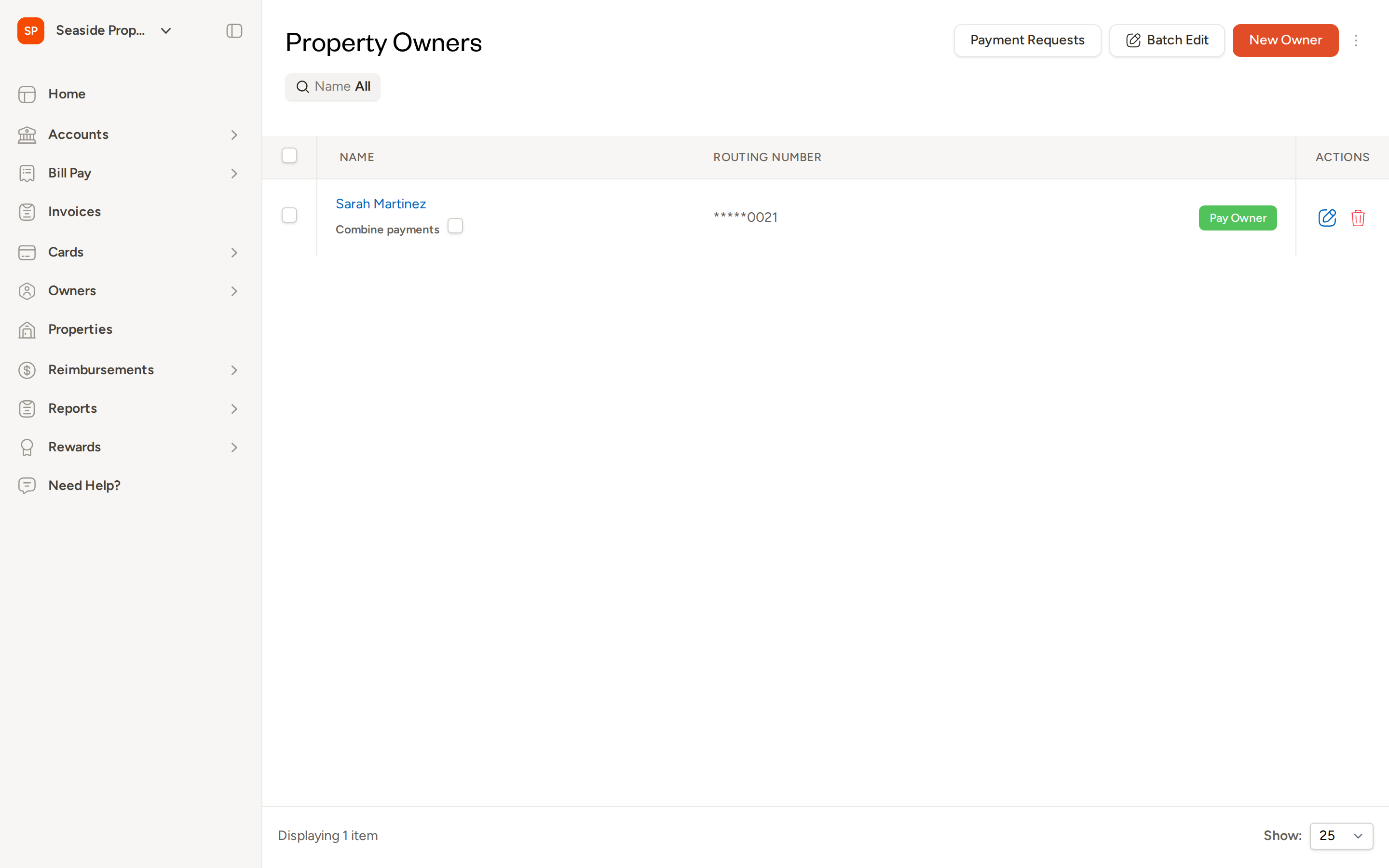
Method 1: Sync from Your PMS
If your PMS is the system of record for owner data, syncing is the recommended approach. Topkey supports owner imports from four PMS integrations: Track, Guesty, OwnerRez, and Streamline. The data brought in varies by platform:
| PMS | Data Imported | Notes |
|---|---|---|
| Track | Name, ACH routing number, ACH account number (if not masked), owner → property relationships | The only PMS that imports ACH banking details; runs on an automatic schedule |
| Guesty | Name only | — |
| OwnerRez | Name and email | Soft merge — will not overwrite existing Topkey data |
| Streamline | Name, beneficiary name, and email | Soft merge applies |
No PMS integration imports phone numbers or physical addresses via the API. You will need to add that information manually after the sync.
When to use this method: Use PMS sync as your default when your PMS is the primary source of truth for owner records. Track customers benefit most from this path because ACH details come in automatically.
Sync Behavior on Subsequent Syncs
After the initial import, Topkey re-syncs owner data on an ongoing basis (for PMS integrations that support it). On each sync, name, contact details, and owner → property relationships are updated according to your account's Source of truth for vendors and owners setting. When this setting is enabled for your PMS, incoming PMS values will overwrite any manual edits you have made in Topkey. When it is disabled, Topkey preserves your manually entered data and only fills in fields that are blank.
If you have manually updated an owner's banking details or contact information in Topkey and your Source of truth for vendors and owners setting is set to your PMS, those manual changes may be overwritten on the next sync. Review this setting before making manual edits to PMS-sourced records.
Method 2: Import from a Connected Accounting ERP
If your team manages owner records inside an accounting system rather than your PMS, you can bring those records into Topkey through your ERP integration. When Topkey is connected to QuickBooks Online, records that are classified as Customers in QuickBooks can be imported into the Topkey Owners list via the ERP integration.
When to use this method: Use ERP import when QuickBooks Online (or another supported accounting system) is your source of truth for owner and customer records — for example, if your accounting team maintains owner profiles there rather than in your PMS.
To set up or manage your ERP integration, contact Contact Support or visit your account's integration settings.
Method 3: CSV Import
The CSV import is the fastest way to add a large number of owners at once, and is especially useful when migrating from another tool or doing a one-time backfill.
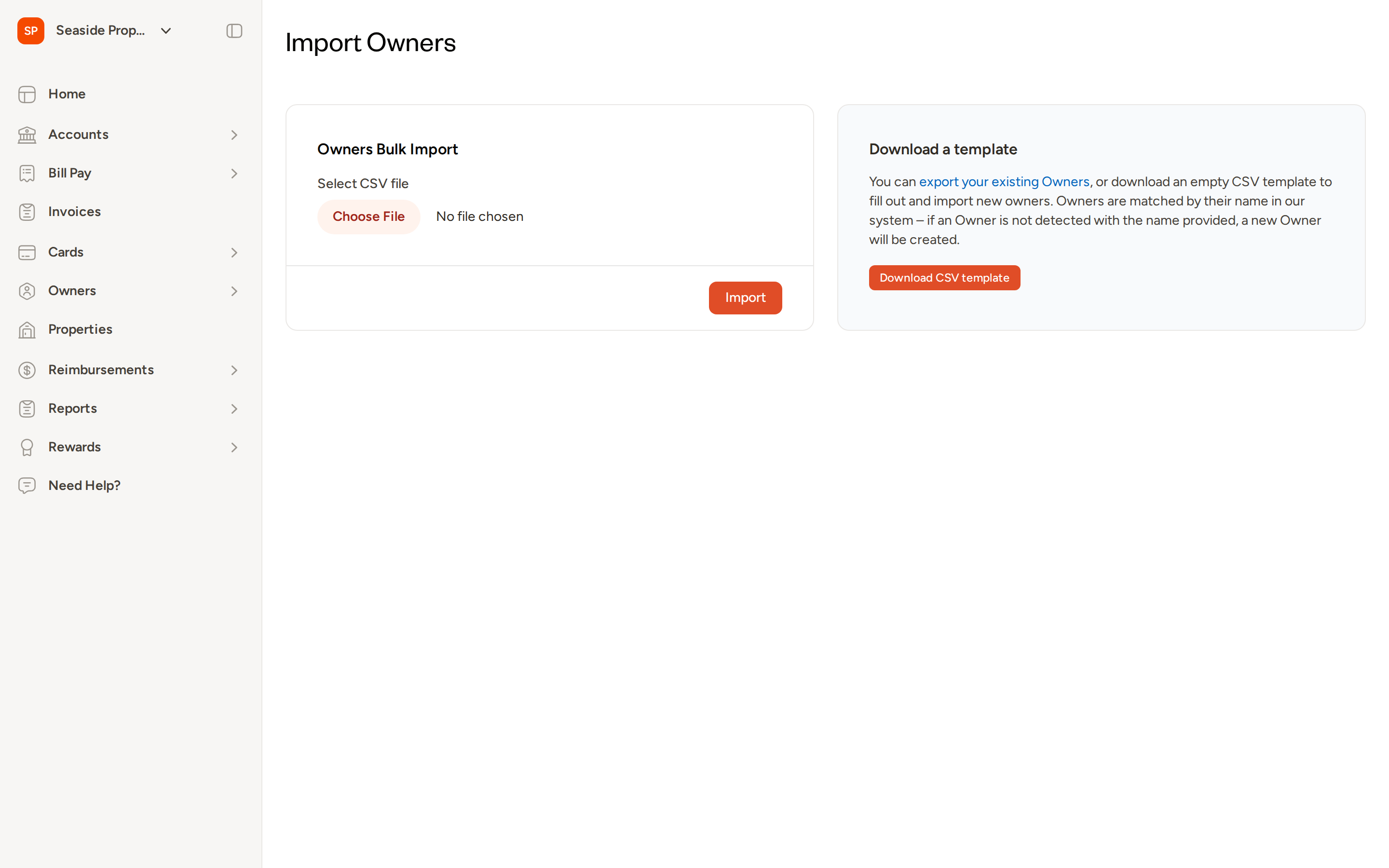
Steps
- Navigate to Owners in the left sidebar and open the Import Owners page (accessible from the overflow menu on the owners list).
- Click Download CSV template to get the standard import template. You can also click export your existing Owners to download your current owner list as a starting point.
- Fill out the template spreadsheet. Each row represents one owner. The columns available include:
- Owner Name (required)
- Phone Number
- Phone Country Code
- Beneficiary Name
- Routing Number
- Account Number
- Street Address, Street Address Second, City, State, Zip
- Save the file in CSV format.
- On the Import Owners page, click Choose File and select your completed CSV.
- Click Import. Topkey runs a dry-run preview that shows how many records will be created and how many existing records will be updated.
- Review the preview. Any rows with validation errors are flagged at this stage so you can correct them before committing.
- Click Confirm Import to complete the import, or Cancel to discard it and start over.
Owners are matched by name. If Topkey finds an existing owner with the same name, that record is updated. If no match is found, a new owner is created.
When to use this method: Use CSV import when you are migrating from another platform or need to add a large batch of owners that are not tracked in your PMS or ERP.
Method 4: Manual Entry
For one-off additions — such as a new owner not yet in your PMS or accounting system — you can create owner records directly in Topkey.
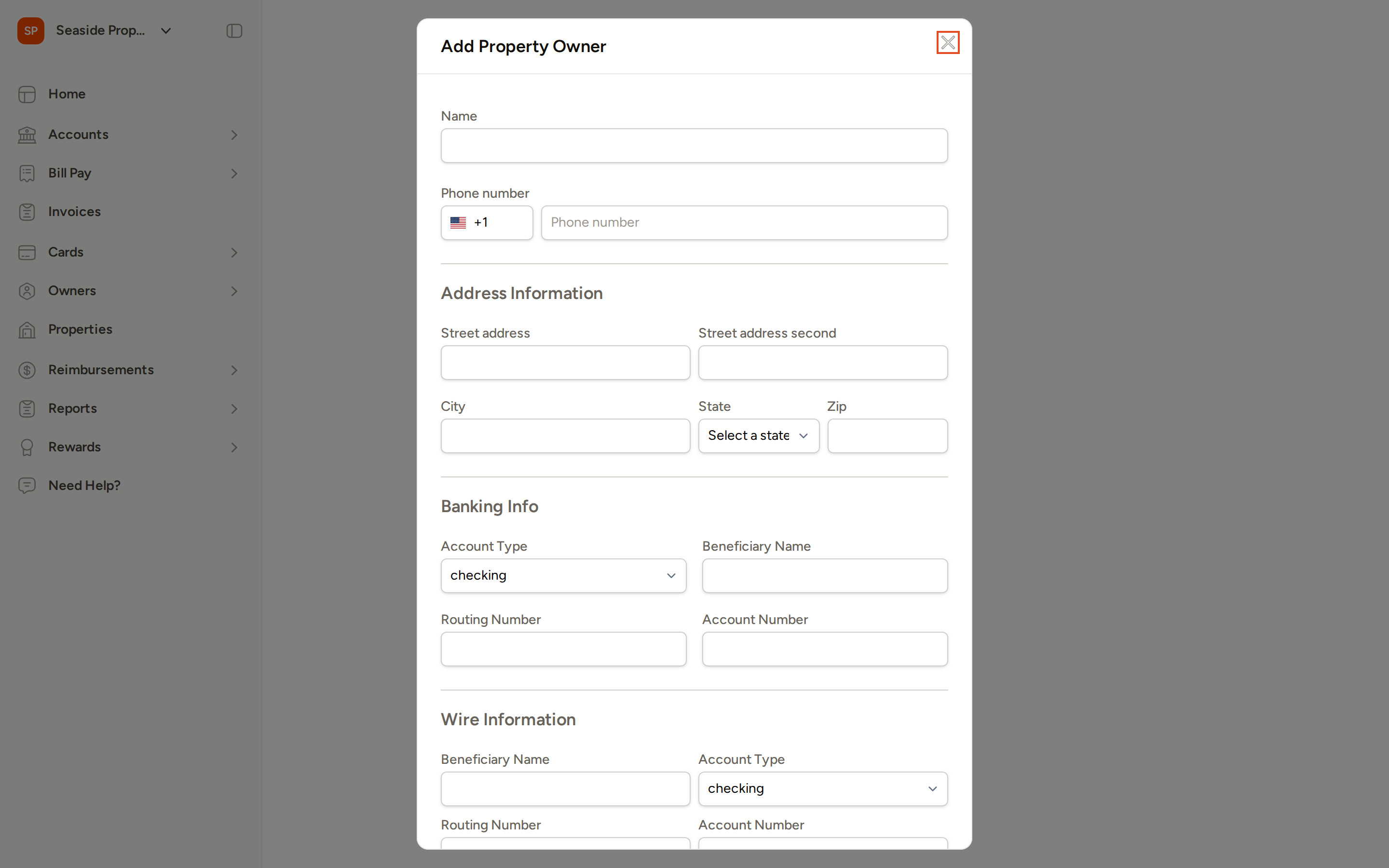
Steps
- Navigate to Owners in the left sidebar.
- Click New Owner in the top-right corner of the owners list.
- Fill in the owner details. The Name field is required. All other fields are optional:
- Phone Number
- Address Information (street address, city, state, zip)
- Banking Info — Account Type, Beneficiary Name, Routing Number, Account Number
- Wire Information — Beneficiary Name, Account Type, Routing Number, Account Number
- Tax ID (SSN/EIN) and Tax Classification (for 1099 reporting)
- Contract (to assign an owner statement template)
- Click Save Owner.
When to use this method: Use manual entry for individual owners who are not tracked in your PMS or ERP, or when you need to add a single owner quickly without preparing a CSV file.
After Adding an Owner
Once an owner is added — by any method — they appear in your Property Owners list. From there you can:
- Link the owner to one or more properties
- Add or update banking details for ACH payouts
- Generate and send owner statements
- Issue owner payments
Frequently Asked Questions
Which PMS integrations support owner imports? Only four PMS integrations support owner imports: Track, Guesty, OwnerRez, and Streamline. Track is the only PMS that imports ACH banking details and runs on an automatic sync schedule. If your PMS is not on this list, use CSV import or manual entry instead.
Will a PMS sync overwrite banking details I have entered manually in Topkey? This depends on your account's Source of truth for vendors and owners setting. When this setting points to your PMS, incoming PMS data will overwrite manually entered values on each sync. When it is disabled, Topkey preserves your manual edits and only fills in blank fields. Review this setting before editing PMS-sourced records manually.
What happens if a CSV row has an error during import? Topkey runs a dry-run preview before any data is saved. Rows with validation errors are flagged in the preview screen so you can fix them in your spreadsheet and re-upload before confirming the import. No records are created or updated until you click Confirm Import.