Owners And Properties
Paying an Owner
Owner payment requests let you send a standalone payout directly to an owner outside of a regular owner statement. Use them for interim distributions, expense reimbursements, or any one-off disbursement you need to make on demand.
Finding Payment Requests
There are two places to view owner payment requests:
- Owner Payments page — Go to Owners > Payment Requests in the left navigation to see all payment requests across every owner. From here you can search, filter by status or date, and paginate through results.
- Individual owner profile — Open an owner's record and select the Payment Requests tab to see only that owner's requests.
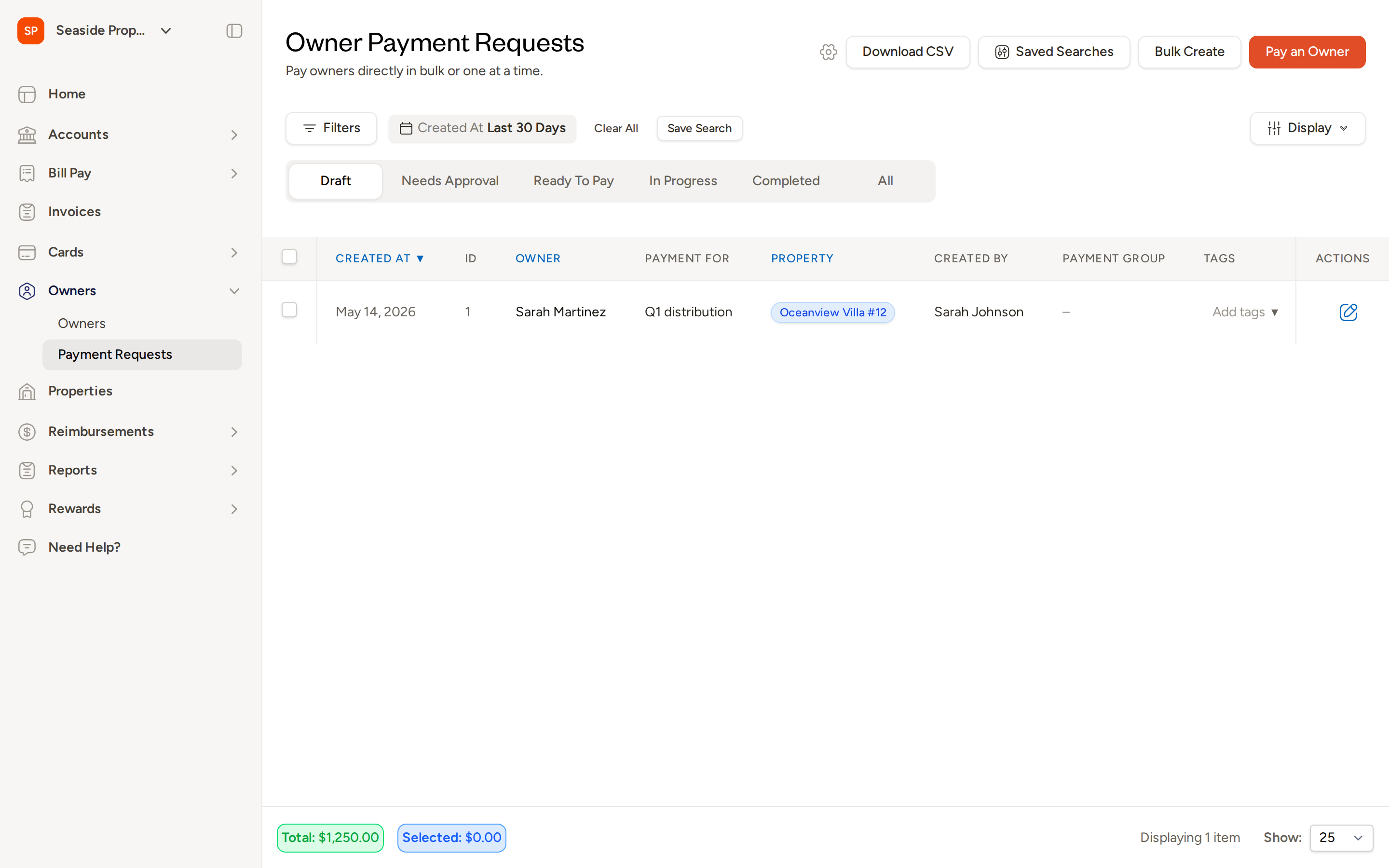
The footer of the list shows a running Total for all visible requests and a Selected total that updates as you check individual rows.
Creating a Payment Request
Click Pay an Owner in the top-right corner of the Owner Payments page to open the new payment request form.
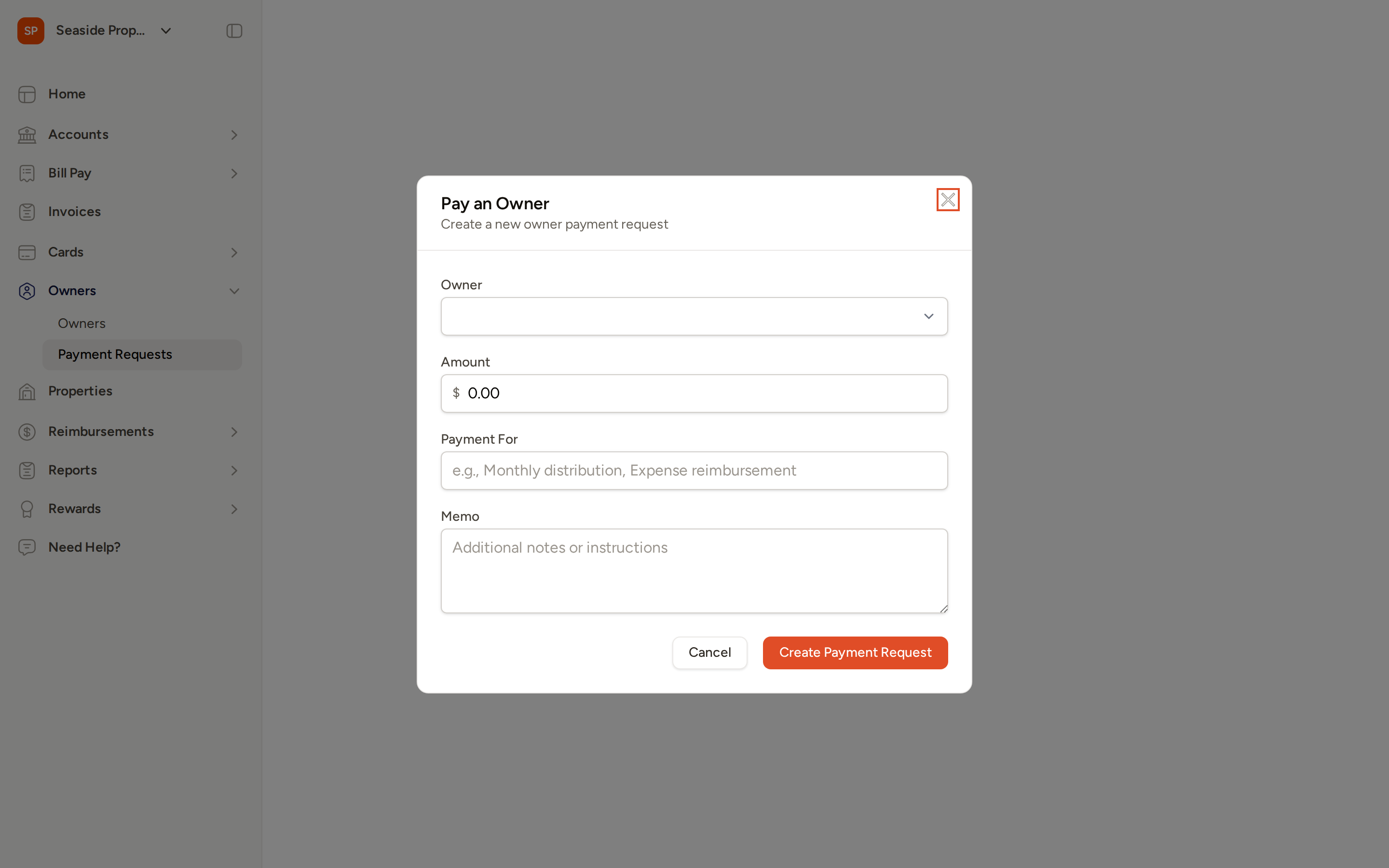
Fill in the following fields:
- Owner — Search for and select the owner you want to pay. This field is required.
- Amount — Enter the dollar amount to disburse. This field is required.
- Payment For — Enter a short description of what the payment is for (for example, "Q1 distribution" or "Expense reimbursement"). This helps you and your team identify the purpose of the payment at a glance.
- Property (optional) — Associate the payment with a specific property. This field appears after you select an owner.
- GL Code (optional) — Assign a general ledger code if your account uses them.
- Memo (optional) — Add any additional notes or instructions.
When you're ready, click Create Payment Request to save the request. The request is created in Draft status so you can review it before submitting.
You can also start a payment request directly from an owner's profile. On the owner's Payment Requests tab, click Pay an Owner and the owner field will be pre-filled.
Request Lifecycle
Every owner payment request moves through the following states:
| State | What it means |
|---|---|
| Draft | The request has been created but not yet submitted. You can still edit all fields. |
| Needs Approval | The request has been submitted and is waiting for a reviewer to act on it. |
| Ready to Pay | The request has been approved (or reviewed, if no approval workflow applies) and is ready to be paid. |
| In Progress | A payment has been scheduled or is currently processing. |
| Completed | Funds have been successfully disbursed to the owner. |
The status tabs at the top of the Owner Payments page let you filter the list to any of these states at a glance.
Submitting a Request for Approval
Once you have reviewed a draft request, open it and submit it for approval. If your account has an owner payment approval workflow configured, the request will be routed to the appropriate approver. For full details on setting up approval routing, see the Setting Up an Owner Payment Approval Workflow page.
If you submitted a request by mistake, you can cancel the pending approval to return the request to Draft status, where it becomes editable again. Open the request and use the cancel option before an approver acts on it.
Approving or Denying a Request
Approvers see pending requests in their approvals inbox. On each request, an approver can:
- Approve the request to move it to Ready to Pay
- Deny the request to stop the payment
- Leave a comment to ask for more information before making a decision
Paying an Approved Request
Once a request reaches Ready to Pay status, you can initiate the disbursement:
- Open the payment request.
- Select the bank account to pay from — either your Topkey Deposit Account or a connected bank account.
- Confirm the payment. Funds are sent via ACH to the owner's stored banking details, or by wire if that has been configured for the owner.
The owner must have valid ACH banking details saved on their profile before you can process a payment. If banking details are missing, update the owner record before proceeding.
Combined Payments
When the Combined Payments option is enabled on an owner's profile, multiple approved payment requests for the same owner can be grouped into a single ACH transaction. This reduces the number of transfers you need to manage and simplifies reconciliation on the owner's end.
Editing the Send Date on Manual Payments
If you mark a payment as paid manually, you can edit the send date after the fact. Open the completed payment request, navigate to the payment details, and update the send date to reflect the correct disbursement date. This option is available only for manual payments, not for ACH payments processed through Topkey.
Bulk Tools
The Owner Payments page includes several tools for working with multiple requests at once.
Creating Requests in Bulk
From the Actions menu in the top-right corner, you have two options:
- Import CSV — Upload a spreadsheet to create multiple payment requests at once. Download the CSV template to ensure your file is formatted correctly.
- Bulk Create — Build multiple requests row-by-row directly in the browser without leaving the page.
Bulk Actions on Existing Requests
Select one or more requests using the checkboxes on the left side of the table to reveal bulk action options:
- Export to CSV — Export the selected requests to a spreadsheet.
- Bulk Delete — Delete multiple draft requests at once.
- Bulk Submit for Approval — Submit several requests for approval in a single action.
Downloading All Owner Payments
To export a full history of all owner payments — including both direct disbursements and statement payments — click Download CSV at the top of the page. Because this export can be large, Topkey will prepare the file and send it to your email address when it is ready.
Managing In-Progress and Completed Payments
After a payment has been initiated, you can take the following actions from the payment detail view:
- Cancel — Stop a scheduled payment before it processes.
- Retry — Re-attempt a payment that has failed.
- Mark as Returned — Record a payment that was returned by the owner's bank.
Audit Trail
Every payment request maintains a full history of who created it, who approved it, and who initiated the payment. Open the Activity tab on any request to review the complete audit trail.
Comments
You can have threaded conversations directly on a payment request using the Comments tab. Team members can reply to individual comments, making it easy to keep all context — questions, clarifications, and decisions — attached to the request itself. Comments on this tab are separate from any notes left during the approval process.
Frequently Asked Questions
Can I edit a payment request after it has been submitted for approval? Not while it is under review. First cancel the pending approval to return the request to Draft status, then make your edits and resubmit.
What happens if a payment fails? The request will show a failed status under the In Progress tab. Open the payment request and use the Retry option to re-attempt the payment. You can also mark the payment as returned if the funds came back to your account.
Can I send one payment to cover multiple approved requests for the same owner? Yes. When Combined Payments is enabled on the owner's profile, Topkey groups all approved requests for that owner into a single ACH transaction. Contact Contact Support if you need help enabling this option.