AI Automations
AI Invoice Processing
Topkey uses AI to read uploaded invoice files and forwarded vendor emails, automatically pulling out key billing details so you don't have to enter them by hand. Once extraction is complete, a pre-filled draft bill appears in your Bill Pay queue ready for your review.
What Gets Extracted
When you upload an invoice or forward a vendor email, Topkey's AI extracts the following information:
- Vendor name
- Invoice number
- Bill date
- Due date
- Total amount
- Line items — including description, amount, and service date for each line
For each line item, the AI also suggests which property the charge belongs to, based on the line item description (see Property Assignment below).
Supported File Types
You can upload invoice files in the following formats:
- PDF (including multi-page documents — all pages are processed automatically)
- JPG
- PNG
Files must be 10 MB or smaller.
Multi-page PDFs are fully supported. Topkey processes all pages and consolidates line items across the entire document.
How AI Invoice Processing Works
Uploading a File
- Go to Bill Pay in the left navigation and select Bills.
- To import one or more invoices at once, use AI Bulk Import. Select or drag in your invoice files — Topkey will process each file and create a separate draft bill for each one.
- The AI reads the file and extracts all available fields.
- Each extracted bill appears in the Draft tab, pre-filled with the information found in the document.
- Open each draft, review the extracted fields, make any corrections needed, and select Submit for Review when ready.
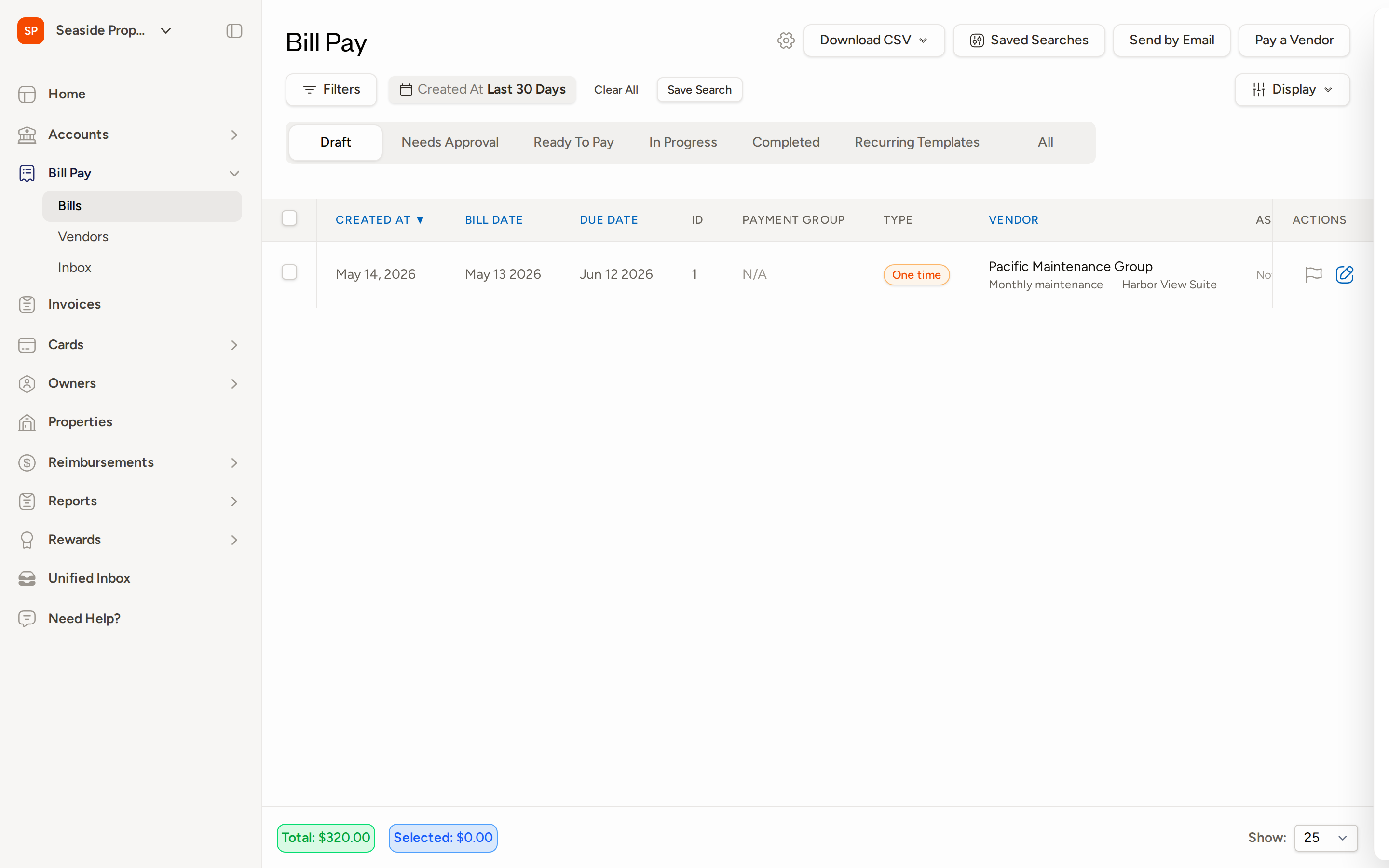
When using bulk import, you can review and confirm each draft individually — or cancel any bill in the batch before it is saved as a record.
Forwarding a Vendor Email
You can also trigger AI extraction by forwarding a vendor invoice email to your Topkey inbox address. Topkey will:
- Detect any invoice attachments in the email and extract them automatically.
- Use the email body as additional context if no attachment is present.
- Create a pre-filled draft bill in the Draft tab, just as if you had uploaded the file directly.
To set this up without manual forwarding, you can connect a Google Workspace (Gmail) account. Once connected, Topkey automatically scans emails from selected team members and processes any invoices it finds. You can configure filter rules to control which messages are included or excluded, based on sender, subject line, or specific keywords.
Gmail integration requires a Google Workspace account. Contact your account administrator to configure which team members' inboxes are scanned and to set up your filter rules.
OCR Status Indicators
Each bill card in the Draft tab displays a status indicator showing the current state of AI extraction:
| Status | What It Means |
|---|---|
| Spinning indicator | Extraction is in progress — the AI is still reading the file. |
| Green check | Extraction completed successfully. |
| Red warning | Extraction encountered an error. Review the bill and fill in any missing fields manually. |
| No bill detected | The uploaded file did not contain a recognizable invoice. |
If you see a red warning or a "no bill detected" status, you can still use the draft to enter bill details manually.
Property Assignment
For each line item extracted from an invoice, the AI suggests which property the charge belongs to based on the line item description. Each suggestion includes a confidence level — High, Medium, or Low — along with a brief explanation of why that property was selected.
You can:
- Accept the suggested property if it looks correct.
- Override the suggestion and select a different property before submitting the bill.
Line item descriptions that clearly reference a property name or address will generally produce high-confidence suggestions. Vague descriptions (such as "labor" or "supplies") may result in lower confidence and should be reviewed carefully.
Reviewing and Correcting Extracted Data
AI extraction is accurate in most cases, but you should always review each draft before submitting. Any field can be edited:
- Open the draft bill from the Draft tab.
- Select Edit Details to update header fields such as vendor, bill date, due date, or invoice number.
- Select the Line Items tab to review individual line items, amounts, and property assignments.
- Make any corrections needed.
- Select Submit for Review when the bill is ready.
Always verify the total amount and due date before submitting. These fields have the greatest impact on payment timing and accuracy.
Frequently Asked Questions
What should I do if the AI extracted the wrong vendor name or amount? Open the draft bill and select Edit Details. You can correct any header field — including vendor, bill date, due date, invoice number, and total — before submitting. Changes are saved to the draft and do not affect the original file.
What happens if extraction fails or no bill is detected? If the AI cannot extract data from a file, the bill card will show a red warning or a "no bill detected" status. You can still use the draft to enter all fields manually. If you believe the file should have been processed correctly, try re-uploading a cleaner scan or a higher-resolution image, and Contact Support if the issue persists.
Can I upload multiple invoices at once? Yes. Use AI Bulk Import to select multiple files in a single upload. Topkey creates a separate draft bill for each file and processes them simultaneously. You can then review, confirm, or cancel each draft individually before any records are saved.