Inventory
Inventory Overview
The Inventory Overview is your central dashboard for monitoring stock health across all your warehouse locations. At a glance, you can see how much inventory you have on hand, which items need reordering, and how much checkout activity has happened this month.
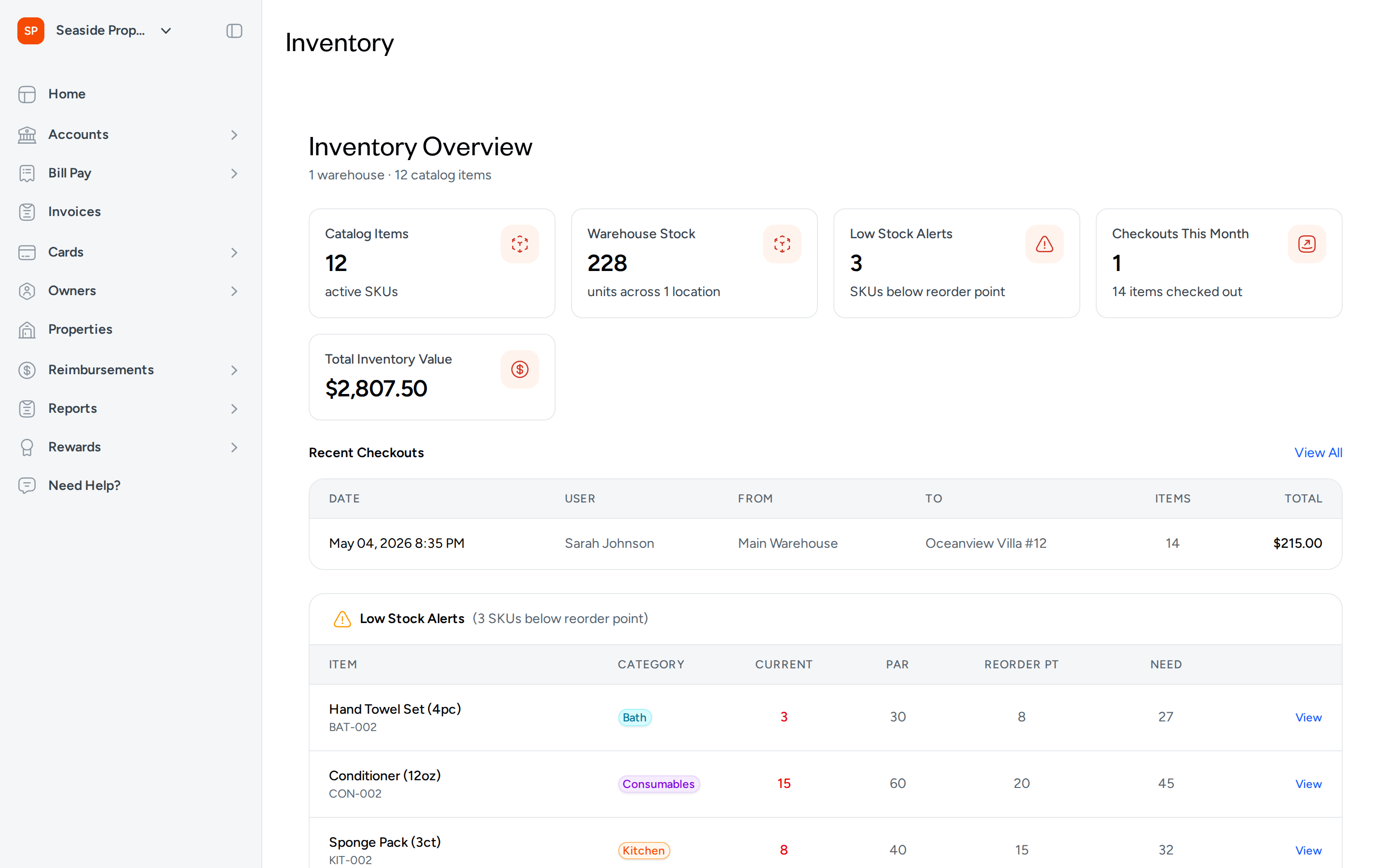
Metric Cards
The top of the dashboard displays a row of summary cards, each linking directly to the relevant section of your inventory. Together, they give you an immediate read on the state of your stock.
- Catalog Items — The total number of active SKUs in your inventory catalog. Click this card to go directly to your stock levels list.
- Warehouse Stock — The total number of units currently on hand across all your warehouse locations. The card also shows how many locations are contributing to that count.
- Low Stock Alerts — The number of SKUs whose current stock has fallen at or below their reorder point. When all items are sufficiently stocked, this card displays "all items stocked." Click it to filter your stock levels list to only low-stock items.
- Checkouts This Month — The number of individual checkout transactions completed so far this calendar month, along with the total number of items checked out across those transactions.
- Total Inventory Value — The combined value of all units currently on hand, calculated using the unit cost set for each item.
The summary line just below the page heading shows your total warehouse count and catalog item count at a glance, so you always know the scope of what the metrics reflect.
Recent Checkouts
The Recent Checkouts table lists the last 10 completed checkouts across your account. Each row shows:
- Date — The date and time the checkout was completed.
- User — The team member who performed the checkout.
- From — The warehouse location the items were pulled from.
- To — The property the items were checked out to.
- Items — The total number of units included in that checkout.
- Total — The combined value of the items in that checkout.
Click any row to open the full checkout detail. To see your complete checkout history, click View All in the upper right corner of the table.
Low Stock Alerts
If any items have fallen at or below their reorder point, a Low Stock Alerts section appears below the Recent Checkouts table. Each row in this list shows the item name and SKU, its category, the current stock level (highlighted in red), the par level, the reorder point, and how many units you need to order to return to par.
Click View at the end of any row to go directly to that item's detail page where you can review stock levels by location and take action.
Use the Low Stock Alerts section as your daily reordering checklist. Items appear here as soon as their quantity drops to or below the reorder point you've set, so you can act before you run out entirely.
An item only appears in Low Stock Alerts if it has a reorder point configured. If an item is not showing up here even though stock is low, check that a reorder point has been set on that item's catalog entry.
Navigating to Other Inventory Sections
Use the sidebar on the left to move between the main areas of Topkey. The Inventory section gives you access to all inventory tools. Within the inventory pages, use the tab bar at the top to switch between the Overview and other sections such as stock levels, checkouts, receiving, templates, warehouse locations, and the charges report.
Frequently Asked Questions
Why don't I see a Total Inventory Value card on my dashboard? The Total Inventory Value card is only visible to users with permission to manage inventory pricing. If you don't see it, contact your account administrator to review your permissions.
How often does the dashboard update? The dashboard reflects your current data each time you load or refresh the page. There is no fixed refresh interval — the numbers you see always represent the latest state of your inventory.
What does the "Need" column in Low Stock Alerts represent? The Need column shows how many units you would need to order to bring that item back up to its par level. It is calculated as the par level minus the current stock quantity.
Questions about your inventory setup? Contact Support.