Owners And Properties
Viewing and Editing an Owner
The owner profile page gives you a complete view of a property owner's information — including banking details, linked properties, invoices, statements, and contacts — all in one place. Use this page to keep owner records accurate and up to date.
The Owner Profile Page
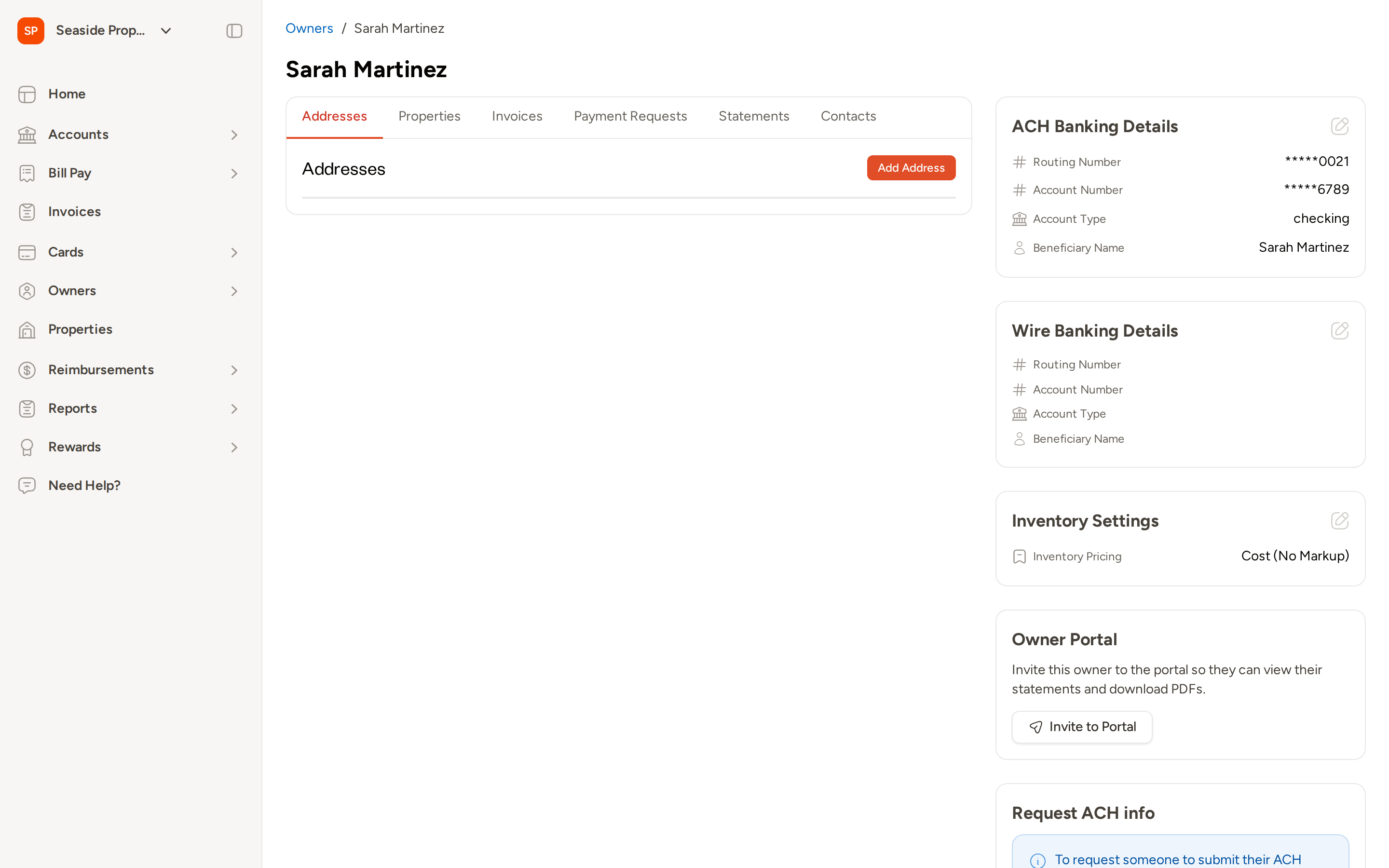
To open an owner's profile, go to Owners in the left navigation and select the owner's name from the list.
Side Cards
The right side of the profile displays several summary cards:
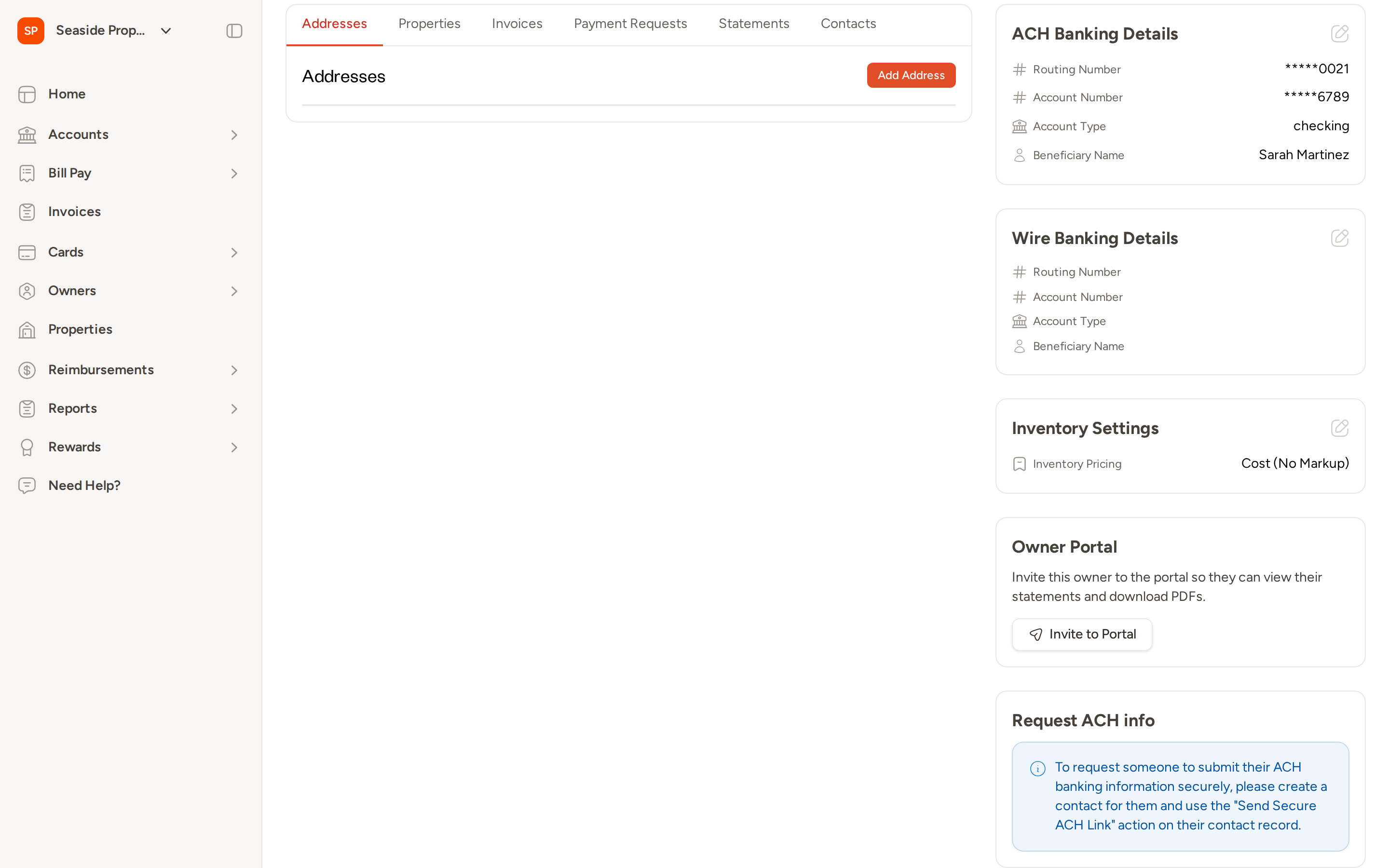
- ACH Banking Details — Shows the routing number, account number, account type, and beneficiary name on file. Account and routing numbers are masked for security (for example,
*****0021), showing only the last four digits. - Wire Banking Details — Shows wire transfer banking information if it has been entered. Fields display as blank until wire details are added.
- Inventory Settings — Shows the owner's inventory pricing tier (for example, Cost (No Markup)). If the owner inherits a global setting, the value appears with "(inherited)" noted.
- Owner Portal — Shows whether the owner has portal access. If they do not yet have access but have an email address on file, you can click Invite to Portal to send them an invitation to view their statements and download PDFs.
- Request ACH Info — Provides guidance on how to securely request ACH banking details from an owner. To send a secure request, create a contact for the owner and use the Send Secure ACH Link action on that contact record (see Contacts below).
Tabs
The main content area is organized into six tabs:
- Addresses — Lists billing and mailing addresses on file. Click Add Address to add a new one.
- Properties — Lists all properties linked to this owner. Click Add Property to associate an additional property.
- Invoices — Shows all invoices sent to this owner.
- Payment Requests — Shows outbound payment requests made to this owner, including amount, description, and status.
- Statements — Lists owner statements with date, payout amount, routing number, and payment status.
- Contacts — Lists all contacts associated with this owner (see Contacts below).
Editing Owner Details
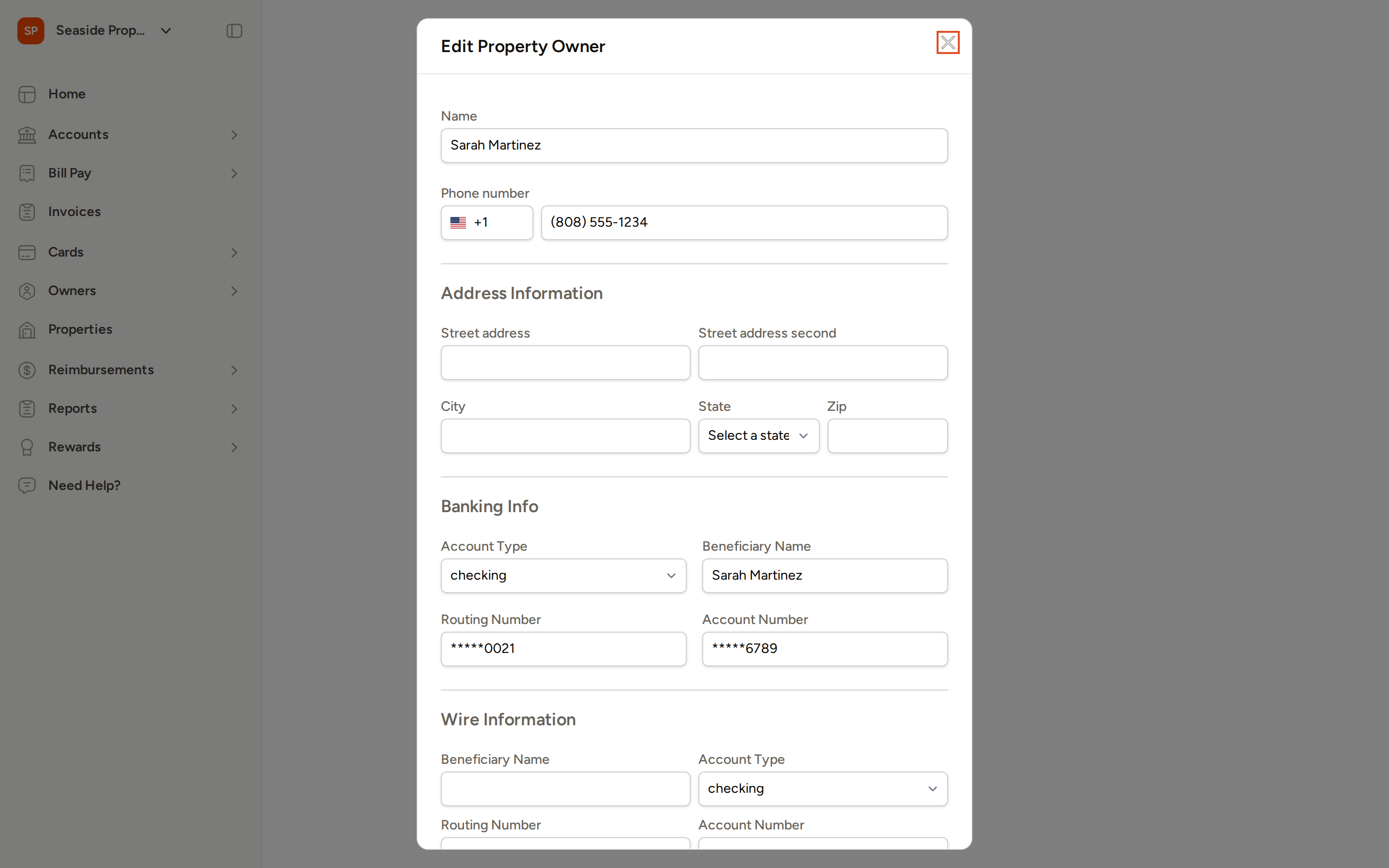
To edit an owner's profile, click the edit icon next to any side card, or navigate to the owner and open the Edit Property Owner form. The form opens as an overlay on top of the profile page.
Editable Fields
Basic Information
- Name — The owner's full name.
- Phone Number — Enter the phone number and select the country code using the flag selector on the left.
Address Information
- Street Address, Street Address Second, City, State, and Zip — Used for billing and mailing purposes.
Banking Info (ACH)
- Account Type — Select checking or savings.
- Beneficiary Name — The name on the bank account.
- Routing Number — Must be exactly 9 digits.
- Account Number — Up to 17 digits.
If routing or account numbers are already on file, they appear masked (for example, ****0021). Leaving the masked value in place preserves the existing number when you save — you do not need to re-enter it unless you are updating it.
Wire Information
- Beneficiary Name, Account Type, Routing Number, and Account Number for wire transfer payouts. Enter these if you pay this owner via wire transfer.
Inventory
- Inventory Pricing — Set the pricing tier for this owner: Cost (No Markup) or Markup. If no selection has been made, the owner inherits the global setting (if one exists).
Owner Statement
- Contract — Assign a statement contract template to this owner.
Saving Changes
Click Save Owner to apply your changes. Click Close to discard them.
Contacts
The Contacts tab on the owner profile lists everyone associated with this owner — such as a spouse, co-owner, bookkeeper, or property manager.
Adding a Contact
- Click the Contacts tab on the owner profile.
- Click Add Contact.
- Fill in the contact's details:
- First Name and Last Name
- Phone Number (with country code)
- Optionally, check Preferred contact to mark this contact as preferred for communications.
- Optionally, check Receives owner statement emails to include this contact in owner statement email deliveries.
- Click Create Contact.
Preferred Contacts
Click the star icon next to any contact's name to toggle their preferred status. Starred contacts receive owner notifications. You can star as many contacts as you like — all starred contacts receive communications. If no contacts are starred, all contacts on the owner receive notifications.
When a single recipient is needed for an action (such as sending a Secure ACH Link), Topkey uses the starred contact with the lowest ID. If no contacts are starred, the contact with the lowest ID is used.
Statement Recipients
When adding or editing a contact, check Receives owner statement emails to ensure that contact receives statement email deliveries. This setting is independent of the preferred contact star — you can have contacts who receive statements but are not starred, or vice versa.
Sending a Secure ACH Link
Instead of entering banking details on an owner's behalf, you can send the owner a secure link so they can submit their own ACH information. This keeps sensitive data private and ensures accuracy.
To send a Secure ACH Link:
- Go to the Contacts tab on the owner profile.
- Locate the contact you want to send the link to.
- Click Send Secure ACH Link next to that contact.
- Choose a delivery method:
- Send via Email — Sends the link to the contact's email address.
- Send via SMS — Sends the link to the contact's phone number (only available if a phone number is on file).
The contact receives a tokenized link that lets them securely enter their own banking details. When they submit the form, Topkey stores their information without exposing or overwriting any existing masked values already saved on the record.
SMS delivery is only available for contacts who have a phone number saved on their record. If the SMS option does not appear, add a phone number to the contact first.
Banking Information
ACH Banking Details
ACH banking details are entered directly in the Edit Property Owner form under the Banking Info section. These details are used when paying owners via ACH transfer.
The fields are:
- Account Type — Checking or savings
- Beneficiary Name — Name on the bank account
- Routing Number — 9-digit ABA routing number
- Account Number — Bank account number
Once saved, Topkey masks the routing and account numbers in the UI, showing only the last four digits. This applies both on the profile page and in the edit form. Leaving a masked value unchanged when saving preserves the existing number on file.
Wire Banking Details
Wire banking details are entered in the Wire Information section of the same edit form. These are used for wire transfer payouts and include the same fields as ACH (beneficiary name, account type, routing number, and account number), along with an associated address.
Topkey masks stored account and routing numbers throughout the UI. If you need to update a number, clear the masked value and type in the new one before saving.
Merging Owner Records
If you have duplicate owner records — for example, one created manually and one imported from a property management system (PMS) — you can merge them into a single record from the Edit Property Owner form.
- Open the owner profile you want to merge into another record.
- Click the edit icon to open the Edit Property Owner form.
- Scroll to the Merge Options section at the bottom of the form.
- Use the Merge with another owner selector to find and select the owner record you want to merge with.
- Click Save Owner.
When the merge completes, all properties, statements, contacts, and banking information are consolidated under the surviving record. PMS-sourced records take precedence for identity fields such as name and external ID. All other data fills gaps in the surviving record without overwriting existing information.
You cannot merge two owner records that both originated from the same PMS. Merging is supported for two manually created records, one manual and one PMS record, or records from two different PMSes.
A bulk automated merge option is also available for administrators. This triggers a name-match scan across sources and merges matching records in bulk. Contact Support if you need to run a bulk merge.
1099 Tax Reporting
Entering Tax Information
Tax details for an owner are stored in the 1099 Reporting section of the Edit Property Owner form.
- Tax ID (SSN/EIN) — Enter the owner's Social Security Number or Employer Identification Number.
- Tax Classification — Select one of the following:
- Employee (W-2)
- Individual Contractor (1099)
- Business Contractor (1099)
- Upload W9 — Attach a signed W-9 or 1099 form. Accepted formats are PDF and Word documents (.doc or .docx), up to 5 MB.
Once a W-9 is uploaded, a download link appears in the ACH Banking Details card on the owner profile page.
Owner 1099 Reporting Page
To review 1099 payment totals across all owners, go to Reports → Owner 1099 Reporting.
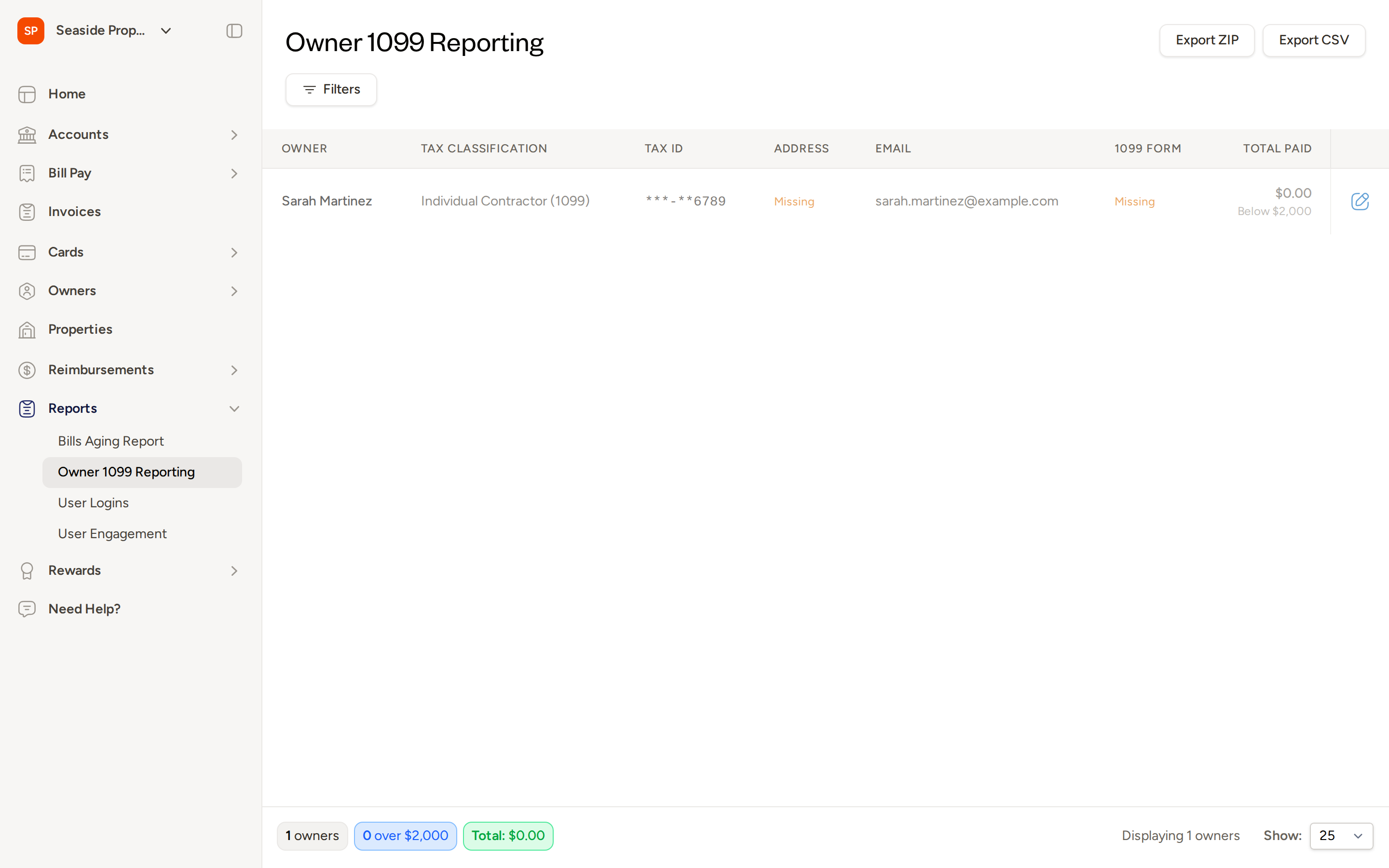
The report displays each owner with their:
- Tax Classification
- Tax ID (masked)
- Address and Email (flagged as "Missing" if not on file)
- 1099 Form status (flagged as "Missing" if no form has been uploaded)
- Total Paid for the selected tax year, with a note if the total is below the IRS reporting threshold
Summary counts at the bottom of the page show the total number of owners, how many are over the reporting threshold, and the total amount paid across all owners.
Filtering the Report
Click Filters to narrow the report by:
- Tax Year
- Tax Classification
- Specific Owners
- Payment Types
Exporting the Report
Use Export CSV to download the report as a spreadsheet, or Export ZIP to download a package that includes uploaded 1099/W-9 forms alongside the data.
The default CSV export masks payment details. If your account requires unmasked ACH data in the export, contact Support — this capability is available on request.
Exporting the Owners List
From the main Owners list page, you can export all owner records to a CSV file. The export includes owner details with payment information masked by default.
If your account requires an export that includes unmasked ACH banking details, this option can be enabled on special request. Contact Support to ask about this capability.
Frequently Asked Questions
Why are the routing and account numbers masked in the edit form? Topkey masks stored banking numbers for security, showing only the last four digits. When you open the edit form, the masked values appear in place. If you are not changing the banking details, leave the masked values as-is and save — Topkey will preserve the existing numbers. Only clear and retype a number if you are updating it to a new value.
Can more than one contact be marked as preferred? Yes. You can star as many contacts as you like. All starred contacts receive owner notifications. If no contacts are starred, all contacts on the owner receive notifications. For actions that require a single recipient (such as sending a Secure ACH Link), Topkey uses the starred contact with the lowest ID.
What happens to data when two owner records are merged? All properties, statements, contacts, and banking information from both records are consolidated under the surviving record. If one of the records came from a PMS, that record's name and external ID take precedence. Data from the other record fills any gaps without overwriting existing information on the surviving record.