Transactions
Reporting a Dispute or Fraud
If you spot a charge that looks wrong or fraudulent, act quickly: freeze the card first, then contact the right support team based on which card was used. This page walks you through both steps for each card type Topkey supports.
Before You Call: Freeze the Card First
Freezing the card immediately blocks any additional charges while you investigate. Do this before you do anything else.
For Topkey-issued debit cards and American Express cards:
- Go to Cards in the left navigation and select the card.
- On the card's detail page, click Freeze.
- The card is now blocked. You can unfreeze it later if the charge turns out to be legitimate.
For external bank cards (Chase, Capital One, Brex, etc.):
Topkey does not control external cards. Log in to your bank's website or mobile app and freeze the card directly from there before proceeding.
Topkey-Issued Debit Cards
Topkey's branded debit cards are issued through Thread. If you see a charge you don't recognize on one of these cards, contact support directly through Topkey.
- Go to Cards, select the card, and open the Actions menu.
- Select Report a dispute. The support number for your card is displayed here and is also printed on the back of the physical card.
- When you call, have the following ready:
- Card last 4 digits
- Transaction amount
- Transaction date
- Merchant name
- Whether you or your team authorized the charge at all
If you suspect fraud (the card was never shared, the charge is completely unrecognized, etc.), the Topkey support team will freeze the card on your behalf, file a dispute with the issuer, and arrange for a replacement card to be sent.
If you suspect fraud, do not wait — freeze the card in Topkey immediately and call right away. The sooner the card is frozen, the sooner further unauthorized charges are blocked.
External Bank Cards
Topkey connects to external cards from banks such as Chase, Capital One, and Brex to import transaction data. Because Topkey does not issue these cards, all disputes must be handled directly with your bank.
- Freeze the card from your bank's website or app (see above).
- Call the number on the back of the card and follow your bank's dispute process.
- Once your bank reverses the charge, the credit will appear in Topkey automatically as a credit transaction — no manual entry is needed on your end.
Topkey only reads transaction data from external cards. We have no ability to freeze, dispute, or issue replacements for cards issued by other banks.
American Express Cards
For virtual Amex cards, the support number is displayed directly on the card's detail page so you never have to search for it.
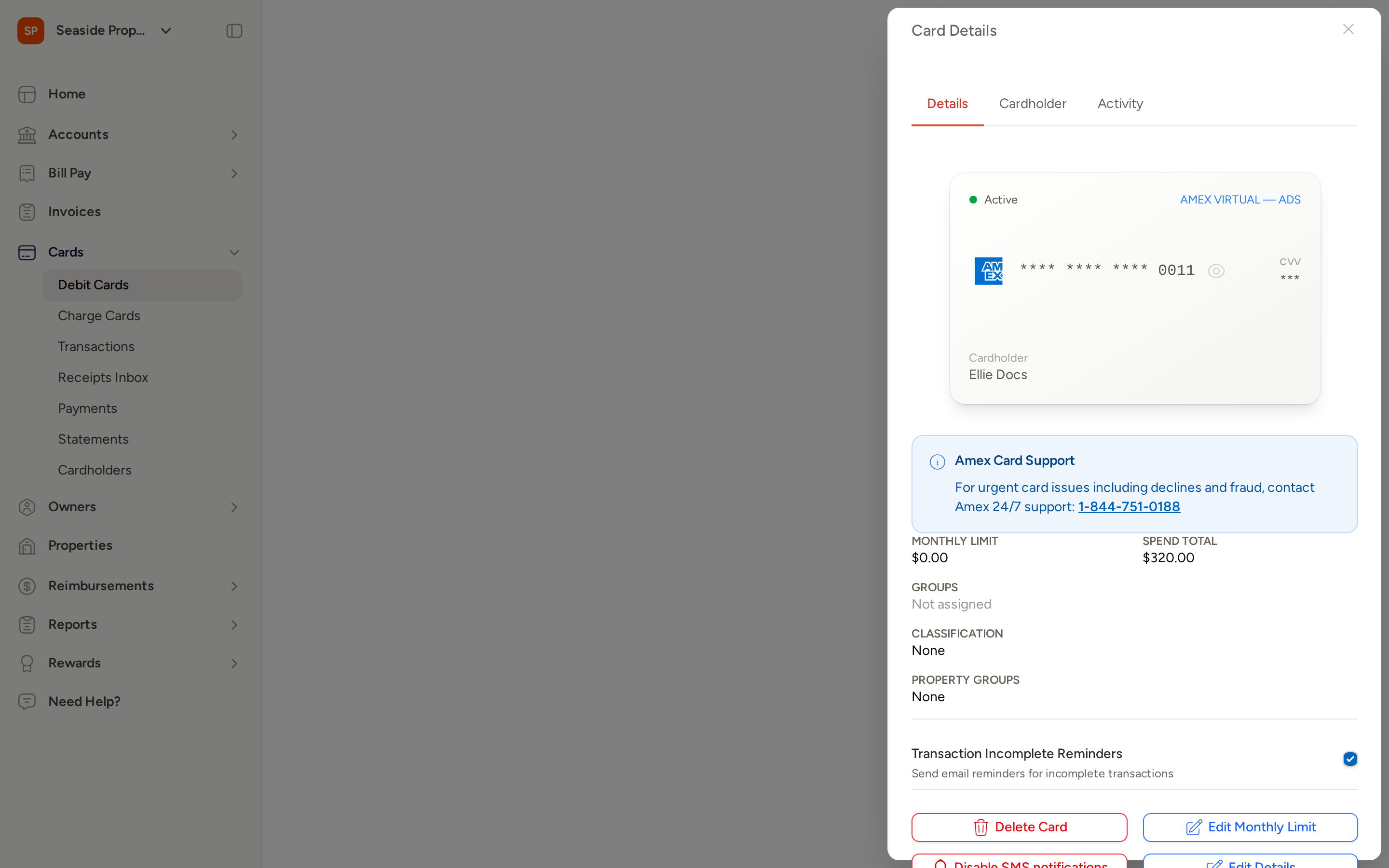
- Go to Cards and select your Amex virtual card.
- On the Details tab, you'll see the Amex Card Support banner with the direct support number.
- Call Amex 24/7 card-member support: 1-844-751-0188
- When prompted, have the following ready:
- Cardholder's name (shown on the card detail page)
- The card's last 5 digits
- Transaction amount, date, and merchant name
You can find the Amex support number any time by opening the card detail page in Topkey — you don't need to have the physical card on hand.
What to Do in Topkey After You've Filed a Dispute
Once you've contacted the appropriate support team and opened a case, take these steps in Topkey to keep your team informed and prevent the disputed charge from affecting your reporting.
Leave a comment on the transaction. Open the transaction, scroll to the comments section, and paste in the case or confirmation number you received. This gives everyone on your team a clear record of where things stand.
Flag the transaction. Open the transaction's Action menu and select Flag. This prevents the transaction from being included in reports or pushed to your accounting integration while the dispute is still open.
When the reversal arrives. Once the issuer processes the credit, the reversal will appear in Topkey automatically. The original charge and the credit reversal will pair up automatically — you can then mark the pair as resolved and remove the flag.
Flagging a disputed transaction is important. An unresolved charge that flows into your accounting software can create reconciliation headaches that are difficult to undo later.
Frequently Asked Questions
How long does a dispute take to resolve? Resolution timelines vary by card type and issuer. Amex and Thread disputes typically take 5–10 business days for a provisional credit, with final resolution in 30–90 days. External bank timelines depend entirely on your bank's process. Keep the confirmation number in a comment on the transaction so you can follow up easily.
Can I dispute a charge directly inside Topkey without calling? For Topkey-issued debit cards, the dispute process is initiated through the Report a dispute option in the card's Actions menu, which connects you to the support line. For Amex and external cards, you must contact the issuer directly — Topkey does not process disputes on their behalf.
What if the disputed charge has already been categorized or sent to my accounting software? Flag the transaction immediately and leave a comment with your case number. If the transaction has already synced to your accounting integration, contact Contact Support so the team can help you handle the reversal cleanly when it arrives.