Invoices
Sending Invoices
Once your invoice is ready, you can send it to your customer directly through Topkey or share a link manually. Either way, sending an invoice moves it from Draft to Open and makes it available for the customer to view and pay.
Two Ways to Send an Invoice
From the invoice editor, click the Save & Send Invoice button in the top-right corner. A small menu appears with two options:
- Send via Topkey — Topkey sends an email to the customer on your behalf with a link to view and pay the invoice.
- Send manually — Topkey marks the invoice as Open and generates a shareable link that you can copy and send yourself (for example, through your own email client or a messaging app).
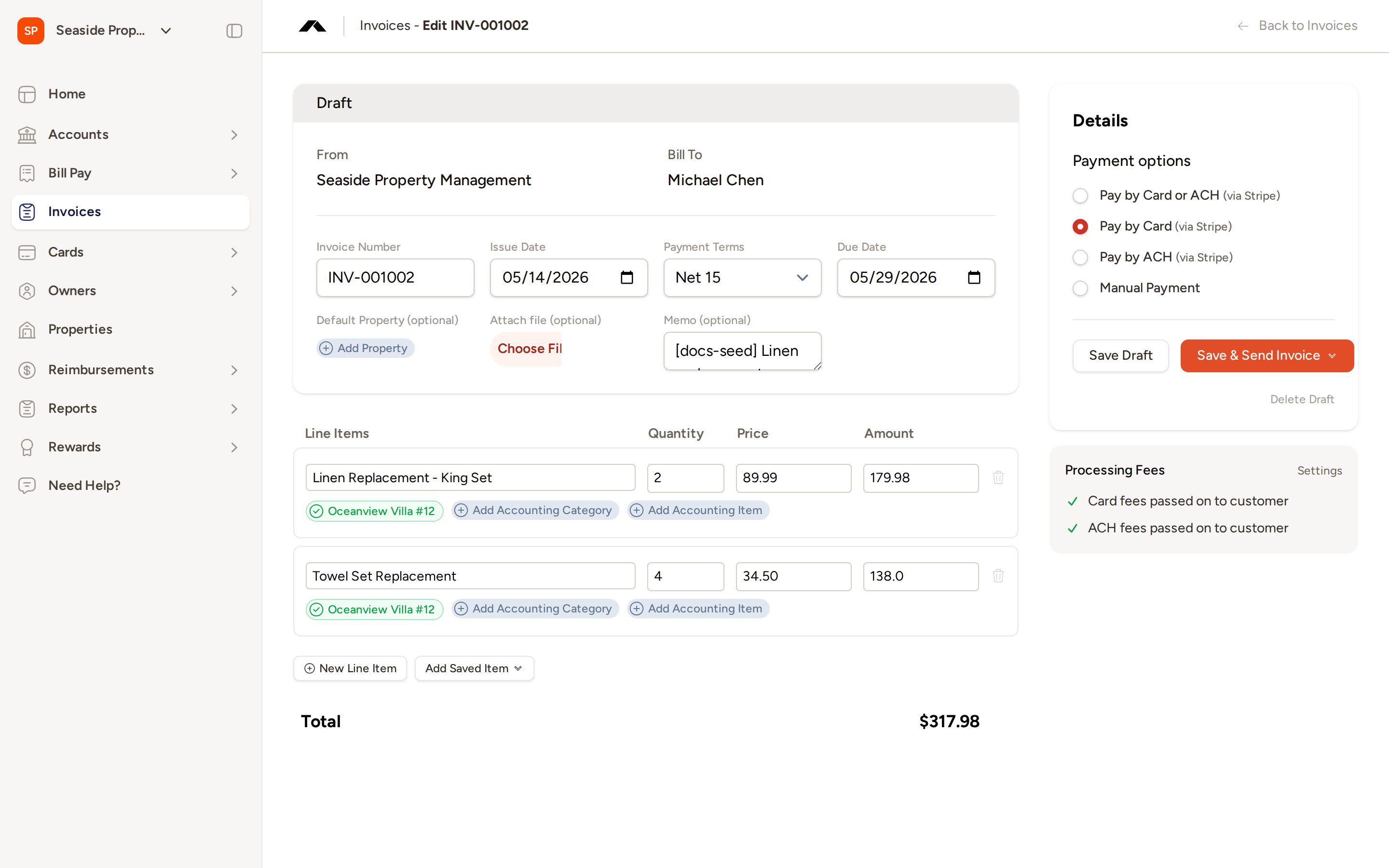
Both options move the invoice status from Draft to Open. The difference is simply whether Topkey sends the email for you or you distribute the link yourself.
Option 1: Send via Topkey
- Open the draft invoice you want to send.
- Click Save & Send Invoice and select Send via Topkey.
- Topkey sends an email to the customer's email address on file. The subject line includes your company name and the invoice number.
- The invoice status changes to Open.
The customer receives an email from invoices@topkey.io. Replies to that email are directed to the reply-to address you configured in your invoicing settings (or your own email address if no reply-to address has been set).
The customer's email address must be on file for the Send via Topkey option to work. If no email address is present, Topkey will display an error. You can add or update the email address on the customer record before sending.
Option 2: Send Manually
- Open the draft invoice you want to send.
- Click Save & Send Invoice and select the manual send option.
- The invoice status changes to Open and Topkey confirms that the shareable link is ready.
- Copy the link from the confirmation message and send it to your customer however you prefer.
The manual send option is useful when you prefer to communicate with owners through your own email, a client portal, or another channel.
Re-Sending an Invoice Email
If a customer says they never received the email, or you need to send a reminder, you can re-send the invoice email from the Open invoice view.
- Open the invoice (it must have a status of Open).
- Click Resend Email.
- Topkey sends the same invoice email again to the customer's email address on file.
Re-sending does not change the invoice status or due date. It simply delivers a fresh copy of the original invoice email to the customer.
What the Customer Sees
When the customer opens the invoice link — whether from the email or a link you shared — they see a professional invoice page that includes:
- Your company name and contact information
- The customer's name and email address
- Invoice number, issue date, and due date
- A Services & Items table with each line item, quantity, unit price, and amount
- Subtotal, tax, and total
- A Save PDF button to download a copy of the invoice
- Payment buttons (Pay by Card and/or Pay by ACH) based on the payment options you selected when creating the invoice
- A download link for any attachment you added to the invoice
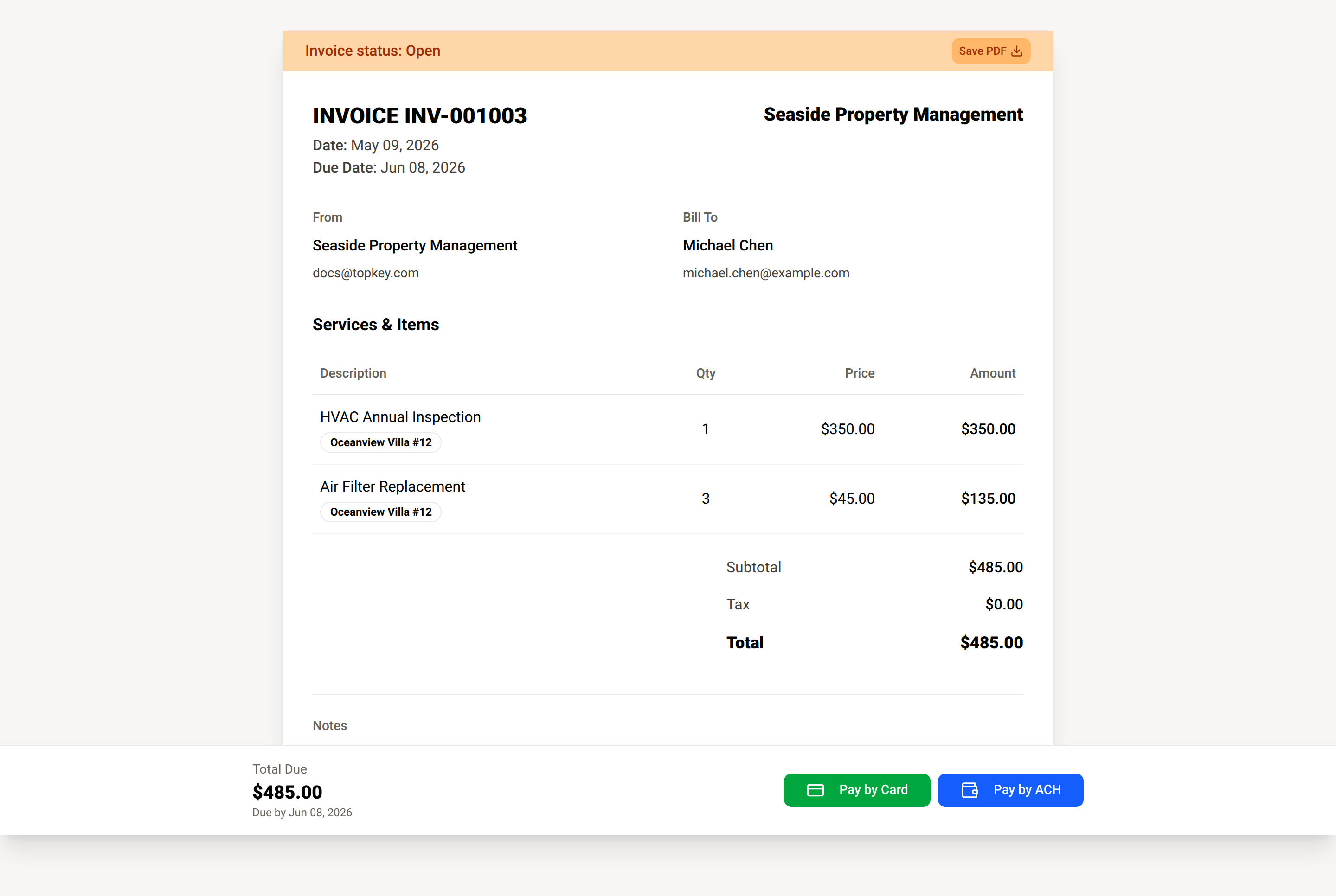
Payment buttons only appear if you connected Stripe and selected a Stripe-based payment option on the invoice. If you selected Manual Payment, no payment buttons are shown and the customer will pay you outside of Topkey.
Frequently Asked Questions
Can I edit an invoice after I send it? No. Once an invoice is sent and its status changes to Open, it can no longer be edited. If you need to make changes, use the Revert to Draft option on the invoice to return it to Draft status, make your edits, and send it again.
What happens if the customer's email address is wrong? If the email address on the customer record is incorrect, use the manual send option instead. Update the customer's email address in your account, then re-send the invoice email once the correct address is saved.
Will the customer be notified when their payment is received? Yes. Topkey automatically sends the customer a payment confirmation email after a successful card or ACH payment. You will also receive a notification when a customer payment is received.
Questions? Contact Support