Invoices
Managing Invoices
Once an invoice has been created, Topkey gives you a full set of tools to track its status, record payments, make corrections, and keep your accounting details up to date. This page covers everything you can do with an invoice after it has been saved.
Invoice Status Lifecycle
Every invoice moves through a defined set of statuses:
- Draft — The invoice has been saved but not yet issued to the owner. It can be freely edited.
- Open — The invoice has been issued and is awaiting payment.
- Overdue — The invoice was not paid by its due date. Topkey moves it to Overdue automatically.
- Paid — Payment has been received or recorded.
- Canceled — The invoice has been canceled and is no longer active.
Invoices in each status appear on their own tab in the invoice list, making it easy to focus on what needs attention.
Viewing an Invoice
Click any invoice in the list to open its detail view. The main panel shows:
- From and Bill To — your company and the owner being billed
- Invoice Number, Issue Date, Payment Terms, and Due Date
- Line Items — each item with its quantity, price, and total amount
- Total — the full invoice amount
The Details panel on the right shows the payment options configured for the invoice and any available actions based on the invoice's current status.
Actions on Open Invoices
When an invoice has been issued and is in Open status, the Details panel on the right gives you the following options:
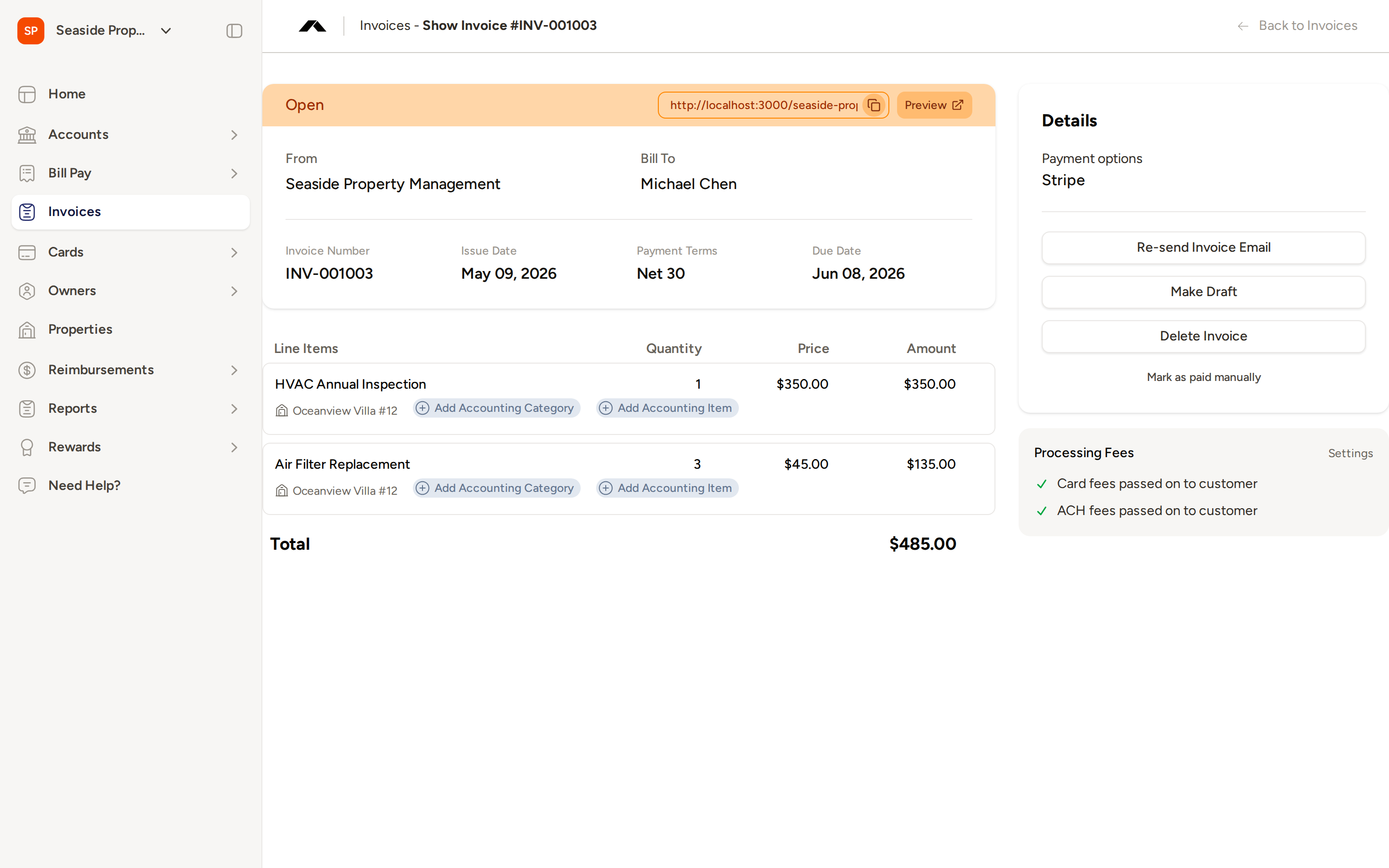
Re-send Invoice Email
If you need to send the invoice to the owner again — for example, if the original email was missed — click Re-send Invoice Email. Topkey will confirm before sending.
The invoice email is sent to the email address on file for the owner. If that address is missing, Topkey will alert you before attempting to send.
Make Draft
Click Make Draft to revert an open invoice back to Draft status. This lets you edit the invoice — for example, to correct a line item or change the due date — before re-issuing it.
Reverting to draft removes the invoice from the owner's payment link. The owner will not be able to pay until you re-issue the invoice. You will be asked to confirm before this action takes effect.
Make Draft is not available on invoices that were generated from a recurring invoice template, as those invoices are managed through the template's schedule.
Mark as Paid
Use Mark as Paid (or Mark as paid manually for invoices with online payment options) to record that payment has been received outside of Topkey — for example, via check or bank transfer.
- If the invoice is set to manual payment, a prominent Mark as Paid button appears in the Details panel.
- If the invoice is set to accept online payment via Stripe, a Mark as paid manually link appears instead. Selecting this will switch the invoice to manual payment and record it as paid. You will be asked to confirm.
Delete Invoice
Click Delete Invoice to permanently remove the invoice. You will be asked to confirm before deletion. Deleted invoices cannot be recovered.
Actions on Paid Invoices
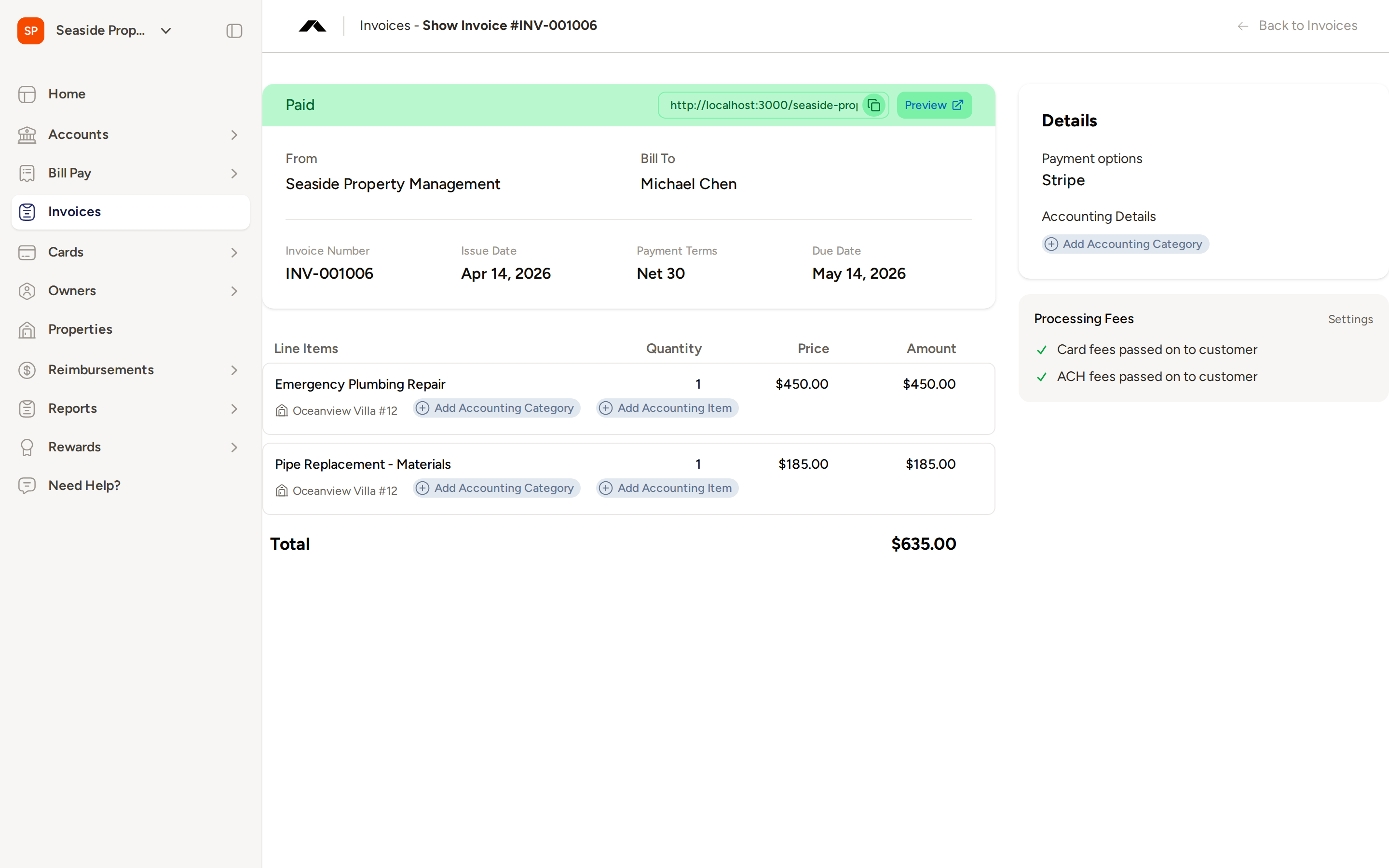
Once an invoice is marked as Paid, the Details panel updates to show payment information and accounting options.
Payment Options
The Payment options field shows how the invoice was paid (for example, Stripe or manual).
Accounting Details
The Accounting Details section lets you assign or update accounting classifications directly from the paid invoice view, without needing to reopen or edit the invoice. Depending on your accounting integration settings, you may be able to set:
- Category
- Location
- Department
- Class
Click any of these fields to select or update the value. Changes are saved immediately.
Keeping accounting details up to date on paid invoices ensures your reporting and exports stay accurate. You can update these fields at any time, even after the invoice has been paid.
Overdue Invoices
If an open invoice is not paid by its due date, Topkey automatically moves it to Overdue status. Overdue invoices appear on the Overdue tab in the invoice list.
Overdue invoices support the same actions as open invoices: you can re-send the invoice email, revert to draft, mark as paid, or delete the invoice.
Editing the Memo After Sending
You can edit the memo on an existing invoice directly from the invoice detail view, even after the invoice has been issued. Click the memo text to edit it inline, then save your changes. This is useful for adding a note or clarification without reverting the invoice to draft.
Updating the End Date on a Recurring Invoice Template
If you have an active recurring invoice template, most fields are locked once the schedule has started. However, you can still update the End Date on the schedule at any time. Open the recurring template, locate the end date field, update it, and save. Only the end date can be changed while the template is active.
Bulk Actions from the Invoice List
You can act on multiple invoices at once from the invoice list without opening each one individually.
Selecting Invoices
Check the checkbox next to each invoice you want to include. You can select as many invoices as needed across the current tab.
Available Bulk Actions
The bulk actions available depend on which tab you are on:
| Action | Draft | Open | Overdue |
|---|---|---|---|
| Mark as Paid | — | ✓ | ✓ |
| Delete | ✓ | ✓ | ✓ |
Select the invoices you want to act on, then choose the appropriate action from the bulk action controls that appear.
Bulk deletion is permanent. Deleted invoices cannot be recovered. Review your selection carefully before confirming.
Audit Trail
Topkey keeps a record of key actions taken on each invoice, including who created it and who made subsequent changes such as issuing, reverting to draft, marking as paid, or re-sending. This history gives you a clear record of invoice activity for your team.
Frequently Asked Questions
Can I edit an invoice after it has been sent to the owner? Yes, but you must first revert it to draft using Make Draft. This removes the owner's payment link until you re-issue the invoice. Note that invoices generated from a recurring template cannot be reverted to draft — you would need to manage those through the template itself. You can, however, edit the memo field on any invoice inline at any time without reverting to draft.
What happens if an owner pays online while I also click Mark as Paid? If an invoice is set to accept Stripe payments, use Mark as paid manually with caution. This action switches the invoice to manual payment and records it as paid. Topkey will prompt you to confirm, so you have a chance to verify the payment status before proceeding.
Can I update accounting categories on an invoice that is already paid? Yes. The Accounting Details section in the Details panel of a paid invoice allows you to set or update the category, location, department, and class at any time. Changes take effect immediately.
For questions not covered here, Contact Support.