Work Orders
Editing a Breezeway Task
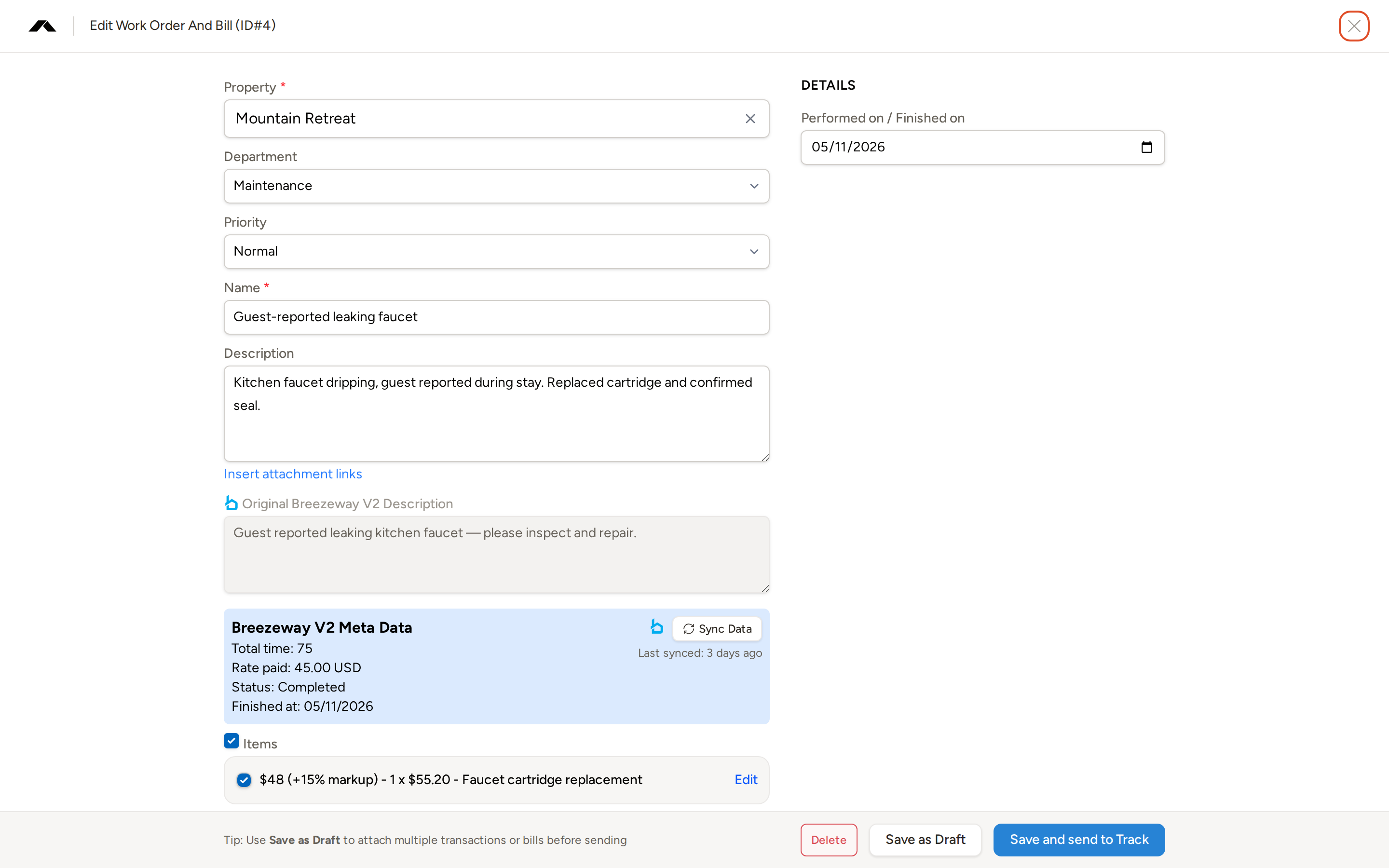
When Topkey receives a completed task from Breezeway, it creates a work order in draft form and surfaces it for your review. Your primary goal is to fill in the required accounting fields — property, vendor, line items, and transaction type — so you can push the work order to your PMS. The edit form combines standard work order fields with Breezeway-specific fields that map to your PMS configuration.
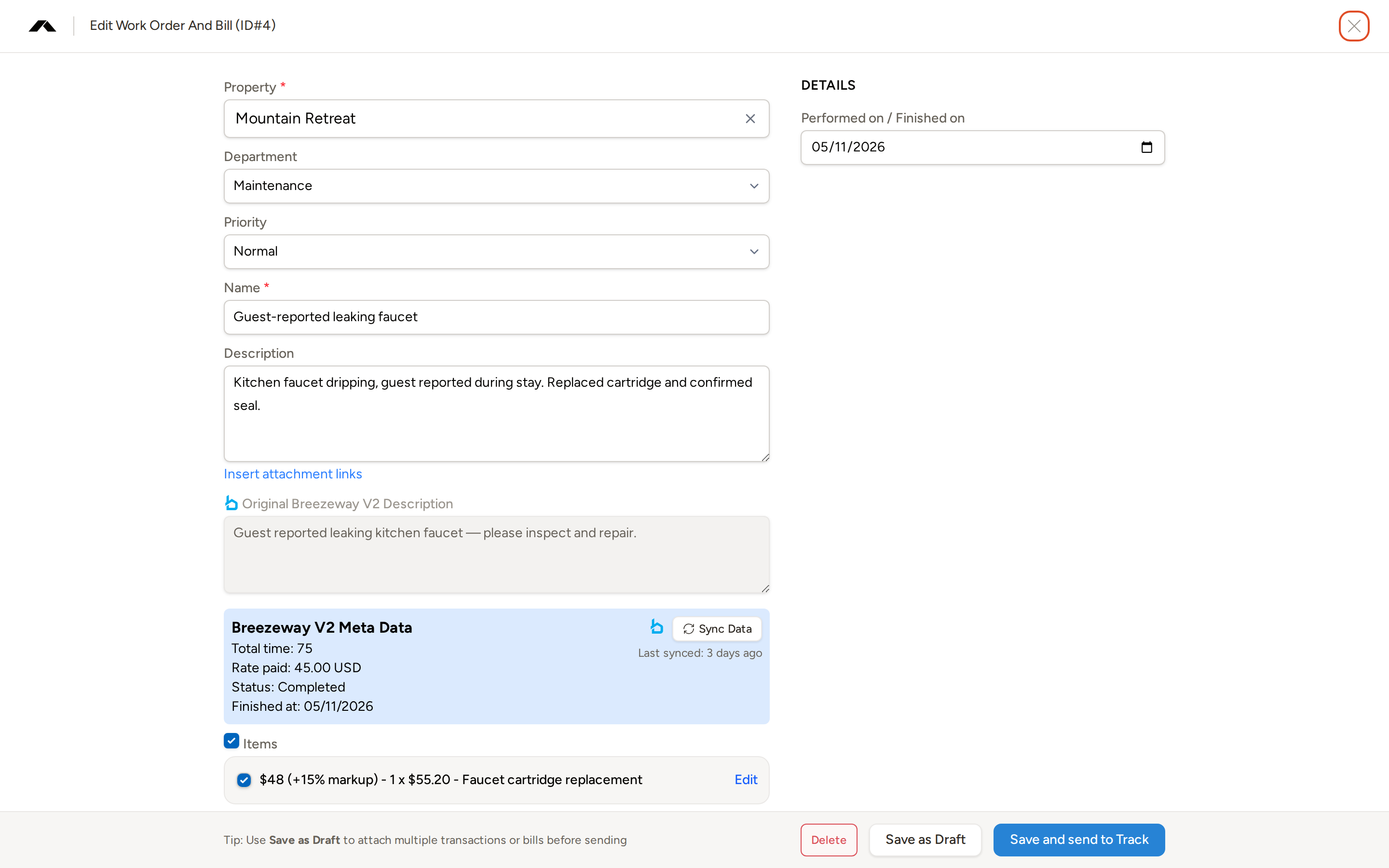
Assign Property
The Property field is required before you can save or send the work order to your PMS. Because the task came from Breezeway, the property list is filtered to show only properties that have already been synced from Breezeway. Type part of a property name to filter the list and select the correct property.
If the property you expect to see is missing, it may not yet be linked to Breezeway in Topkey. Check your Breezeway integration settings to confirm that property has been synced.
Department and Priority
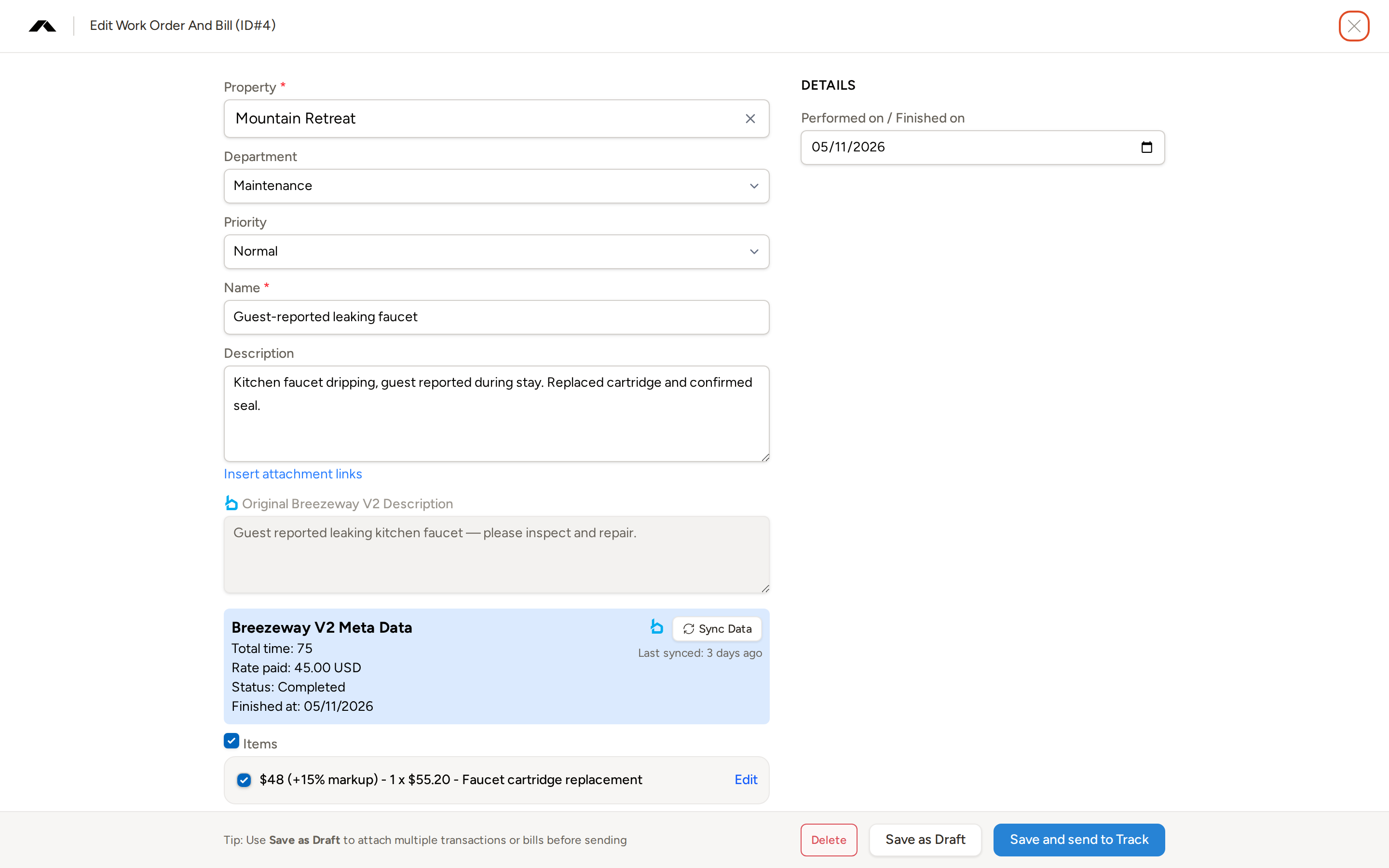
The Department and Priority fields map directly to Breezeway's department and priority values for the task. Select the appropriate department (for example, "Maintenance") and priority level (for example, "Normal") from each list. These values flow into Topkey's reporting and help categorize the work order consistently with how the task was classified in Breezeway.
Charge Type
Charge Type is only available for certain PMS configurations (for example, Track/Streamline). If you do not see this field, it does not apply to your connected PMS.
For accounts where it is enabled, Charge Type controls how the expense is classified when the work order is posted to your PMS. Select the appropriate charge type from the list. This value is saved alongside the work order and sent to your PMS during the sync.
Name
The Name field contains the task title as it was created in Breezeway. You can edit this title in Topkey — for example, to add more context before the work order is posted to your PMS. Changes you make here do not push back to Breezeway.
Description
The Description field is an editable text area where you can add or update notes about the work performed. Below the editable description, a read-only section labeled Original Breezeway Description shows the task description exactly as it was written in Breezeway at the time of the last sync. This gives you a clear reference point so you can see what the crew recorded in the field without losing that context when you update the description in Topkey.
Changes you make to the Description in Topkey do not push back to Breezeway. The original Breezeway description is preserved below for reference.
If your PMS supports inserting attachment links into the description, an Insert attachment links option appears below the description field. This feature is PMS-specific and may not be available for all integrations.
Breezeway Data
The Breezeway Meta Data panel is a read-only block that shows key information pulled directly from Breezeway for this task:
- Task ID — a clickable link that opens the task directly in the Breezeway app
- Total time — the total labor time logged on the task in Breezeway
- Rate paid — the pay rate recorded in Breezeway for the task
- Status — the task's status as reported by Breezeway (for example, "Completed")
- Finished at — the date and time the task was marked finished in Breezeway
The panel also shows when the data was last synced from Breezeway (for example, "Last synced: 3 days ago").
Syncing the latest data from Breezeway
If Breezeway has updated the task since your last sync, a warning banner appears at the top of the form letting you know the task data is out of sync. Click Sync from Breezeway to pull the latest task details into Topkey before making further edits.
Always sync before editing if the task was recently updated in Breezeway — this ensures your line items and labor data reflect the most current information.
Adding Lines
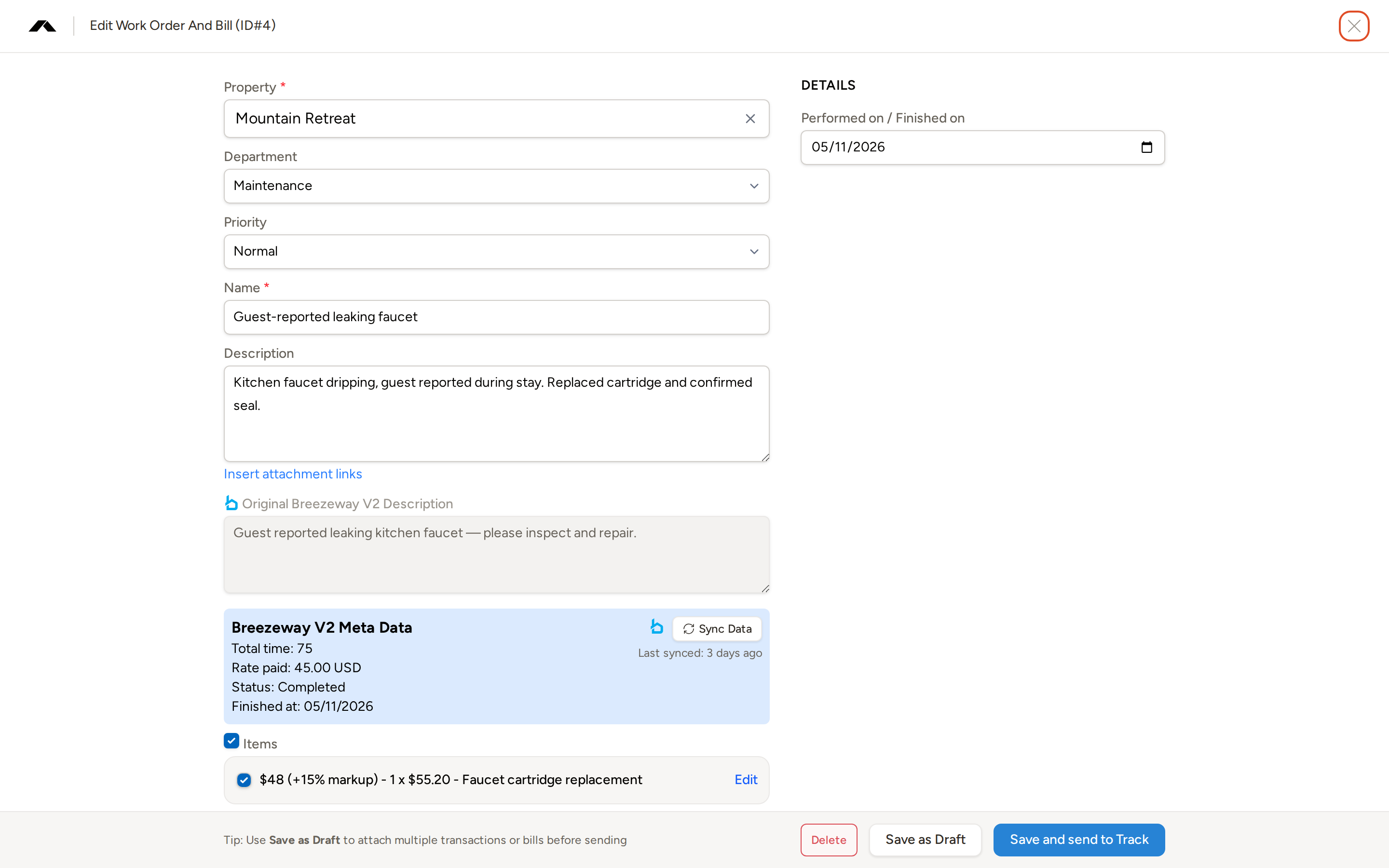
The Items section lists the individual charges that make up this work order. When Topkey first syncs a Breezeway task, it automatically creates a line item from Breezeway's labor-time entry, so you will typically see at least one line already populated.
Each line item has a type:
- Part / Cost — captures a description and a flat amount (for example, a replacement part or supply)
- Labor — captures an hourly rate, labor time in hours, and labor time in minutes instead of a flat amount
The Part / Cost and Labor type options are shown when the work order is connected to a PMS that supports them (such as Streamline), or when the work order already contains a labor-type line. If you only see a single line type, your PMS configuration may not distinguish between cost and labor lines.
You can add additional lines, edit existing lines, or remove lines that do not apply. The running total of all line items is displayed at the bottom of the Items section.
Markups
Markups are applied automatically based on a three-level resolution order: first, any markup configured for the specific expense category on the property; then the property's default markup; and finally, the account-wide default markup. The markup is shown alongside each line item and is included in the total sent to your PMS.
Transaction Type
Transaction Type controls which internal account posts the expense. This field may be PMS-specific — if you do not see it, your PMS configuration handles expense routing automatically.
Where available, select the option that reflects how this expense should be recorded:
- Owner charge — the cost is billed to the property owner
- Management company expense — the cost is absorbed by your management company
- Trust account expense — the cost is posted against the property's trust account
Selecting the wrong transaction type can affect how the expense appears on owner statements and in your PMS. Confirm the correct routing before sending to your PMS.
Dates
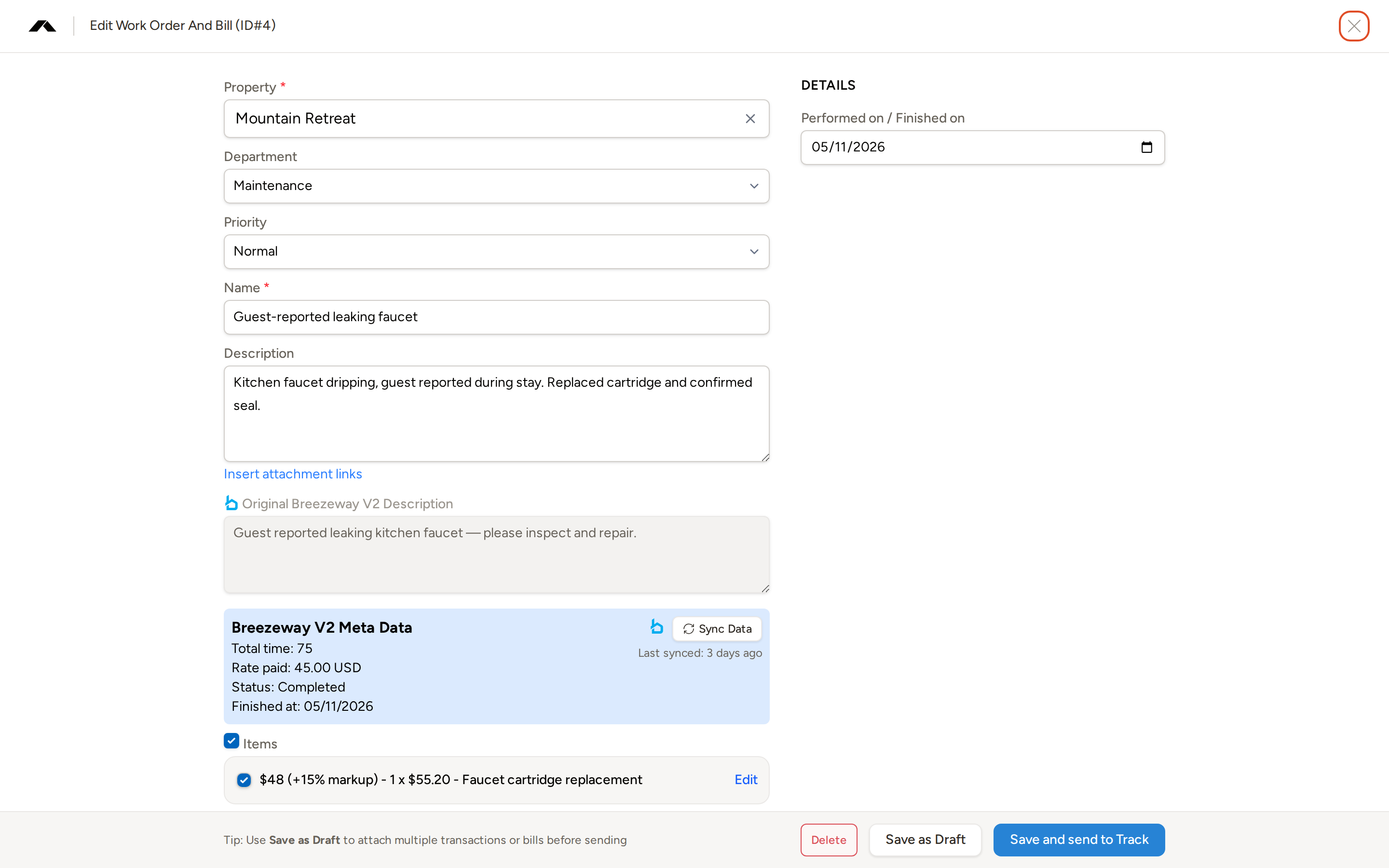
The Performed on / Finished on date field on the right side of the form serves two purposes. You set the Performed on date to record the business date the work was carried out — this is the date that posts to your PMS. Alongside it, Topkey displays the Finished on date pulled from Breezeway, which is the date and time the task was marked complete in Breezeway. Use the Breezeway finished date as a reference when setting the performed-on date if the two differ.
Owner Statement Description
This field is specific to Streamline. If you are not connected to Streamline, this field will not appear on the form.
The Owner Statement Description is the line of text that appears on the property owner's statement for this work order. Enter a clear, concise description that will make sense to the owner when they review their statement (for example, "Plumbing repair — kitchen faucet"). This value is saved with the work order and sent to Streamline when the work order is posted.
Vendor
The Vendor field identifies who performed or billed for the work. Select the vendor from the list. For the work order to post successfully to your PMS, the vendor must exist in both Topkey's vendor list and your connected PMS — a vendor present in only one system cannot be used for posting.
Maintenance Operator
The Maintenance Operator field identifies the specific Breezeway crew member who performed the task. The list is populated from Breezeway's user roster and synced into Topkey. Select the operator who carried out the work. This value is saved on the work order and flows into reporting, giving you visibility into which crew members are generating costs across your properties.
If the correct operator does not appear in the list, their Breezeway user account may not yet be synced. Check your Breezeway integration connection and re-sync if needed.
Work Order Status
Breezeway tasks move through a defined set of statuses as they are reviewed and posted. The table below describes what each status means:
| Status | What it means |
|---|---|
| Draft | The work order has been synced from Breezeway and is waiting for a reviewer to complete the required fields. Most Breezeway tasks start here. |
| Saved | All required fields have been filled in and the work order is ready to be sent to the PMS. |
| Processing | Topkey is actively processing the work order. |
| Generating Owner Charge | An owner charge is being created for this work order. |
| Not Linked | The work order has no attached bills or transactions. |
| Bill Created | A bill has been created for this work order. |
| Paid | The work order has been paid. |
| Closed | The work order is closed and no further changes are expected. |
| Error | An error occurred during processing or PMS sync. Review the error message and correct the issue before retrying. |
Breezeway Comments
A collapsible Breezeway Comments section on the edit form shows any comments that were added to the task in Breezeway. This section is read-only — comments are pulled in from Breezeway for reference and cannot be edited in Topkey.
Receipt Upload
Any photos or PDF receipts that were attached to the task in Breezeway are automatically imported into Topkey and shown in the receipts section. You can also upload additional receipts directly in Topkey. All receipts — whether imported from Breezeway or added in Topkey — are included in the payload sent to your PMS when you sync.
Receipt attachment and supporting-documentation handling during PMS sync is PMS-specific. Confirm with your PMS configuration whether attachments are transferred automatically.
Push to PMS
Once the work order has a property, a vendor, at least one line item, and a transaction type (where required), the Save and Send to PMS button becomes available. Click it to send the complete work order — including all line items, markups, and receipts — to your connected PMS.
Topkey records the date and time the work order was successfully sent so you have a clear audit trail.
Use Save as Draft to save your progress without sending to the PMS. This is useful when you need to attach multiple transactions or bills before the work order is ready to post.
Before clicking Save and Send to PMS, confirm that the vendor exists in both Topkey and your PMS, and that the transaction type and property are correctly set. Errors at this stage will need to be corrected and resubmitted.
Frequently Asked Questions
Why can't I find the property I need in the Property field? The property list for Breezeway tasks is filtered to show only properties that have been synced from Breezeway. If a property is missing, it has not yet been linked to Breezeway in Topkey. Go to your Breezeway integration settings to sync the property, then return to the work order and assign it.
Breezeway updated the task after it was synced to Topkey — how do I get the latest data? If the task data has changed in Breezeway since the last sync, a warning banner appears at the top of the edit form. Click Sync from Breezeway to pull in the latest task details, including any updated line items, labor time, or status changes.
The vendor I need is in Topkey but the work order won't post to my PMS — why? For a work order to post successfully, the vendor must exist in both Topkey and your connected PMS. If the vendor is only in Topkey, create or locate the matching vendor record in your PMS first, then retry sending the work order.